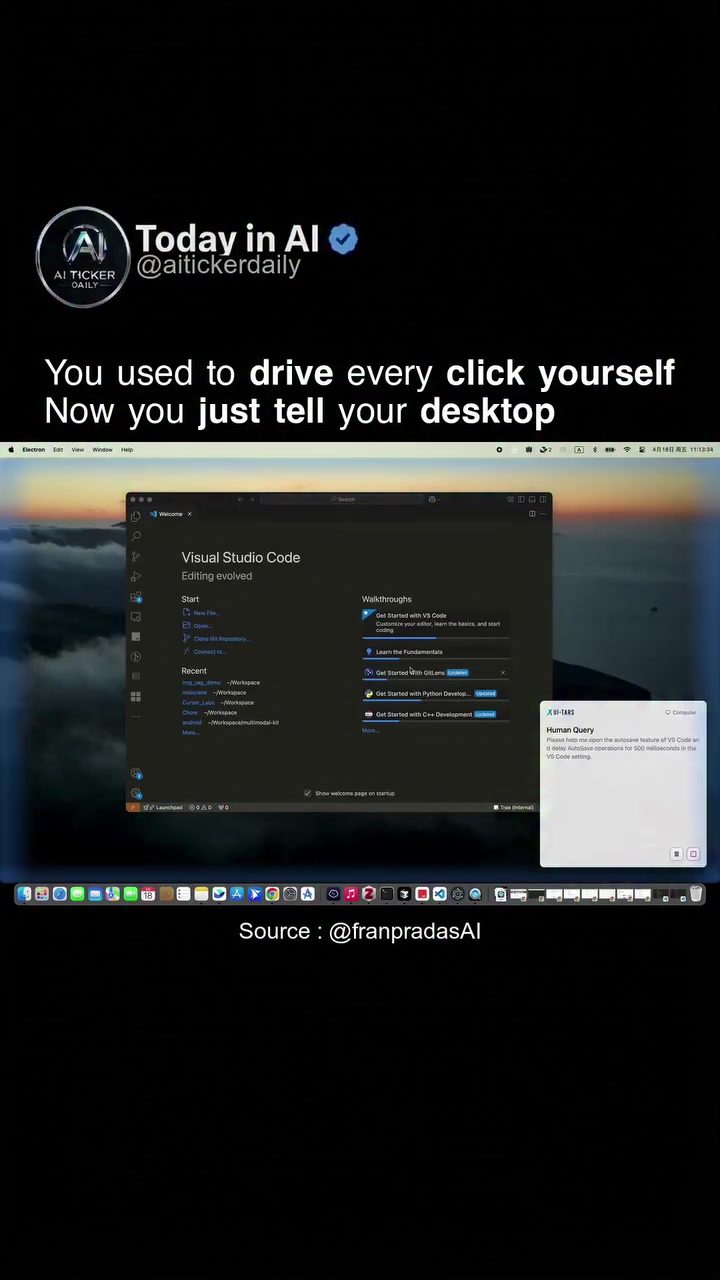
UI-TARS Desktop Automation
UI-TARS Desktop is a cutting-edge, open-source desktop automation software developed by ByteDance. It leverages vision-language models to interpret what's on your screen and execute a variety of actions, such as clicks, typing, scrolling, and shortcuts, all from plain English commands. This powerful tool is designed to automate repetitive tasks, streamline workflows, and enhance productivity across different operating systems, including Windows, macOS, and Linux.
Why This Matters
In today's fast-paced digital environment, efficiency is key. Automating repetitive tasks can save valuable time and reduce the risk of human error. UI-TARS Desktop takes this a step further by offering a local, open-source solution that doesn't require cloud screen uploads after initial setup. This means your data stays secure on your device, addressing privacy concerns that often come with cloud-based automation tools.
Main Discussion
How UI-TARS Desktop Works
UI-TARS Desktop uses vision-language models to understand and interpret what's on your screen. This advanced technology allows the software to execute commands directly from plain English, making it accessible even to those who are not tech-savvy. Whether you need to automate clicks, typing, scrolling, or shortcuts, UI-TARS Desktop can handle it all.
Key Features
Local Processing: One of the standout features of UI-TARS Desktop is its local processing capability. This means that all data processing occurs on your device, ensuring that your screen data is never uploaded to the cloud. This local approach not only enhances security but also reduces latency, making the automation process smoother and more efficient.
Cross-Platform Compatibility: UI-TARS Desktop supports multiple operating systems, including Windows, macOS, and Linux. This cross-platform compatibility allows users to automate tasks regardless of their preferred operating system, making it a versatile tool for a wide range of users.
Vision-Language Models: The software uses advanced vision-language models to interpret what's on your screen. This capability allows UI-TARS Desktop to understand and execute commands based on visual cues and text, making it highly adaptable to different applications and workflows.
Custom Actions and Auto-Save Settings: UI-TARS Desktop allows users to configure custom actions and auto-save settings. This means you can tailor the automation process to fit your specific needs, whether it's automating repetitive tasks, saving progress at regular intervals, or executing complex workflows.
Use Cases
Streamlining Repetitive Workflows: UI-TARS Desktop is ideal for automating repetitive tasks, such as data entry, file organization, and routine administrative tasks. By automating these tasks, users can free up time to focus on more complex and creative work.
Enhancing Productivity: Whether you're a professional, a student, or a hobbyist, UI-TARS Desktop can help you streamline your workflows and enhance your productivity. By automating repetitive tasks, you can complete more work in less time, making your day more efficient and less stressful.
Custom Automation: The software's ability to execute custom actions and auto-save settings allows users to create tailored automation workflows. This means you can automate tasks that are specific to your needs, whether it's a unique data entry process, a complex reporting task, or a custom workflow.
Practical Tips
Getting Started with UI-TARS Desktop
-
Download and Install: Begin by downloading the software from the official GitHub repository. Follow the installation instructions provided for your specific operating system.
-
Initial Setup: During the initial setup, you'll need to configure the software to access your screen and drive your mouse and keyboard. This step is crucial for ensuring that the software can perform the necessary actions.
-
Configure Auto-Save Settings: Once installed, configure the auto-save settings to ensure that your progress is saved at regular intervals. This can help prevent data loss and ensure that your work is always up to date.
-
Define Custom Actions: Take advantage of the software's ability to define custom actions. This allows you to automate tasks that are specific to your needs, making the automation process more efficient and tailored to your workflow.
-
Test and Audit: Before relying on the software for critical tasks, test it thoroughly in a safe environment. Audit the repository to understand the security measures in place and ensure that the software is reliable and secure.
Best Practices
Security and Reliability: Treat the initial demo-level safety and reliability as a starting point. Audit the repository and run the software on real workflows to ensure that it meets your safety and reliability standards. Full desktop control is powerful and risky, so proceed with caution.
Local Processing Advantage: Leverage the local processing capability to ensure that your data stays secure on your device. This approach not only enhances security but also reduces latency, making the automation process smoother and more efficient.
Community and Support: Engage with the community and support channels to stay updated on the latest features, bug fixes, and best practices. The open-source nature of the software means that there is a wealth of knowledge and support available from fellow users and developers.
Important Takeaways
Local Processing: The local processing capability of UI-TARS Desktop ensures that all data processing occurs on your device, enhancing security and reducing latency.
Cross-Platform Compatibility: The software supports multiple operating systems, making it a versatile tool for a wide range of users.
Vision-Language Models: The use of advanced vision-language models allows UI-TARS Desktop to interpret and execute commands based on visual cues and text, making it highly adaptable to different applications and workflows.
Custom Automation: The ability to define custom actions and auto-save settings allows users to create tailored automation workflows, enhancing productivity and efficiency.
Conclusion
UI-TARS Desktop is a powerful, open-source desktop automation tool that leverages vision-language models to automate repetitive tasks and streamline workflows. With its local processing capability, cross-platform compatibility, and advanced features, it offers a versatile and secure solution for enhancing productivity. By following best practices and engaging with the community, users can unlock the full potential of UI-TARS Desktop and transform their workflows.
Related deep dives
Similar reads based on topic and creator.




Recent articles
Fresh deep dives from the latest Reels we unpacked.




Comments
Be the first to comment.