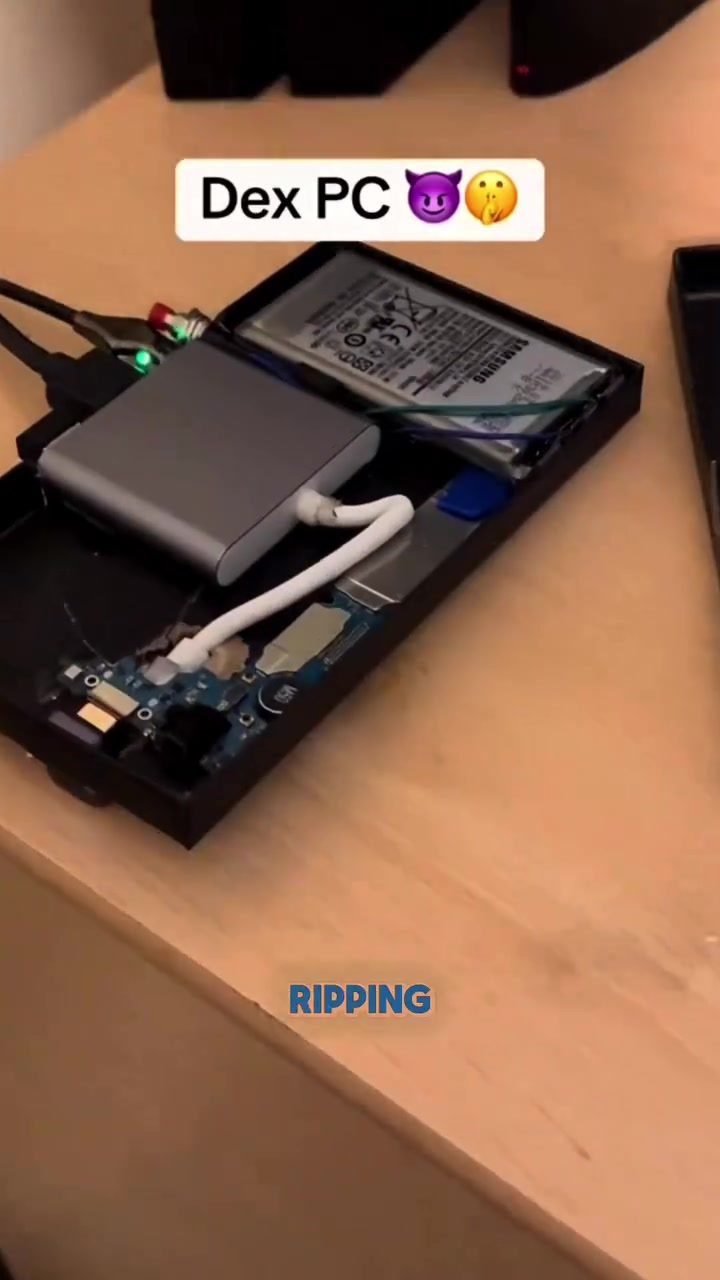
The Versatility of Samsung's DeX Mode: Turning Phones into Mini PCs
Samsung's DeX mode has sparked a lot of interest, especially among tech enthusiasts who are curious about turning their smartphones into mini PCs. This feature allows users to connect their Samsung phones to a monitor, keyboard, and mouse, transforming the device into a fully functional computer interface. The possibilities are vast, from productivity tasks to gaming. Let's dive into what DeX mode is, how it works, and what you can do with it.
Why This Matters
In an era where smartphones are becoming more powerful, DeX mode represents a significant step towards maximizing their potential. By leveraging your phone's capabilities, you can have a portable, versatile computing experience that adapts to various needs. Whether you're a student, professional, or gamer, understanding how to use DeX mode can enhance your productivity and entertainment options.
Understanding Samsung DeX
What is DeX Mode?
DeX, or Desktop Experience, is a feature available on select Samsung Galaxy smartphones. It allows users to connect their phones to an external display, keyboard, and mouse, turning the phone into a desktop-like computing environment. This mode enables users to run multiple apps in a windowed interface, much like a traditional PC.
Compatible Devices
DeX mode is available on various Samsung Galaxy devices, including the Galaxy S25 Ultra. To use DeX, you'll need a compatible Samsung phone, a monitor or TV with an HDMI input, and a USB-C to HDMI cable or a Samsung DeX Station.
Setting Up DeX
Setting up DeX mode is straightforward. Here’s a step-by-step guide:
-
Connect Your Phone to a Monitor: Use a USB-C to HDMI cable to connect your Samsung phone to a monitor or TV. Ensure the monitor is set to the correct HDMI input.
-
Connect Peripherals: Attach a keyboard and mouse to your phone via USB or Bluetooth.
-
Enable DeX Mode: Once connected, your phone should automatically switch to DeX mode. If it doesn't, you can manually enable it by swiping down from the top of the screen and selecting the DeX option.
Exploring DeX Mode
Productivity on DeX
DeX mode is incredibly useful for productivity tasks. You can open multiple apps in a windowed interface, similar to a desktop operating system. This setup is perfect for multitasking, whether you're working on documents, browsing the web, or managing emails.
Gaming on DeX
One of the most exciting aspects of DeX mode is its gaming capabilities. You can play mobile games on a larger screen with a keyboard and mouse, enhancing the gaming experience. Popular mobile games like Free Fire can be played in a PC-like setup, offering a unique way to enjoy your favorite titles.
Multimedia on DeX
DeX mode is also great for multimedia purposes. You can stream movies, watch videos, or listen to music on a larger screen, making it an excellent option for entertainment. The windowed interface allows you to have multiple media players open, so you can switch between different content effortlessly.
Practical Tips for Using DeX
Optimizing Performance
To get the best performance out of DeX mode, ensure your phone is connected to a stable internet connection and has sufficient storage space. Closing unnecessary apps and background processes can also help improve performance.
Customizing Your Setup
DeX mode allows for customization, so you can personalize your workspace. Adjust the resolution of your monitor to match your phone’s capability, and use a multi-port adapter or dock to connect multiple peripherals seamlessly.
Troubleshooting Common Issues
If you encounter issues with DeX mode, try the following:
- Check Connections: Ensure all cables and peripherals are securely connected.
- Update Software: Make sure your phone’s software is up to date.
- Restart Devices: Sometimes, a simple restart of your phone and monitor can resolve connectivity issues.
Enhancing Gaming
To enhance your gaming experience, consider using a gaming mouse and keyboard. This can significantly improve your control and responsiveness in games, making the experience more enjoyable.
Important Takeaways
- Versatility: DeX mode transforms your Samsung phone into a versatile computing device, suitable for productivity, gaming, and entertainment.
- Ease of Use: Setting up DeX mode is straightforward, making it accessible for users of all experience levels.
- Customization: The ability to customize your workspace and peripherals enhances the overall user experience.
Conclusion
Samsung's DeX mode is a powerful feature that turns your smartphone into a mini PC, offering a range of possibilities from productivity to gaming. By understanding how to set up and optimize DeX mode, you can unlock new ways to use your Samsung phone, making your tech experience more efficient and enjoyable. Whether you're a professional looking to boost productivity or a gamer seeking a better experience, DeX mode has something to offer.
Questions readers ask
What devices are compatible with Samsung DeX mode?
DeX mode is compatible with a range of Samsung Galaxy devices. Generally, smartphones released after the Galaxy S8 and most recent Galaxy Note, Galaxy A, and Galaxy Z series models support this feature. To confirm compatibility, check Samsung's official DeX support page for the most accurate and up-to-date information.
How do I set up Samsung DeX with an external monitor?
To set up DeX with an external monitor, you can use an HDMI adapter or a USB-C to HDMI cable. Connect your compatible Samsung phone to the monitor using the cable, then select the appropriate input source on your monitor. Once connected, your phone should automatically enter DeX mode, providing a desktop-like interface on the larger screen.
Can I use any keyboard and mouse with Samsung DeX?
Yes, DeX mode supports a wide range of keyboards and mice. You can use wireless or wired peripherals as long as they support Bluetooth or have a USB connection. Simply pair your keyboard and mouse with your phone via Bluetooth or connect them via USB to start using them with DeX mode.
What are some productive tasks I can accomplish with Samsung DeX?
With DeX mode, you can multitask efficiently by opening multiple apps in separate windows, similar to a traditional desktop environment. This allows you to work on documents, send emails, and manage projects seamlessly. Additionally, you can use productivity tools like Microsoft Office, Google Workspace, and other compatible applications.
Is Samsung DeX useful for gaming?
Yes, Samsung DeX can enhance your gaming experience. By connecting your phone to a larger monitor, you can enjoy games with better visuals and more immersive gameplay. Additionally, using a keyboard and mouse can provide more precise control for certain types of games, making DeX a versatile tool for gamers. Some popular games that support DeX include Fortnite, PUBG Mobile, and Call of Duty Mobile.
Can students benefit from using Samsung DeX?
Absolutely, students can take advantage of DeX mode for various tasks. It allows for efficient multitasking, making it easier to manage assignments, take notes, and conduct research. Additionally, DeX mode supports a range of productivity and learning apps, making it a handy tool for both academic and personal use. Students can connect their phones to a monitor and peripherals to create a portable study setup.
Related deep dives
Similar reads based on topic and creator.




Recent articles
Fresh deep dives from the latest Reels we unpacked.




Comments
Be the first to comment.