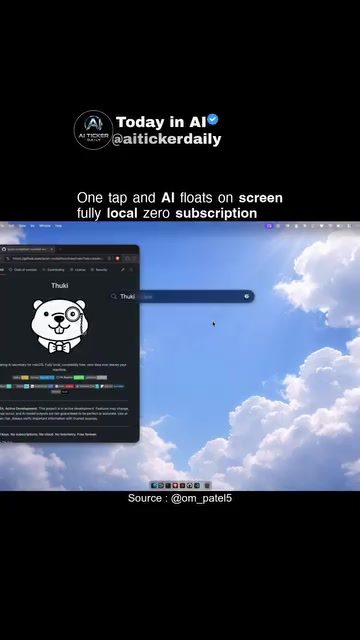
Thuki: A Free On-Screen AI Assistant
Thuki is a free on-screen AI assistant designed to enhance productivity by integrating seamlessly with any application. It offers a unique feature: with a simple shortcut, you can invoke the AI assistant to float over any app, providing quick context actions and help without leaving your current window. This is particularly useful in fullscreen workflows, where switching between windows can be disruptive.
Context / Why This Matters
In an era dominated by multitasking and complex workflows, tools that streamline processes and reduce interruptions are invaluable. Thuki addresses this need by offering an always-available AI assistant that integrates directly into your workflow. This can save time, reduce context-switching, and enhance overall productivity. Moreover, the software is free and runs fully local on your machine, eliminating the need for subscriptions and ensuring privacy and speed.
Main Discussion
Seamless Integration
Thuki's ability to pop over any application with a shortcut is one of its standout features. This means you can get AI assistance without interrupting your current task. For instance, if you're working on a document in a word processor and need to look up a term, you can invoke Thuki, get the information, and return to your document without switching windows. This seamless integration makes Thuki a powerful tool for anyone looking to boost their efficiency.
Local and Subscription-Free
Thuki runs fully local on your machine, which means all computations and data processing happen on your device. This is a significant advantage for those concerned about data privacy and security. Additionally, the fact that Thuki is a local application frees it from the need for a subscription. This makes it not only cost-effective but also more reliable, as it does not depend on an internet connection.
Quick Context Actions
One of the key strengths of Thuki is its ability to perform quick context actions. For example, you can select a block of text and invoke Thuki to get help, translations, or summaries without leaving the application you are working in. This feature is particularly useful for activities that require frequent reference checks or information lookups, such as writing, coding, or studying.
Fullscreen Workflows
Thuki's design is also advantageous for fullscreen workflows. Many productivity applications operate in fullscreen mode to provide a distraction-free environment. However, this also means that accessing other tools or information can be disruptive. With Thuki, you can bring up the AI assistant directly in the fullscreen mode, access the information you need, and carry on with your work seamlessly. This feature is particularly beneficial for tasks that require extensive focus and minimal interruptions.
Practical Tips
Customizing Shortcuts
To get the most out of Thuki, take the time to customize your shortcuts. This allows you to invoke the AI assistant quickly and efficiently, without disrupting your workflow. Consider setting up shortcuts that are easy to remember and use, but not so common that they interfere with other applications.
Exploring AI Functions
Thuki offers a variety of context actions, from text translation to summarization and more. Spend some time exploring these functions to understand their full potential. This can help you integrate Thuki more deeply into your workflow and take full advantage of its capabilities.
Navigation and Accessibility
Ensure that Thuki is easily accessible from your primary work environment. Positioning it in a way that it doesn't cover important parts of your workspace and doesn't hinder navigation is crucial. This will ensure a smooth experience and prevent any unnecessary interruptions.
Regular Updates
Software applications are constantly evolving with new features and improvements. Regularly check for updates to Thuki to make sure you are getting the latest improvements. The developers regularly update the project, and keeping your software up to date will ensure you have access to the latest features and security updates.
Important Takeaways
Thuki offers several key benefits:
- Local and Subscription-Free: No data leaves your machine, and no subscription fees are required.
- Seamless Integration: Easily floats over any app with a shortcut.
- Quick Context Actions: Perform tasks directly within the application you are using.
Using Thuki can significantly enhance productivity and efficiency, making it an excellent choice for those who value a streamlined and efficient workflow. The integration of AI directly into your applications provides a level of assistance that is both powerful and accessible.
Conclusion
Thuki represents a leap forward in AI-powered productivity tools. Its ability to float over any app, perform quick context actions, and operate fully local on your machine makes it a versatile and powerful assistant. Whether you're a student, a professional, or anyone looking to boost their productivity, Thuki offers a range of features that can make a significant difference in your workflow. Give it a try and experience the future of on-screen AI assistance.
Questions readers ask
What is Thuki and how does it differ from other AI assistants?
Thuki is a free, local AI assistant that stands out by integrating directly into your workflow. Unlike other AI assistants, Thuki floats over any application with a simple shortcut, providing instant help without requiring you to switch windows or disrupt your current task.
How does Thuki enhance productivity for multitaskers?
Thuki enhances productivity by reducing the need for constant window switching. Its floating interface allows you to access AI help instantly, making it particularly useful for fullscreen workflows and complex multitasking scenarios.
Can I try Thuki before committing to it?
Yes, Thuki offers a demo, allowing you to test its functionality to see if it meets your needs. This can be a valuable step to ensure Thuki aligns with your workflow and productivity goals.
What are the system requirements for running Thuki?
Since Thuki is a local AI tool, its requirements will vary. However, you can generally expect it to run on most modern desktops. For specific details, you can review the Thuki AI demo or its official documentation.
How do AI shortcuts work in Thuki?
AI shortcuts in Thuki are designed for quick access. With a simple key combination, you can invoke the AI assistant to float over your current application, providing context-specific actions and help. This minimizes disruptions and keeps your workflow seamless.
Can Thuki integrate with any application?
Yes, Thuki is designed to integrate with any application on your desktop. Its floating widget can appear over any app, allowing you to access AI assistance without leaving your current task. This makes it a versatile tool for various workflows.
How does Thuki's task management feature help in daily workflows?
Thuki's task management feature enhances daily workflows by providing quick access to contextual actions and help. This means you can manage tasks more efficiently, reducing interruptions and helping you stay focused on your primary task.
Related deep dives
Similar reads based on topic and creator.




Recent articles
Fresh deep dives from the latest Reels we unpacked.




Comments
Be the first to comment.