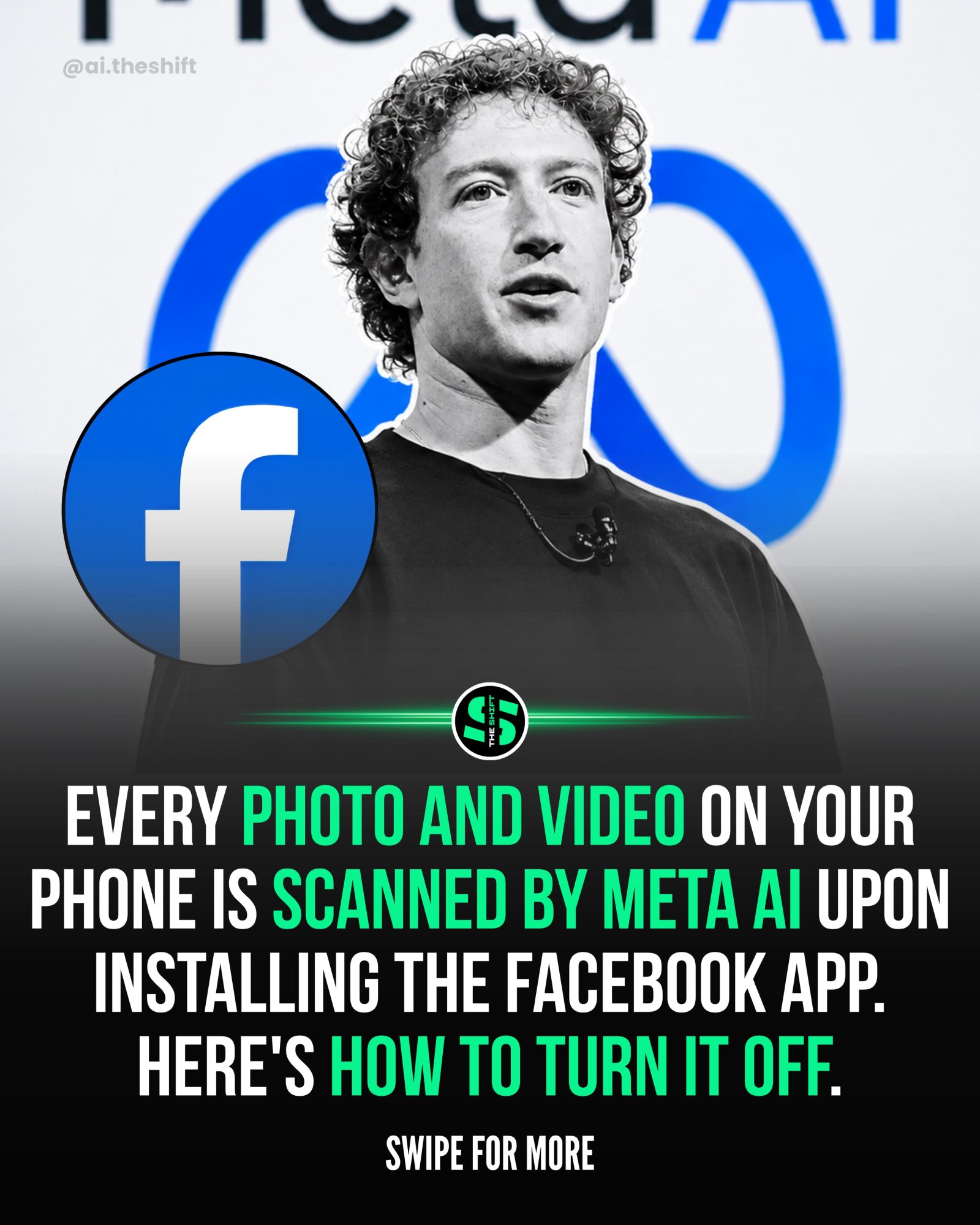
Facebook's Photo Scanning and How to Turn it Off
Privacy concerns surrounding social media platforms, particularly Facebook, continually evolve. One of the most alarming issues is the scanning of photos and videos by Meta AI upon app installation. This practice raises numerous questions about data privacy and user control over personal content. It is crucial for users to understand how to manage these settings and limit access to their personal media.
Why This Matters
Facebook’s scanning of photos and videos involves Meta AI analyzing every image and video on a user’s phone when the app is installed. This scanning can occur in the background without explicit user consent, leading to potential privacy breaches. Users who are concerned about their digital privacy should be aware of these practices and take proactive steps to restrict Facebook’s access to their media.
Managing Facebook's Access to Your Photos and Videos
Understanding the Scanning Process
When you install the Facebook app, Meta AI begins scanning every photo and video on your phone. This process is automated and happens in the background, often without users being fully aware. The primary purpose of this scanning is to improve Facebook’s functionalities, such as tag suggestions and content recommendations. However, many users may feel uncomfortable with their personal media being analyzed without explicit permission.
Disabling Camera Roll Sharing
To prevent Facebook from accessing your camera roll, you can disable the Camera Roll Sharing feature. This can be done through the app’s settings:
-
Navigate to Settings & Privacy: Open the Facebook app and go to the menu by tapping the three horizontal lines in the top-right corner. Select "Settings & Privacy" from the dropdown menu.
-
Access Camera Roll Sharing: Within the Settings & Privacy menu, tap on "Settings" and then "Media and Contacts."
-
Turn Off Camera Roll Sharing: Under the "Camera Roll Sharing" section, select "Camera Roll Sharing Suggestions" and toggle the switch to turn it off. This action stops Facebook AI from accessing your camera roll, providing an additional layer of privacy.
Blocking Phone-Level Access
Disabling app-level settings is essential, but it’s often not enough. To ensure comprehensive control, you should block Facebook’s permissions directly through your phone’s settings:
-
Phone Permissions: Navigate to your phone’s settings and locate the "Apps" or "Applications" section. Find Facebook in the list and tap on it.
-
Photos and Media Access: Within the Facebook app permissions, find the "Photos" or "Media" section. Adjust the settings to "Never" or "Ask Every Time." This prevents Facebook from accessing all photos and videos on your device.
-
Microphone and Location: Similarly, adjust the microphone and location permissions to "Never" or "Ask Every Time." This cuts off Facebook’s remaining background access, ensuring that the app does not use location or audio data without your explicit consent.
Practical Tips
Regular Permission Check-Ups
A proactive approach to managing app permissions involves regular check-ups. Dedicate a few minutes every few months to review which apps have access to your photos, videos, and other sensitive data. This practice ensures that you maintain control over your privacy and can quickly address any unauthorized access.
Customizing App Permissions
Customizing app permissions is crucial for maintaining privacy. When installing new apps, carefully review the permissions they request and only grant necessary access. For existing apps, regularly update permissions to reflect your current comfort levels and privacy needs.
Using Privacy-Focused Alternatives
For users who are highly concerned about privacy, exploring privacy-focused alternatives to mainstream social media platforms can be beneficial. These alternatives often prioritize user privacy and offer more control over data sharing and access.
Important Takeaways
-
Meta AI Scans: Understand that Meta AI scans photos and videos upon app installation, which can infringe on user privacy.
-
Disable Camera Roll Sharing: Use Facebook’s settings to disable camera roll sharing to prevent constant scanning.
-
Block Phone-Level Access: Adjust your phone’s permissions to block Facebook’s access to sensitive data like photos, videos, and location.
-
Regular Reviews: Conduct regular reviews of app permissions to ensure that only necessary access is granted.
-
Customize Settings: Tailor app permissions to suit your privacy needs, granting only the minimum necessary access for functionality.
Conclusion
Protecting your digital privacy in an era of pervasive data collection is essential. By managing Facebook’s access to your photos and videos, you can regain control over your personal media and ensure that your data is used responsibly. Regularly reviewing and adjusting app permissions, along with utilizing privacy-focused alternatives, can significantly enhance your digital privacy.
Questions readers ask
What is Facebook photo scanning and why should I be concerned?
Facebook photo scanning refers to Meta AI analyzing photos and videos on your device. This process can occur without explicit consent, raising concerns about potential privacy breaches and unauthorized access to personal media. It's important to be aware of this feature to maintain control over your personal content.
How can I tell if Facebook is scanning my photos?
Facebook's photo scanning typically occurs in the background, so users might not notice it. However, you can check your app permissions to see if Facebook has access to your camera and photos. If you're unsure, it's best to review your privacy settings and adjust them accordingly.
Can I disable Facebook photo scanning on my device?
Yes, you can disable Facebook photo scanning by adjusting your app permissions. On both iOS and Android devices, you can go to your settings, select the Facebook app, and revoke camera and photo access. This will prevent Facebook from scanning your photos and videos.
What happens if I turn off Facebook's access to my camera roll?
Turning off Facebook's access to your camera roll will prevent the app from scanning your photos and videos. However, you may need to manually upload photos and videos to share on the platform. This action ensures that your personal media remains private and is not analyzed by Meta AI.
Does disabling photo scanning affect my ability to use Facebook?
Disabling photo scanning will not significantly impact your ability to use Facebook. You can still browse your feed, post updates, and interact with friends. The main difference is that you'll need to manually upload photos and videos when you want to share them, rather than having them automatically scanned and analyzed.
Can I control which photos Facebook scans?
There is no feature that allows you to selectively choose which photos Facebook scans. The app either has full access to your camera roll or none at all. By disabling photo access, you ensure that no photos are scanned, providing better control over your privacy.
What other permissions should I check to enhance my privacy on Facebook?
In addition to photo and camera access, you should review other permissions such as location access. Denying location access can prevent Facebook from tracking your whereabouts. Regularly reviewing and adjusting your app permissions helps maintain your privacy and control over your personal data.
Related deep dives
Similar reads based on topic and creator.




Recent articles
Fresh deep dives from the latest Reels we unpacked.




Comments
Be the first to comment.