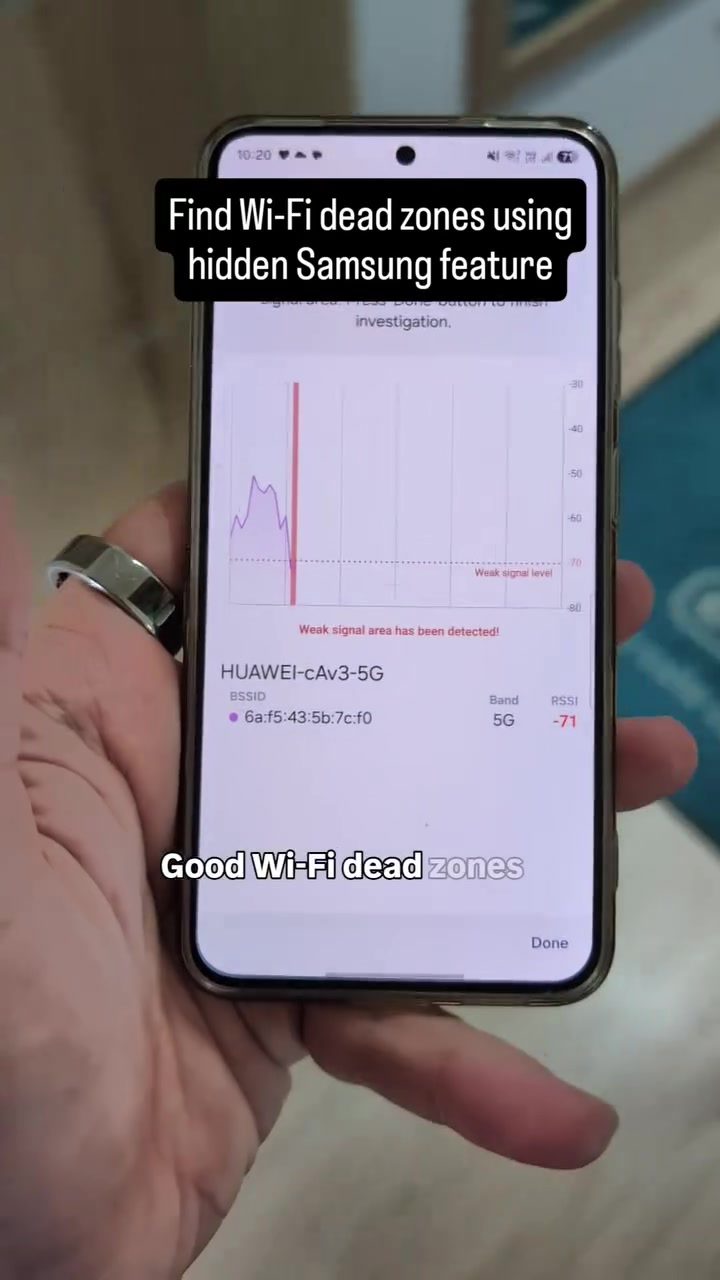
Finding Wi-Fi Dead Zones with Your Samsung Phone
Wi-Fi dead zones in your home can be a frustrating problem, but Samsung Galaxy phones have a hidden feature to help identify these areas. This built-in tool, known as Connectivity Labs, allows you to analyze your home's Wi-Fi signal strength without needing any third-party apps. Let's dive into how this feature works and how to use it effectively.
Why This Matters
Understanding and identifying Wi-Fi dead zones can significantly improve your home network's performance. Weak signal areas can cause slow internet speeds, dropped connections, and overall poor performance. By pinpointing these problem spots, you can take steps to enhance your Wi-Fi coverage and ensure a more reliable connection throughout your home.
Understanding the Connectivity Labs Feature
Accessing the Hidden Menu
To unlock this powerful feature, you need to follow a specific series of steps. Start by navigating to the Settings menu on your Samsung Galaxy phone. From there:
- Go to Connections.
- Select Wi-Fi.
- Tap on the three dots in the top right corner.
- Select Intelligent Wi-Fi.
- Tap the version number in the Intelligent Wi-Fi settings five times. This will unlock the hidden Connectivity Labs menu.
Using the Connectivity Labs
Once you've accessed the Connectivity Labs, you can see various network information, including signal strength and unchecked Wi-Fi networks you've connected to in the past. The key feature here is the Home Wi-Fi Inspection mode. This mode allows you to:
- Choose your Wi-Fi network.
- Walk around your home while your phone measures the signal strength.
- Identify weak spots where the signal drops below a certain threshold, typically around -70 dBm, which Samsung marks as a dead zone.
Practical Tips for Improving Wi-Fi Coverage
Moving Your Router
One of the simplest solutions to improve Wi-Fi coverage is to move your router to a more central location in your home. This can help distribute the signal more evenly and reduce the number of dead zones.
Switching Wi-Fi Channels
If your Wi-Fi network is experiencing interference from other nearby networks, switching to a less crowded channel can make a significant difference. The Connectivity Labs feature can help you identify crowded Wi-Fi channels, allowing you to make an informed decision about which channel to use.
Adding a Mesh System or Wi-Fi Extender
For larger homes or areas with particularly weak signals, adding a mesh system or Wi-Fi extender can be a game-changer. These devices help extend the reach of your Wi-Fi network, ensuring that every corner of your home has a strong, reliable signal.
Other Network Information
In addition to identifying dead zones, the Connectivity Labs feature can provide valuable insights into your network's health. It can show you:
- Crowded Wi-Fi channels:
- Nearby networks: This can help you identify potential sources of interference.
- Unsecured networks: Ensuring your network is secure is crucial for protecting your data and devices.
Important Takeaways
- Hidden Feature: Samsung Galaxy phones have a hidden feature called Connectivity Labs that can help you identify Wi-Fi dead zones.
- Signal Strength: The Home Wi-Fi Inspection mode measures signal strength as you walk around your home, marking weak spots.
- Network Diagnostics: The feature provides detailed connection diagnostics, including crowded Wi-Fi channels, nearby networks, and unsecured networks.
- Improvement Steps: To improve Wi-Fi coverage, consider moving your router, switching Wi-Fi channels, or adding a mesh system or Wi-Fi extender.
Conclusion
By utilizing the hidden Connectivity Labs feature on your Samsung Galaxy phone, you can take control of your home's Wi-Fi performance. Identifying and addressing dead zones can lead to a more reliable and efficient network, enhancing your overall internet experience. Whether you opt to move your router, switch channels, or invest in additional hardware, taking these steps can make a noticeable difference in your home's Wi-Fi coverage.
Questions readers ask
What is the Connectivity Labs tool on Samsung Galaxy phones?
The Connectivity Labs tool is a built-in feature on Samsung Galaxy phones designed to help users analyze their home Wi-Fi signal strength. It enables users to identify weak signal areas and Wi-Fi dead zones, allowing for better network management and improved connectivity.
How can I access the Connectivity Labs tool on my Samsung phone?
To access the Connectivity Labs tool, open the Samsung Max app on your Galaxy phone and navigate to the Connectivity Labs section within the settings. This app provides tools to measure Wi-Fi signal strength and map out areas where the signal is weak or non-existent.
What are Wi-Fi dead zones and why should I care about them?
Wi-Fi dead zones are areas in your home where the Wi-Fi signal is weak or non-existent, leading to slow internet speeds and dropped connections. Identifying these zones can help you optimize your network by adjusting your router's placement, using Wi-Fi extenders, or upgrading your network equipment.
Can I use the Connectivity Labs tool to map out my entire home network?
Yes, the Connectivity Labs tool allows you to create a Wi-Fi dead zones map of your entire home. By walking around your house with your Samsung phone, you can visualize the signal strength in different areas, helping you pinpoint where improvements are needed.
Do I need to install any additional apps to use the Connectivity Labs tool?
No, the Connectivity Labs tool is a built-in feature on Samsung Galaxy phones, so you do not need to install any third-party apps to use it. Simply access the tool through the Samsung Max app to start your Wi-Fi signal strength analysis.
How can I improve Wi-Fi signal strength in identified dead zones?
Once you've identified weak signal areas using the Connectivity Labs tool, you can improve Wi-Fi signal strength by repositioning your router, using Wi-Fi extenders or mesh networks to boost coverage, or upgrading to a more powerful router that can better penetrate walls and obstacles.
Is the Connectivity Labs tool available on all Samsung Galaxy models?
The Connectivity Labs tool is available on most Samsung Galaxy models, but the availability may vary depending on the specific model and software version. To ensure compatibility, check the Samsung website or your phone's settings for the Samsung Max app and related features.
Related deep dives
Similar reads based on topic and creator.




Recent articles
Fresh deep dives from the latest Reels we unpacked.




Comments
Be the first to comment.