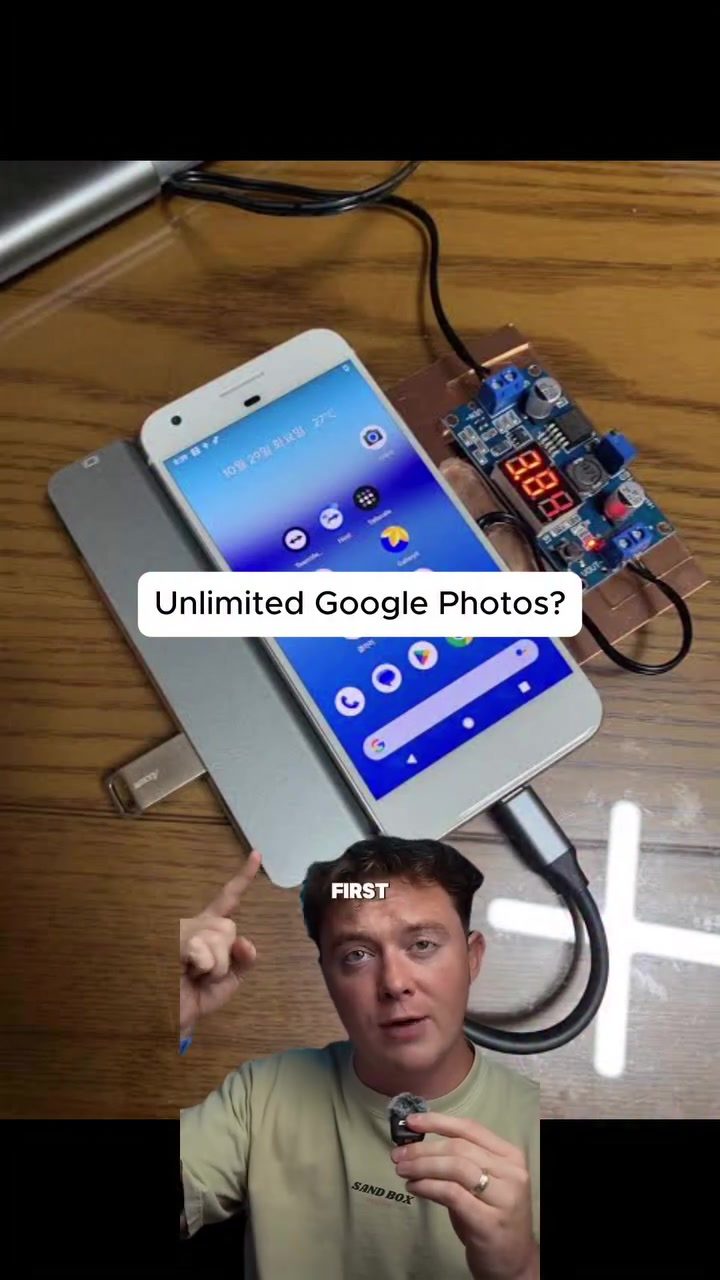
Unlimited Google Photos Storage with the Original Pixel
The original Google Pixel, launched nearly a decade ago, continues to offer a unique advantage: unlimited Google Photos storage. This promise, made at the time of the phone's release, has sparked an interesting trend among tech enthusiasts who are using these older devices as dedicated storage units for their photos.
Why This Matters
In an age where digital storage can quickly become a premium, the idea of unlimited photo storage is incredibly attractive. Google's promise to provide this service to owners of the original Pixel has created an opportunity for users to leverage old technology in a new and practical way. This approach not only helps manage storage needs but also extends the life of devices that might otherwise be discarded.
The Original Pixel and Unlimited Storage
The Promise
When Google introduced the Pixel line with the first model, they included a significant perk: unlimited storage for photos and videos in Google Photos. This offer was unique and has stood the test of time. It's important to note that this offer is specifically tied to the original Pixel device itself, not the user's Google account. This means that the photos need to be backed up from the device rather than directly from the account.
How It Works
To take advantage of this unlimited storage, users are purchasing older Google Pixel 1 devices. These devices can be found on platforms like eBay for around $70 to $80. The process involves using the old Pixel as a dedicated storage device. Users gather photos from their current phones, transfer them to the old Pixel, and then upload them to Google Photos using the original Pixel's unlimited storage promise.
Practical Steps to Set Up Unlimited Storage
Acquiring the Device
The first step is to acquire an original Google Pixel. As mentioned, these can be found on various online marketplaces. Ensure that the device is in good working condition and compatible with the current Google Photos app.
Setting Up the Storage
Once you have the device, you'll need to set it up to act as a storage server. This involves:
- Transferring photos from your current device to the old Pixel.
- Using the Google Photos app on the original Pixel to upload these photos.
- Ensuring that the photos are backed up from the device, not from your Google account, to leverage the unlimited storage offer.
Practical Tips
Ensuring Compatibility
Make sure the original Pixel is running a compatible version of the Google Photos app. Older devices may require updates or specific settings to function correctly with current cloud services.
Backing Up Photos
Regularly back up your photos to the original Pixel to maintain the unlimited storage benefit. This can be done manually or by setting up an automatic backup process.
Managing Storage
Keep an eye on the storage usage on your original Pixel. While the Google Photos storage is unlimited, the device itself has limited physical storage. Ensure that you manage the local storage efficiently to avoid any issues.
Verifying the Setup
To verify that the setup is working, check the Google Photos app on the original Pixel to ensure that the photos are being backed up correctly. Additionally, monitor your Google Photos account to confirm that the photos are available and accessible.
Important Takeaways
Reliability
The reliability of this method depends on the condition of the original Pixel and the stability of the Google Photos service. Ensure that the device is in good working order and that the app is functioning correctly.
Long-Term Viability
While this method offers a unique solution to photo storage, it's important to consider the long-term viability. As technology evolves, there may be better and more efficient ways to handle storage needs. However, for now, this approach provides a cost-effective and practical solution.
Conclusion
The original Google Pixel's unlimited Google Photos storage offer is a testament to Google's commitment to its early users. By leveraging this promise, tech enthusiasts can create a dedicated storage solution using old devices. This method not only helps manage digital storage needs but also gives new life to older technology. If you're looking for a way to handle your photo storage efficiently and cost-effectively, consider this unique hack with the original Google Pixel.
Questions readers ask
How can I activate the unlimited Google Photos storage on my original Google Pixel?
To activate unlimited Google Photos storage on your original Google Pixel, ensure that the phone is set up with the original Google account used at the time of purchase. Google Photos should be installed, and the 'High quality' setting should be enabled to upload your photos without deductions from your Google Account storage quota. You can adjust these in Google Photos settings.
Can I use my original Google Pixel as a dedicated storage unit for photos from another device?
Yes, you can use your original Google Pixel as a dedicated storage unit. Simply transfer photos from your other devices to the original Pixel, and ensure that the photos are backed up to Google Photos. This way, you can free up space on your other devices while keeping all your photos safely stored in the cloud.
What are the benefits of using an old Pixel phone for storage?
Using an old Pixel phone for storage allows you to take advantage of the unlimited Google Photos storage, which is particularly useful for those who take a lot of photos and videos. Additionally, this approach helps in managing storage needs on your primary devices, and it also extends the life of the older Pixel device, reducing e-waste.
How do I transfer photos to my original Google Pixel for storage?
To transfer photos to your original Google Pixel, you can use the Google Photos app or the Google Drive app. First, make sure that both devices are connected to the same Google account. Then, use the 'Backup and Sync' feature in the Google Photos app, or manually upload files in Google Drive.
Will using my original Google Pixel for storage affect the performance of the device?
Using your original Google Pixel for storage should not significantly affect its performance, as the primary function is to act as a storage hub. However, keep in mind that the device is quite old, so it might not handle intensive tasks efficiently. Ensure the device has enough free space to accommodate the photo transfers.
Related deep dives
Similar reads based on topic and creator.




Recent articles
Fresh deep dives from the latest Reels we unpacked.




Comments
Be the first to comment.