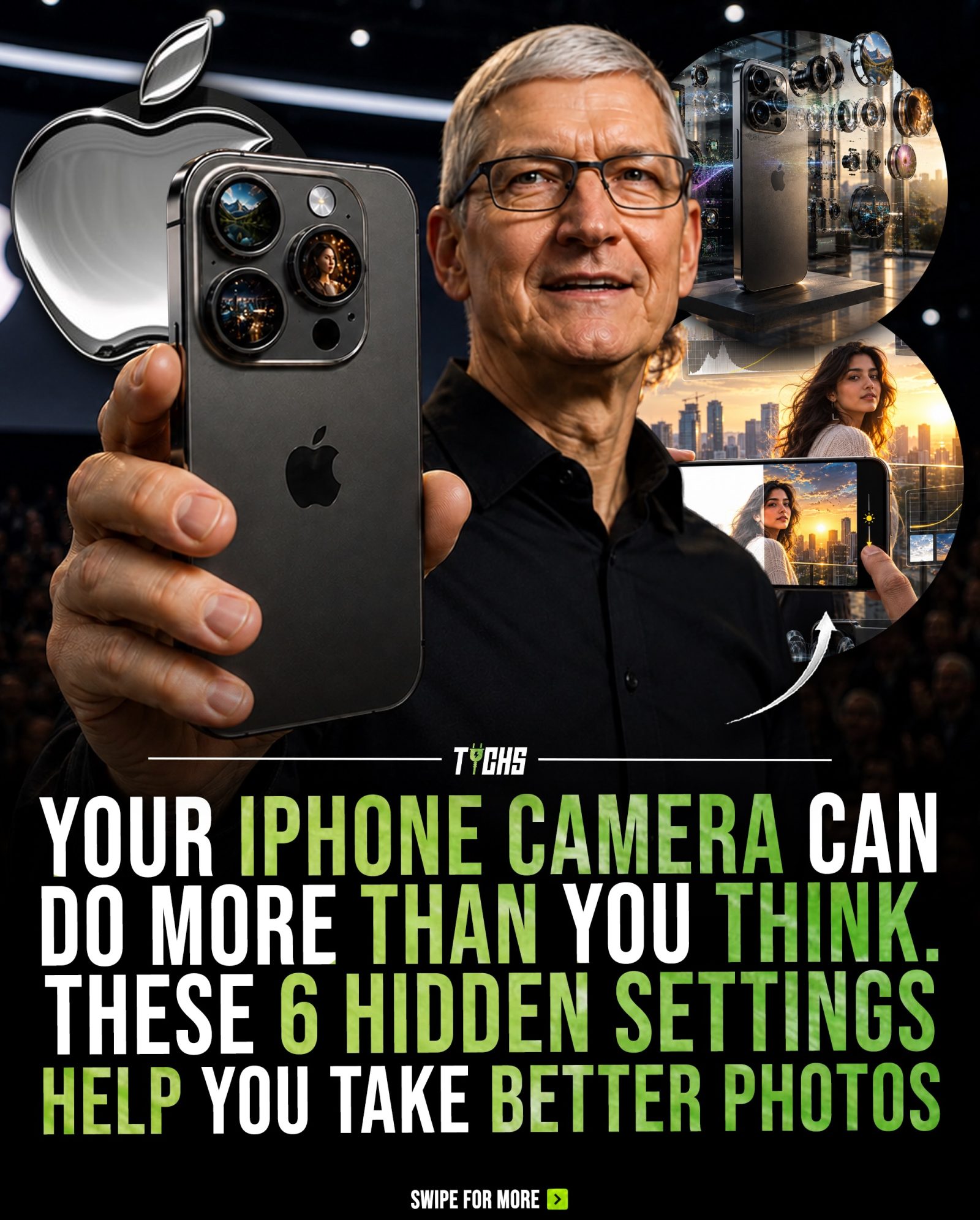
iPhone Camera Settings That Can Improve Your Photos
The iPhone's built-in camera is a powerful tool, even without third-party apps. With a few adjustments, you can unlock hidden features that significantly enhance your photography experience. Let's dive into some of the best iPhone camera settings that many users overlook, but can greatly improve your everyday photos.
Why Mastering iPhone Camera Settings Matters
Understanding and utilizing your iPhone's camera settings can make a noticeable difference in the quality of your photos. Whether you're capturing landscapes, portraits, or everyday moments, these adjustments can help you get the most out of your device's hardware.
Hidden Settings That Enhance Your Photography
1. Enable 48 MP Mode
One of the most impactful settings is the 48 MP mode. Despite having a 48 MP sensor, iPhones typically capture photos at 12 MP by default. This means a significant amount of the sensor's resolution potential is unused. By enabling the 48 MP mode, you can capture more detailed images, which is particularly useful for printing or cropping photos.
How to Enable 48 MP Mode
- Open Settings.
- Navigate to Camera.
- Select Formats.
- Turn On Resolution.
- Go to Control > Pro Default > HEIF Max (48 MP).
This setting is available on iPhone 14 Pro and newer Pro models, as well as every iPhone 15 and iPhone 16 model.
2. Turn On ProRAW
For those using Pro models, turning on ProRAW can dramatically enhance your editing capabilities. Standard photos are compressed immediately after capture, which can limit the detail available for post-processing. ProRAW, on the other hand, retains more image data, making it easier to adjust colours, shadows, and highlights.
How to Enable ProRAW
- Open Settings.
- Navigate to Camera.
- Select Formats.
- Turn On ProRAW.
3. Adjust Exposure Manually
Manually adjusting exposure allows you to control the brightness of your photos more precisely. This is especially useful in low-light conditions or when dealing with complex lighting situations.
How to Adjust Exposure
- Open the Camera app.
- Tap the screen to focus on your subject.
- Slide your finger up or down on the exposure slider that appears.
4. Lock Focus
Locking focus ensures that your subject stays sharp, even if it moves slightly. This is particularly useful for action shots or when photographing moving subjects.
How to Lock Focus
- Open the Camera app.
- Tap and hold on your subject until the focus lock icon (AE/AF Lock) appears.
5. Fine-Tune Camera Settings
Fine-tuning camera settings involves adjusting various parameters like ISO, shutter speed, and white balance. These adjustments can help you achieve the perfect shot in different lighting conditions.
How to Access and Adjust Camera Settings
- Open the Camera app.
- Swipe to the 'Pro' mode (if available on your model).
- Tap on the settings icon (usually a gear or wrench icon).
- Adjust the parameters as needed.
6. Use the Night Mode
Night mode is designed to capture better photos in low-light conditions. It automatically adjusts the exposure settings to reduce noise and improve clarity.
How to Use Night Mode
- Open the Camera app.
- Switch to Night mode by swiping to the right in Photo mode.
- The iPhone will automatically detect when to use Night mode.
Practical Tips for Better iPhone Photography
Experiment with Angles
Don't be afraid to experiment with different angles and compositions. The iPhone's camera is versatile and can handle a variety of shooting styles.
Use Natural Light
Whenever possible, use natural light to illuminate your subjects. This can make your photos look more vibrant and lifelike.
Keep Your Lens Clean
A clean lens is crucial for clear photos. Use a microfiber cloth to gently wipe the lens clean before taking pictures.
Important Takeaways
Utilize the 48 MP Mode
The 48 MP mode offers a significant boost in resolution, making your photos sharper and more detailed. This is particularly useful for printing or cropping.
Enable ProRAW for Better Editing
ProRAW retains more image data, making it easier to edit colours, shadows, and highlights. This feature is a game-changer for photographers who like to fine-tune their photos.
Customize Exposure and Focus
Manually adjusting exposure and locking focus can help you control the brightness and sharpness of your photos, especially in challenging lighting conditions.
Experiment with Night Mode
Night mode is a powerful tool for capturing clear, noise-free photos in low-light conditions. It automatically adjusts settings to enhance your shots.
Conclusion
Mastering these hidden iPhone camera settings can significantly enhance your photography skills. Whether you're a casual photographer or a professional, these adjustments can help you capture sharper, more detailed, and more edit-friendly photos. By understanding and utilizing these features, you can get the most out of your iPhone's camera hardware and take your photography to the next level.
Questions readers ask
What is 48 MP mode and how do I enable it on my iPhone?
48 MP mode allows your iPhone to capture images at a significantly higher resolution, providing more detail and flexibility for cropping. To enable it, go to your Camera app, tap the camera settings, select Photos, and switch on the 48 MP mode.
How does ProRAW work and why should I use it?
ProRAW combines Apple's image processing with the flexibility of RAW files. It captures more data than standard JPEG, allowing for better adjustments in post-processing. To use it, go to your Camera app settings, select Formats, and choose ProRAW for Apple ProRAW
Can I manually adjust exposure on my iPhone?
Yes, you can manually adjust exposure by tapping on the subject in the Camera app and using the exposure slider. This feature is particularly useful in high-contrast situations, allowing you to brighten or darken specific areas of the photo.
What are the benefits of using the hidden iPhone camera settings?
Using hidden iPhone camera settings can greatly enhance your photos by providing more detail, better lighting, and greater flexibility in post-processing. These settings allow you to get the most out of your iPhone's hardware without needing additional apps.
How do I access the hidden camera settings on my iPhone?
To access hidden camera settings, open the Camera app, tap on the arrow at the top of the screen, then select the camera mode. From there, you can explore various settings like 48 MP mode, ProRAW, and manual exposure.
What should I do if I don't see the ProRAW option on my iPhone?
If you don't see the ProRAW option, ensure your iPhone is running iOS 14 or later and that you have an iPhone 12 Pro or later. Once confirmed, go to Camera settings, select Formats, and choose Apple ProRAW. If it's still not available, check your iCloud storage.
Are these settings available on all iPhone models?
Not all hidden camera settings are available on every iPhone model. For example, 48 MP mode and ProRAW are typically available on the latest iPhone models, such as the iPhone 12 Pro and later. To check compatibility, review your iPhone's specifications or Apple's official support page.
Related deep dives
Similar reads based on topic and creator.

Recent articles
Fresh deep dives from the latest Reels we unpacked.



Comments
Be the first to comment.