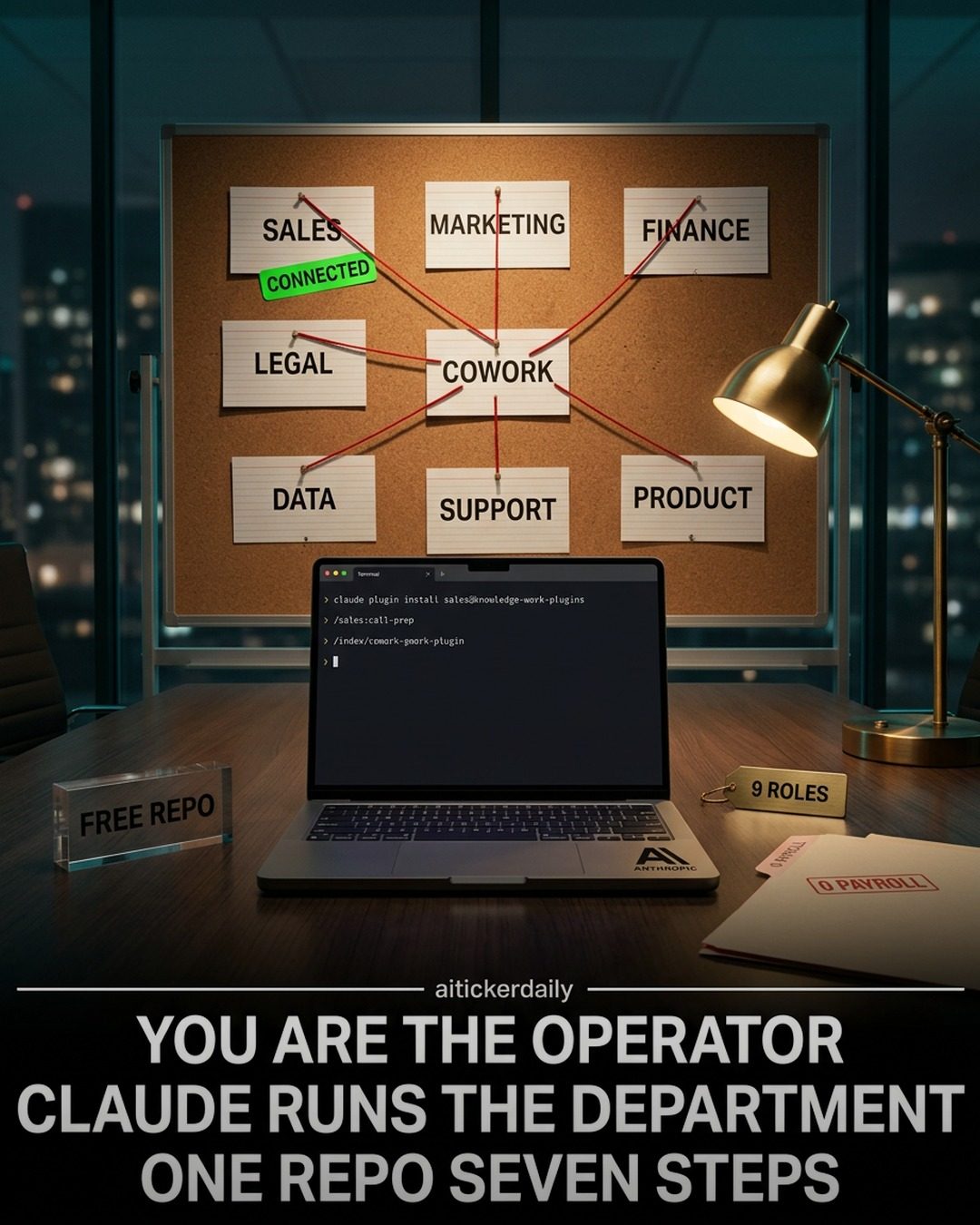
AI Workflow Automation: Streamlining Departments with Anthropic
The automation of workflows within departments is a game-changer for businesses, and Anthropic's Claude AI takes this concept to the next level. By integrating Claude into your workflow, you can transform various departments into efficient, interconnected units. This article explores how to turn Claude Cowork into specialized roles, the process of integrating these roles, and the practical steps to achieve a seamless workflow automation.
Context: Why This Matters
Automating workflows within departments can significantly enhance productivity, accuracy, and overall efficiency. By leveraging AI, businesses can reduce manual errors, streamline processes, and allocate resources more effectively. Anthropic's approach to workflow automation aims to make these benefits accessible to various departments, including sales, marketing, finance, legal, and data.
Main Discussion
Understanding Claude Cowork
Claude Cowork is a versatile AI platform designed to streamline and automate workflows across different departments. By using Anthropic's knowledge-work-plugins, you can integrate specialized roles into your workflow, such as sales, marketing, finance, legal, and data roles. This integration is made possible through a series of skills, slash commands, and tool connections that enhance the functionality of each department.
The Seven-Step Process
Integrating Claude into your workflow involves a seven-step process. Each step is designed to transform your departments into connected, efficient units. The process begins with downloading the Claude Desktop from claude.com/download and proceeds through a series of steps that include adding a marketplace, building your team, and customizing your workflow.
Step 1: Download and Setup
The first step is to download Claude Desktop from claude.com/download. This setup is crucial as it forms the foundation for your automated workflow. Once downloaded, you can proceed to the next steps, which involve adding the marketplace and configuring your environment.
Step 2: Adding the Marketplace
After downloading and setting up Claude, the next step is to add the marketplace. This step is essential as it allows you to access a wide range of plugins and tools that can be integrated into your workflow. Adding the marketplace is straightforward and can be done through the Cowork terminal.
Step 3: Configuring Cowork Terminal
The Cowork terminal is a powerful tool that allows you to manage and configure your workflow. Once the marketplace is added, you can proceed to configure the terminal to suit your specific needs. This step involves setting up the terminal to connect to your various departments and tools.
Step 4: Installing Plugins
Plugins are essential for enhancing the functionality of your workflow. The fourth step involves installing the necessary plugins for each department. These plugins can be found in the marketplace and can be easily installed through the terminal. Each plugin is designed to handle specific tasks and can be customized to suit your workflow.
Step 5: Building Your Team
Building your team is a critical step in the workflow automation process. This step involves setting up roles for different departments, such as sales, marketing, finance, legal, and data. Each role is designed to handle specific tasks and can be customized to suit your workflow. The process of building your team is straightforward and can be done through the terminal.
Step 6: Connecting Tools
Connecting the necessary tools is an essential step in the workflow automation process. This step involves integrating various tools and plugins into your workflow to enhance its functionality. The tools can be connected through the terminal, and each connection can be customized to suit your specific needs.
Step 7: Customizing Your Workflow
The final step in the workflow automation process is customizing your workflow. This step involves configuring your workflow to suit your specific needs. You can customize the workflow by adding or removing tools, configuring plugins, and setting up roles. The customization process is straightforward and can be done through the terminal.
The Ten-Slide Deck: A Comprehensive Guide
The ten-slide deck provides a comprehensive guide to the workflow automation process. It includes detailed information on repo anatomy, org chart, Cowork setup, install + slash workflows, connecting tools, building a team, and customizing the workflow. The deck also provides a before-and-after comparison, highlighting the benefits of workflow automation.
Practical Tips
- Start Small: Begin by integrating one or two departments and gradually expand to others. This approach allows you to understand the process better and make necessary adjustments.
- Customize: Customize your workflow to suit your specific needs. This includes configuring plugins, adding tools, and setting up roles.
- Use Slash Commands: Slash commands are powerful tools that can enhance the functionality of your workflow. Use them to streamline your processes and improve efficiency.
- Stay Updated: The world of AI is constantly evolving. Stay updated with the latest developments and tools to ensure your workflow remains efficient and effective.
- Leverage Plugins: Plugins are essential for enhancing the functionality of your workflow. Use the marketplace to access a wide range of plugins and tools that can be integrated into your workflow.
Important Takeaways
- Anthropic's Claude AI offers a powerful solution for workflow automation across various departments.
- The seven-step process is straightforward and can be easily followed to integrate Claude into your workflow.
- Customizing your workflow is essential for achieving optimal efficiency and productivity.
- Slash commands and plugins are powerful tools that can enhance the functionality of your workflow.
- Staying updated with the latest developments in AI is crucial for maintaining an efficient and effective workflow.
Conclusion
AI workflow automation is a powerful tool that can significantly enhance the efficiency and productivity of various departments. By integrating Anthropic's Claude into your workflow, you can transform your departments into connected, efficient units. The seven-step process outlined in this article provides a comprehensive guide to achieving seamless workflow automation, making it accessible to businesses of all sizes. Whether you are in sales, marketing, finance, legal, or data, the benefits of AI workflow automation are undeniable.
Questions readers ask
How does Anthropic's Claude AI enhance business efficiency in departmental workflows?
Anthropic's Claude AI boosts business efficiency by integrating into departmental workflows, reducing errors, and optimizing resources. The Cowork platform allows for the creation of specialized roles, transforming departments into interconnected, productive units.
What are specialized roles in the context of Anthropic's Cowork platform?
Specialized roles in the Cowork platform are customizable positions tailored to specific tasks within a department. These roles can be programmed to handle specific workflow steps, ensuring that each task is managed efficiently and accurately.
How does integrating Anthropic's Claude AI streamline workflows across different departments?
Integration of Claude AI streamlines workflows by automating repetitive tasks and providing seamless collaboration between departments. This interconnected approach ensures that information flows smoothly, reducing bottlenecks and enhancing overall productivity.
What are the practical steps to achieve seamless workflow automation with Anthropic's Claude Cowork?
To achieve seamless workflow automation, start by defining specialized roles within the Cowork platform. Then, integrate these roles into your existing workflows, ensuring that each step is optimized for efficiency. Finally, utilize AI plugins and collaboration tools to maintain a smooth and productive workflow.
Can Anthropic's Claude AI be used to optimize sales and legal workflows?
Yes, Claude AI can significantly optimize sales and legal workflows. By automating tasks such as data entry, document review, and client communication, AI can increase accuracy, speed up processes, and allow team members to focus on more strategic tasks.
What are AI workflow plugins and how do they benefit the automation process?
AI workflow plugins are tools that extend the functionality of the Cowork platform, allowing for customization and enhancement of workflows. They benefit the automation process by providing additional features such as data analysis, predictive analytics, and advanced reporting, making workflows more efficient and effective.
How does AI team collaboration enhance the efficiency of departmental workflows?
AI team collaboration enhances efficiency by providing real-time communication and task management. Teams can work seamlessly across different departments, ensuring that each step of the workflow is completed accurately and on time, ultimately leading to improved productivity and better resource allocation.
Related deep dives
Similar reads based on topic and creator.




Recent articles
Fresh deep dives from the latest Reels we unpacked.




Comments
Be the first to comment.