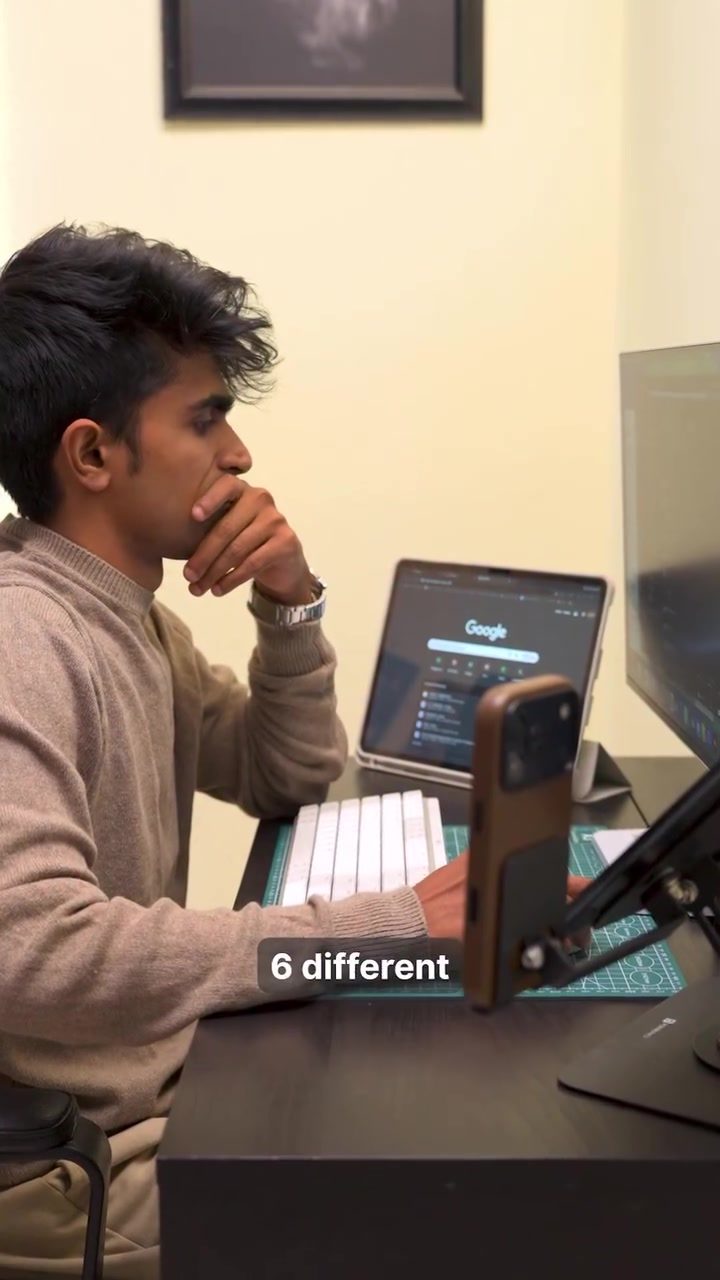
The Logitech MX Master 4: A Game Changer for Creative Workflows
The Logitech MX Master 4 mouse has revolutionized the way many professionals approach their daily tasks, especially those in creative fields. This advanced piece of hardware is designed to seamlessly integrate into a digital workspace, enhancing productivity and efficiency. Let’s dive into what makes this mouse a standout tool for graphic designers, video editors, and other creative professionals.
Context / Why This Matters
In today's fast-paced digital world, every second counts. Creative professionals are constantly juggling multiple tasks, from generating ideas to executing high-quality content. The tools they use can significantly impact their workflow, either streamlining their processes or adding unnecessary friction. The Logitech MX Master 4 addresses this need by offering a range of features that make it an indispensable tool for anyone looking to optimize their creative workflow.
Main Discussion
Integrated Hardware and Software
One of the standout features of the Logitech MX Master 4 is its ability to keep you in the flow of your work. Unlike traditional mice that require constant switching between applications and tools, this mouse allows users to stay in evaluation mode rather than admin mode. This means that your shortcuts are always within reach, right where your cursor is, reducing the need to hunt for them.
The Actions Ring
The Actions Ring on the Logitech MX Master 4 is a particularly useful feature for graphic designers. This ring allows for easy tool-switching in Photoshop, making it possible to switch between brushes, layers, and other tools with just a flick of the wrist. This seamless integration helps keep the creative process fluid, minimizing interruptions and maximizing productivity.
Horizontal Scroll for Premiere Timelines
For video editors, the horizontal scroll feature is a game-changer. It allows for smooth navigation through timelines in Adobe Premiere, making it easier to edit and fine-tune videos. This feature alone can save hours of work, allowing editors to focus more on the creative aspects of their projects.
Custom Gesture Shortcuts
Custom gesture shortcuts are another key feature of the Logitech MX Master 4. These shortcuts can be tailored to perform specific actions, reducing the need to use the keyboard or navigate through menus. Whether it's opening a new document, saving a file, or applying a filter, custom gestures make these tasks quicker and more intuitive.
Multi-Device Switching
One of the most impressive features of the Logitech MX Master 4 is its ability to switch between multiple devices with a single press. This is particularly useful for professionals who work on multiple screens or devices simultaneously. The seamless switching between devices helps maintain focus and reduces the cognitive load of constantly readjusting to different interfaces.
Haptic Feedback
The haptic feedback feature of the Logitech MX Master 4 is often overlooked but incredibly valuable. It provides a tactile response to actions, making it feel more intuitive and responsive. This feedback can help in tasks that require precise movements, such as graphic design or video editing, where accuracy is crucial.
Practical Tips
Setting Up the Actions Ring
To get the most out of the Actions Ring, consider mapping your most frequently used tools to the ring. This will allow you to switch between them effortlessly, keeping your workflow uninterrupted. Spend some time customizing the ring settings to suit your specific needs and workflow.
Utilizing the Horizontal Scroll
If you’re a video editor, make full use of the horizontal scroll feature. This can significantly speed up your editing process. Practice using the scroll to navigate through your timelines and apply it to other software where horizontal scrolling is beneficial, such as web browsing or programming.
Creating Custom Gestures
Take advantage of the custom gesture shortcuts by mapping them to actions you frequently perform. This can include opening applications, saving files, or switching between workspaces. The more you personalize these gestures, the more integrated they will become in your workflow.
Leveraging Multi-Device Switching
For those who work on multiple devices, the multi-device switching feature can be a lifesaver. Ensure your mouse is paired with all the devices you use regularly. This will allow you to switch between them seamlessly, reducing the time spent on switching tasks.
Important Takeaways
The Logitech MX Master 4 is a powerful tool that can significantly enhance your creative workflow. Its advanced features, such as the Actions Ring, horizontal scroll, custom gestures, and multi-device switching, make it an indispensable piece of hardware for graphic designers, video editors, and other creative professionals. The key to maximizing its potential lies in customizing its features to suit your specific needs and workflow.
Conclusion
The Logitech MX Master 4 stands out as a mouse that not only enhances productivity but also integrates seamlessly into your workflow. Its innovative features make it a valuable addition to any creative professional’s toolkit. By leveraging its advanced capabilities, you can streamline your tasks, reduce interruptions, and focus more on the creative aspects of your work. Whether you’re a graphic designer, video editor, or any other creative professional, the Logitech MX Master 4 is a tool worth investing in.
Questions readers ask
What features does the Logitech MX Master 4 offer for graphic designers?
The Logitech MX Master 4 is equipped with several features tailored to graphic designers. The Actions Ring allows for customizable shortcuts, reducing the need to switch tools manually, while the horizontal scroll enhances navigation through layers and timelines.
How does the Logitech MX Master 4 improve efficiency for video editors?
For video editors, the Logitech MX Master 4's horizontal scroll and customizable buttons streamline timeline navigation and tool-switching. This minimizes interruptions and speeds up the editing process, making it an invaluable tool for video editing workflows.
Can the Logitech MX Master 4 be used for tasks other than creative work?
Absolutely! The Logitech MX Master 4 is versatile and can be used for a variety of tasks beyond creative work. Its customizable buttons and advanced features make it suitable for any professional who needs to streamline their workflow and maximize productivity.
Is the Logitech MX Master 4 compatible with both Windows and Mac?
Yes, the Logitech MX Master 4 is compatible with both Windows and Mac operating systems. It seamlessly integrates with either platform, providing a consistent and efficient user experience across different devices.
What is the Actions Ring on the Logitech MX Master 4 and how does it work?
The Actions Ring is a unique feature on the Logitech MX Master 4 that allows users to customize a scroll wheel for quick access to frequently used commands. By rotating the ring, users can switch between different tools or functions, enhancing efficiency in tasks that require frequent tool changes.
How does the horizontal scroll feature benefit creative workflows?
The horizontal scroll feature on the Logitech MX Master 4 is particularly beneficial for tasks that require navigating through layers, such as in graphic design or video editing. It allows users to move horizontally across their workspace with ease, reducing the need for constant keyboard adjustments.
Can the Logitech MX Master 4 be customized for different software applications?
Yes, the Logitech MX Master 4 offers extensive customization options. Users can configure the buttons and the Actions Ring to suit specific software applications, such as Photoshop or Premiere Pro, ensuring a smooth and efficient workflow tailored to their needs.
Related deep dives
Similar reads based on topic and creator.




Recent articles
Fresh deep dives from the latest Reels we unpacked.




Comments
Be the first to comment.