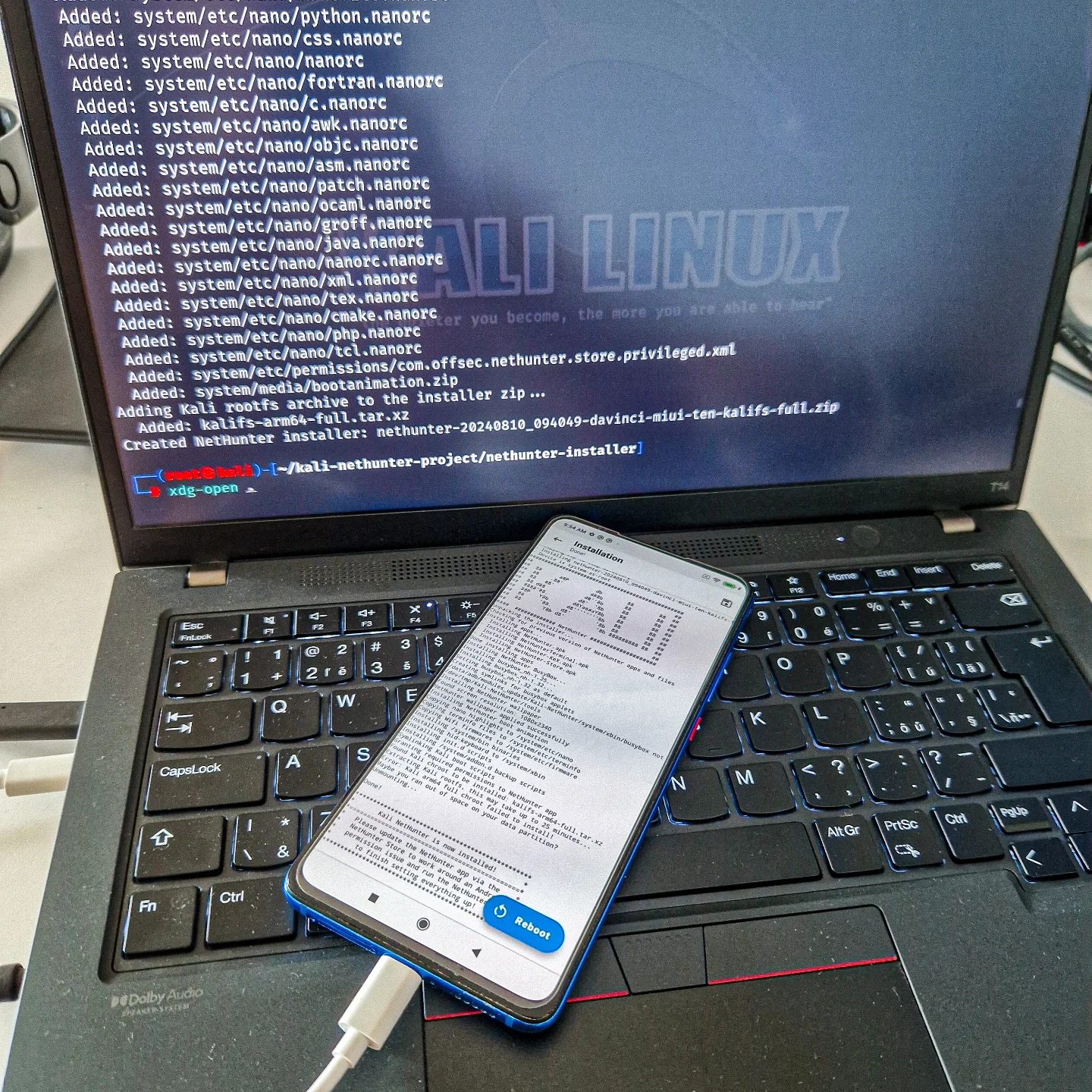
Linux Installation on a Laptop
Installing Linux, particularly a specialized distribution like Kali Linux, can be a rewarding experience for those interested in cybersecurity and ethical hacking. Kali Linux is renowned for its comprehensive suite of tools designed for penetration testing and security auditing. The installation process involves several technical steps, and understanding these can help users get the most out of their new Linux environment. This guide walks through the installation of Kali Linux on a laptop, highlighting key steps and considerations.
Context / Why This Matters
Kali Linux is a powerful tool for cybersecurity professionals, ethical hackers, and anyone interested in learning more about network security. It is a Debian-based distribution that comes pre-installed with over 600 penetration testing tools. Installing Kali Linux on a laptop can provide a portable and flexible platform for conducting security assessments and learning more about cybersecurity.
Main Discussion
Understanding Kali Linux
Kali Linux is more than just a Linux distribution; it's a comprehensive suite of tools designed for cybersecurity professionals. It includes a variety of tools for penetration testing, security research, computer forensics, and reverse engineering.
Kali Linux is based on Debian, which means it benefits from Debian's stability and extensive repository of software packages. It also includes a custom kernel that is patched for injection, making it ideal for wireless security testing.
Preparing for Installation
Before diving into the installation process, it's crucial to prepare your laptop. This involves:
- Backup Important Data: Ensure that all important data is backed up, as the installation process will erase the existing data on the drive.
- Download Kali Linux: Obtain the latest Kali Linux ISO file from the official website. This file will be used to create a bootable installation medium.
- Create a Bootable USB Drive: Use a tool like Rufus (for Windows) or Etcher (cross-platform) to create a bootable USB drive with the Kali Linux ISO file.
- Prepare the Laptop: Ensure the laptop is connected to a power source and has a stable internet connection for driver updates and package installations.
Installing Kali Linux
The installation process involves several key steps:
- Boot from the USB Drive: Insert the bootable USB drive into the laptop and reboot. Access the BIOS/UEFI settings to change the boot order, ensuring the laptop boots from the USB drive.
- Start the Installer: Once the laptop boots from the USB drive, you will see the Kali Linux boot menu. Select the "Graphical Install" option to start the graphical installer.
- Configure the Installation: Follow the on-screen instructions to configure the installation. This includes selecting your language, location, and keyboard layout. You will also need to set up the partition scheme, which can be done using the guided or manual partitioning options.
- Set Up the User Account: Create a root password and a standard user account. The root account is essential for administrative tasks, while the standard user account is for everyday use.
- Install Additional Software: During the installation process, you will be prompted to install additional software. It's recommended to select the "Standard System Utilities" and "Debian Desktop Environment" options for a complete desktop experience.
Post-Installation Setup
Once the installation is complete, there are a few additional steps to ensure your Kali Linux environment is fully functional:
- Update the System: Open a terminal and run the following commands to update the system:
sudo apt update sudo apt upgrade - Install Essential Tools: Kali Linux comes with a variety of tools pre-installed, but you may want to install additional tools depending on your needs. Use the command:
sudo apt install <tool-name> - Configure Network Settings: Ensure your network settings are configured correctly. This includes setting up Wi-Fi, Ethernet, and any necessary proxy settings.
- Set Up SSH: If you plan to access your laptop remotely, set up SSH by installing the OpenSSH server:
sudo apt install openssh-server
sudo systemctl enable ssh
sudo systemctl start ssh
Additional Tools and Customization
Kali Linux offers a variety of tools for different use cases. Some of the most commonly used tools include:
- Nmap: A network scanning tool used for network discovery and security auditing.
- Wireshark: A network protocol analyzer that captures and analyzes network traffic.
- Metasploit: A penetration testing framework that provides tools for developing and executing exploit code.
- Burp Suite: A web vulnerability scanner that helps identify and exploit vulnerabilities in web applications.
Using a Xiaomi Phone for Setup
The installation process can be enhanced by using a Xiaomi phone for accessing files and setting up the laptop. This can be particularly useful for transferring files wirelessly or using the phone as a secondary display. The Xiaomi Mi 9T, for example, can be paired with the laptop to facilitate the installation process, providing a seamless experience.
Practical Tips
- Ensure Compatibility: Before installing Kali Linux, ensure that your laptop's hardware is compatible. Check the Kali Linux documentation for a list of supported hardware.
- Use a Stable Internet Connection: A stable internet connection is crucial for downloading updates and additional software during the installation process.
- Backup Data: Always back up important data before starting the installation process. This will prevent data loss in case of any issues during installation.
- Create a Bootable USB Drive Carefully: Ensure the USB drive is created correctly to avoid boot issues. Use a reliable tool like Rufus or Etcher for this purpose.
Important Takeaways
- Preparation is Key: Proper preparation, including backing up data and creating a bootable USB drive, is essential for a smooth installation process.
- Follow the Steps: The installation process involves several steps, including configuring the installation, setting up the user account, and updating the system. Following these steps carefully will ensure a successful installation.
- Customization: Kali Linux offers a variety of tools and customization options. Take the time to explore these options to tailor the system to your specific needs.
Conclusion
Installing Kali Linux on a laptop can provide a powerful and flexible platform for cybersecurity professionals and enthusiasts. By following the steps outlined in this guide, you can successfully install and configure Kali Linux, taking advantage of its comprehensive suite of tools for penetration testing and security auditing. Whether you're a seasoned professional or just starting out, Kali Linux offers a wealth of opportunities to explore and enhance your cybersecurity skills.
Questions readers ask
What are the minimum hardware requirements for installing Kali Linux on a Xiaomi laptop?
To run Kali Linux smoothly, your Xiaomi laptop should have at least a 2 GHz dual-core processor, 2 GB of RAM, and 20 GB of disk space. Additionally, a network connection is recommended for updates and downloading tools. Make sure your laptop has a BIOS/UEFI that supports booting from USB to install Kali Linux.
Can I dual-boot Kali Linux with the existing operating system on my Xiaomi laptop?
Yes, you can set up a dual-boot system with Kali Linux and another operating system, such as Windows or another Linux distribution. This process involves partitioning your hard drive and configuring the bootloader to allow you to choose which operating system to boot into during startup.
What precautions should I take before installing Kali Linux on my Xiaomi laptop?
Before installing Kali Linux, back up all important data from your Xiaomi laptop. Additionally, ensure that you have a stable internet connection for downloading necessary files and updates, and prepare a bootable USB drive with the Kali Linux ISO file. It's also a good idea to have your laptop's charging cable nearby, as the installation process can take some time.
How do I create a bootable USB drive for installing Kali Linux on my Xiaomi laptop?
To create a bootable USB drive, download the Kali Linux ISO file from the official website. Then, use a tool like Rufus (for Windows), balenaEtcher (cross-platform), or the dd command (for Linux) to write the ISO file to the USB drive. Ensure the USB drive has at least 8 GB of storage to accommodate the Kali Linux installation files.
What are some of the key tools available in Kali Linux for penetration testing and security assessments?
Kali Linux comes with a wide range of tools for penetration testing and security assessments. Some of the key tools include Nmap for network scanning, Metasploit for exploiting vulnerabilities, Wireshark for network traffic analysis, and John the Ripper for password cracking. These tools are pre-installed and ready to use in the Kali Linux environment.
Can I install Kali Linux on a Xiaomi laptop with UEFI secure boot enabled?
Yes, you can install Kali Linux on a Xiaomi laptop with UEFI secure boot enabled, but you may need to disable secure boot temporarily during the installation process. To do this, enter the BIOS/UEFI settings on your laptop, navigate to the secure boot settings, and disable it. After installing Kali Linux, you can re-enable secure boot if desired, but note that some features might not function properly.
Related deep dives
Similar reads based on topic and creator.




Recent articles
Fresh deep dives from the latest Reels we unpacked.




Comments
Be the first to comment.