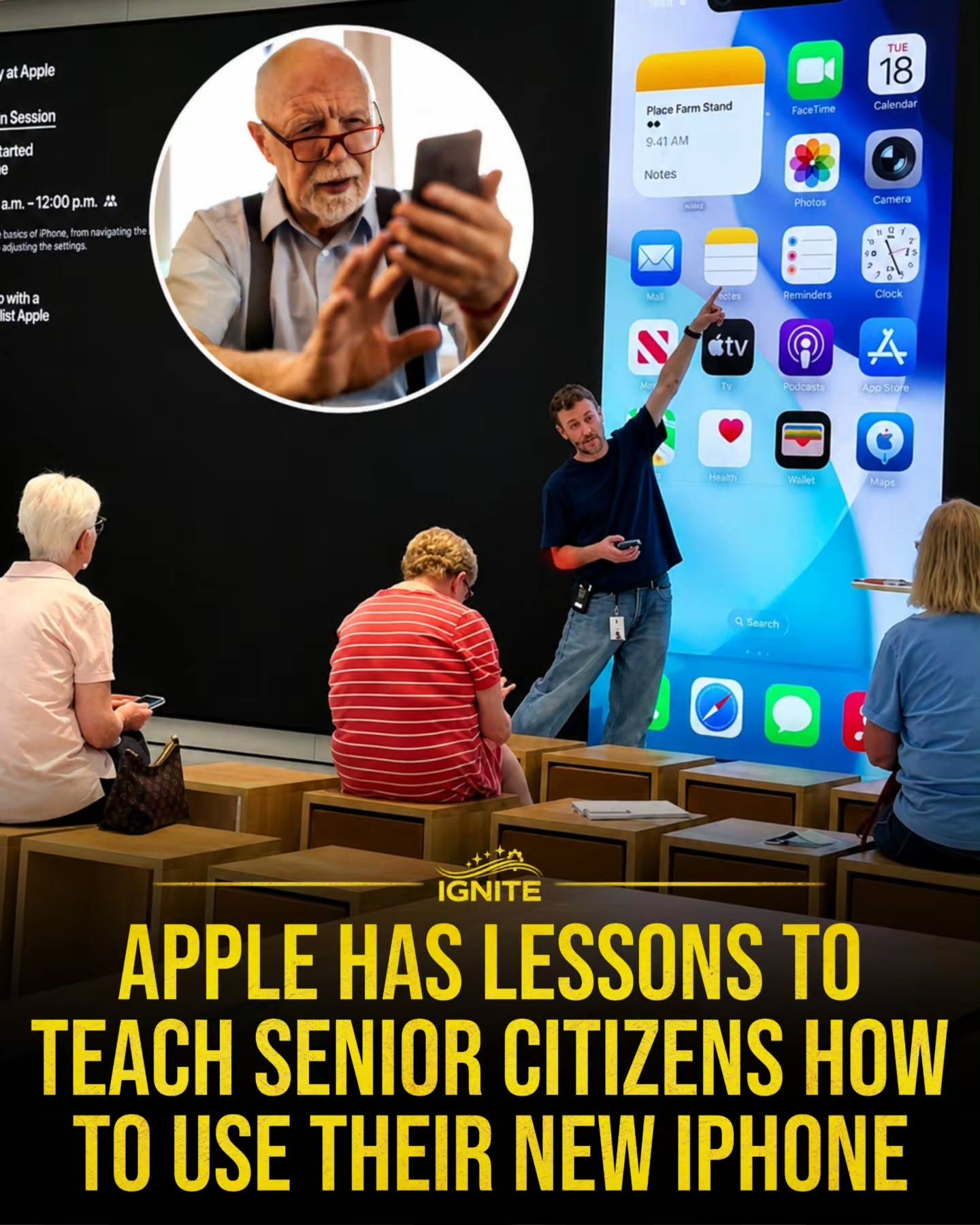
iPhone Tutorials for Seniors at Apple Stores
Understanding a new smartphone can be a daunting task, especially for seniors transitioning to a device like the iPhone. Apple recognizes this and offers resources to help senior citizens become comfortable with their new devices. Apple Stores provide a supportive environment for learning, and their tutorials focus on making the iPhone accessible and user-friendly for everyone.
Why This Matters
The modern world is increasingly digital, and smartphones have become essential tools for communication, entertainment, and productivity. For seniors, learning to use an iPhone can open up new ways to stay connected with family, access information, and enjoy multimedia content. Apple's tutorials are designed to empower seniors, helping them navigate their new devices with confidence.
Navigating the iPhone Home Screen
The iPhone home screen is the central hub for accessing all the device's features and applications. Here are some key points to help seniors get started:
Understanding the Home Screen Layout
The home screen displays various app icons, each representing a different function or application. At the bottom of the screen, users will find the dock, which houses frequently used apps like Phone, Messages, and Safari. The rest of the screen is filled with a grid of app icons that can be customized to suit individual preferences.
Customizing the Home Screen
Seniors can personalize their home screen by moving apps around, creating folders, and deleting unnecessary apps. To move an app, simply press and hold the icon until it jiggles, then drag it to the desired location. To create a folder, drag one app icon onto another, and the device will automatically create a folder containing both apps. This organization can help seniors quickly find and access their favorite applications.
Accessing Essential Apps
Apple's iPhone comes with a set of pre-installed apps designed to meet everyday needs. These include:
- Phone: For making calls and managing contacts.
- Messages: For sending and receiving text messages and multimedia messages.
- Calendar: For tracking appointments and events.
- Photos: For viewing, editing, and sharing photos and videos.
- Safari: For browsing the internet.
Practical Tips for Seniors
Learning to use a new smartphone can be an exciting journey. Here are some tips to make the process smoother:
Utilizing Apple's Support Resources
Apple offers a variety of resources to help seniors get the most out of their iPhones. In-store workshops, online tutorials, and personalized support are all available. Seniors can schedule an appointment at their local Apple Store for one-on-one assistance from Apple specialists.
Exploring the Control Center
The Control Center provides quick access to essential settings and shortcuts. To access it, swipe down from the top right corner of the screen. From here, users can adjust brightness, enable or disable Wi-Fi and Bluetooth, control media playback, and more. This feature is particularly useful for seniors who want to quickly adjust settings without navigating through multiple menus.
Mastering Siri
Siri, Apple's virtual assistant, can be a valuable tool for seniors. By holding down the side button or saying "Hey Siri," users can ask questions, send messages, make calls, and perform various tasks hands-free. Siri can also help with reminders, timers, and calendar events, making it easier to stay organized and on schedule.
Important Takeaways
- Personalization: Customizing the home screen with favorite apps and folders can make the iPhone more intuitive for seniors.
- Accessibility: Utilizing the Control Center and Siri can simplify tasks and make the device more user-friendly.
- Support: Taking advantage of Apple's support resources, such as in-store workshops and online tutorials, can enhance the learning experience.
Conclusion
iPhone tutorials for seniors offered by Apple Stores are invaluable resources for helping senior citizens become comfortable with their new smartphones. By understanding the home screen layout, customizing the device, and utilizing support resources, seniors can navigate their iPhones with ease. Embracing this technology can open up new possibilities for staying connected, accessing information, and enjoying digital content.
Questions readers ask
How often are iPhone tutorials for seniors held at Apple Stores?
Apple Stores typically offer iPhone tutorials for seniors on a weekly basis, with schedules varying by location. It's best to check with your local Apple Store or visit their website to find the most up-to-date timetable for senior workshops. Some stores may also provide one-on-one sessions by appointment.
What topics are covered in the iPhone tutorials for seniors at Apple Stores?
The tutorials cover a range of essential topics, including navigating the home screen, customizing the layout, accessing key apps, and using basic features such as the camera and messaging. The goal is to empower seniors to use their iPhones confidently for communication, entertainment, and productivity.
Do I need to bring my own iPhone to the senior workshop at the Apple Store?
Yes, it is recommended that you bring your own iPhone to the workshop. This allows the Apple Specialist to provide personalized guidance and demonstrate features specific to your device. If you do not have an iPhone yet, you can still attend and learn using a demo device, but you may want to bring a friend or family member if you plan to purchase the device after the workshop.
Can family members or caregivers attend the iPhone tutorial for seniors with their loved one?
Yes, family members or caregivers are welcome to attend the iPhone tutorial for seniors. In fact, having an extra pair of hands and a familiar face can be very helpful. The Apple Specialist will ensure that both the senior and their companion have a fulfilling experience.
Are the iPhone tutorials for seniors at Apple Stores free of charge?
Yes, the iPhone tutorials for seniors are free of charge. Apple offers these sessions as a community service to help seniors become more comfortable and independent in their digital literacy, and to ensure everyone can benefit from the latest technology. No purchase is necessary to attend.
Related deep dives
Similar reads based on topic and creator.




Recent articles
Fresh deep dives from the latest Reels we unpacked.




Comments
Be the first to comment.