iPhone Tips: Exploiting Hidden Features for Better Productivity
The iPhone is a powerful tool, but many users don't fully utilize its capabilities. Let's dive into some practical tips and tricks that can help you make the most of your iPhone.
Why This Matters
Mastering these iPhone features can significantly enhance your productivity and streamline your daily tasks. Whether you're managing your photos, using the calculator, or navigating through apps, these tips will help you work smarter, not harder.
Customizing the Lock Screen
Replacing the Camera Button
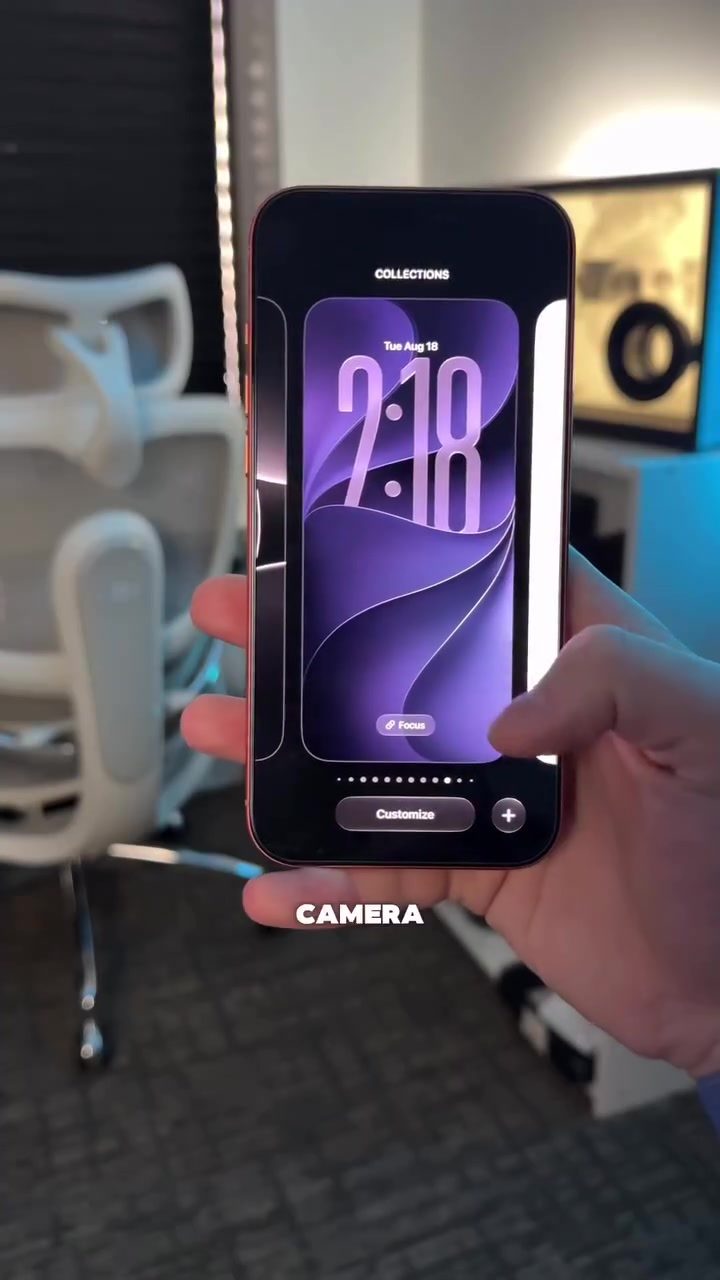
One of the first things to know is that you can customize the lock screen button on your iPhone. By default, the lock screen has a camera button, but since there are already two ways to open the camera—via the camera button or by swiping left on the home screen—you can replace this button with a more useful app. For example, you can swap it with the Messages app, making it easier to access your conversations quickly.
Selecting Multiple Photos Efficiently
When you're in the Photos app, you don't have to tap each photo individually to select them. Instead, grab the first row of photos and pull it down from the middle. This action will select all the photos in that row instantly, saving you time and effort.
Utilizing the Calculator App
Conversion Made Easy
The calculator app on the iPhone is more versatile than it appears. In the top right corner, there's a convert button represented by arrows. This feature allows you to convert units easily. For instance, you can convert kilograms to pounds or Celsius to Fahrenheit. The calculator supports a wide range of conversions, making it a handy tool for quick calculations on the go.
Navigating Through Apps
Selecting Multiple Items
In apps like Mail, Messages, Notes, or Reminders, you can select all items without hitting the select button. Simply use two fingers to drag down the list, and all items will be selected. This trick is particularly useful when you need to delete or move multiple items at once.
Quick Access to Inbox and Settings
You can also long press on app icons like Mail to go straight to your inbox or VIP list. Similarly, you can access Wi-Fi settings or mark your location in Maps with a quick tap, making navigation more intuitive and faster.
Practical Tips
Customizing the Home Screen
Customizing your home screen can make a big difference in how you interact with your iPhone. Consider placing your most-used apps in easily accessible locations and using widgets to display important information at a glance. For example, a weather widget can show the current conditions and forecasts, while a calendar widget can display upcoming appointments.
Using Siri for Quick Tasks
Siri can be a powerful tool for getting things done quickly. You can ask Siri to send messages, set reminders, or even convert units. Voice commands can save you time and make your iPhone experience more seamless.
Organizing Your Photos
Keeping your photo library organized can be a daunting task, but with the right strategies, it can be manageable. Create albums for different categories of photos, such as vacations, family events, or work projects. Use the editing tools to enhance your photos and make them stand out.
Exploring Hidden Features
The iPhone is packed with hidden features that can enhance your productivity. For example, you can use the magnifier tool to zoom in on small text or objects. The measuring tool can help you measure distances and objects accurately. Exploring these features can make your iPhone experience more enjoyable and efficient.
Important Takeaways
Maximizing Productivity
By customizing your lock screen, utilizing the calculator app, and navigating through apps efficiently, you can maximize your productivity on the iPhone. These tips can help you save time and make your daily tasks more manageable.
Enhancing User Experience
Exploring hidden features and using Siri for quick tasks can enhance your overall user experience. Customizing your home screen and organizing your photos can make your iPhone more intuitive and enjoyable to use.
Conclusion
The iPhone is a versatile device with a wealth of features designed to make your life easier. By implementing these tips and tricks, you can unlock the full potential of your iPhone and enhance your productivity. Whether you're a casual user or a power user, these insights will help you get the most out of your device.
Questions readers ask
Can I change the default camera button on my iPhone lock screen?
Yes, you can replace the default camera button with an app of your choice. This can be done through the 'Camera' section in the Settings app, under 'Use Side Button for'. Simply select the app you want to launch when you press the side button from the lock screen.
How do I customize the lock screen on my iPhone?
To customize your iPhone lock screen, go to the Settings app and tap on 'Wallpaper' then 'Choose a New Wallpaper'. From here, you can select a new wallpaper and even customize the clock and widgets that appear on your lock screen.
What are some helpful iPhone lock screen accessibility tips?
You can enable features like Reachability, which allows you to access the top of the screen with one hand. Additionally, you can use Voice Control or Back Tap gestures to perform actions hands-free.
How can I select multiple photos quickly in the Photos app?
To select multiple photos, open the Photos app and tap 'Select' in the top-right corner. Then, tap on the photos you want to select. You can also use the 'Select All' option to choose all photos in a particular album or collection.
Can I customize which apps appear on my Home Screen?
Yes, you can customize your Home Screen by rearranging or deleting apps. To do this, press and hold an app until it jiggles, then drag it to a new location or tap the minus sign to delete it. You can also create folders to organize your apps more efficiently.
What are some productivity hacks for using my iPhone more efficiently?
Utilize features like Siri for hands-free tasks, use widgets to quickly access important information, and organize your apps into folders for easier navigation. Additionally, use the 'Focus' feature to minimize distractions during specific times.
How can I maximize the usability of my iPhone's lock screen?
Maximize lock screen usability by enabling features like 'Silence Unknown Callers' to reduce interruptions, and adding widgets for quick access to important information such as the weather, calendar events, and more. You can customize these features and widgets in the Settings app under 'Wallpaper' and 'Lock Screen'
Related deep dives
Similar reads based on topic and creator.




Recent articles
Fresh deep dives from the latest Reels we unpacked.




Comments
Be the first to comment.