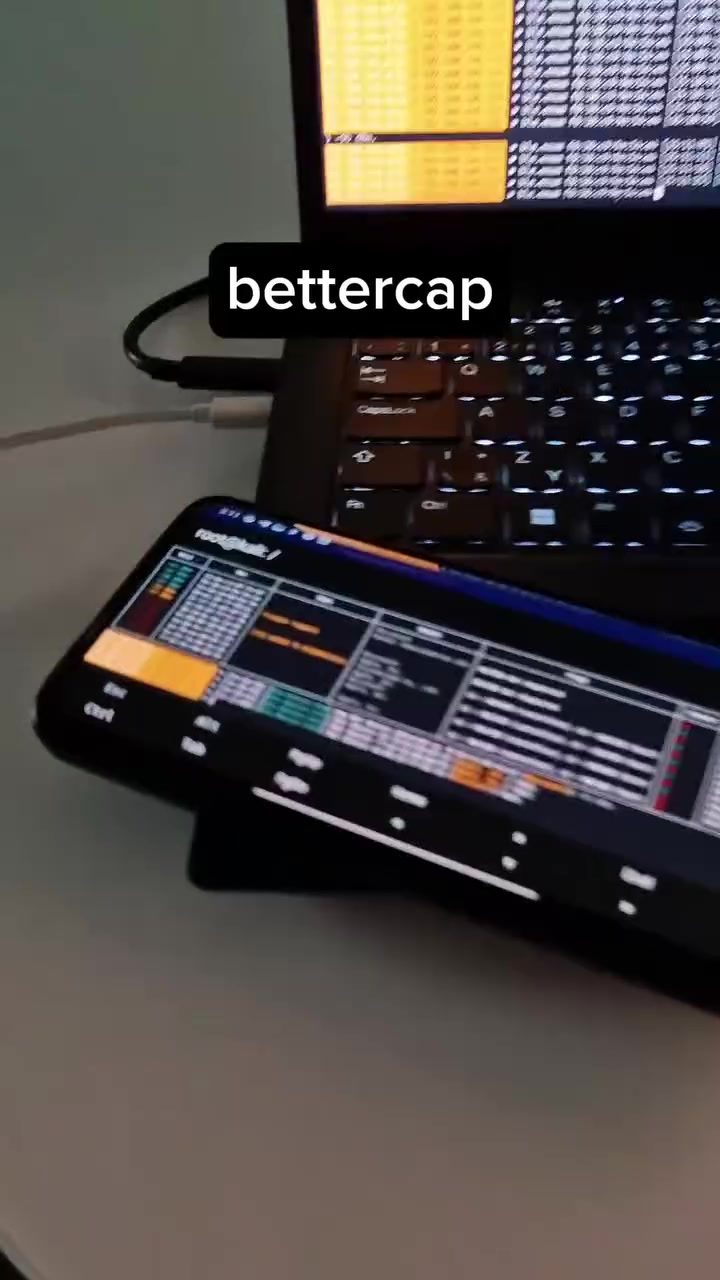
BLE Device Detection on a PC
Understanding how your devices communicate is essential for troubleshooting and security. One key area of interest is Bluetooth Low Energy (BLE) device detection. This technology enables a wide range of applications, from fitness trackers to smart home devices. Let’s dive into the process of detecting BLE devices on a PC, particularly focusing on the use of a specialized tool and the accompanying hardware.
Context / Why this matters
BLE devices are ubiquitous in modern homes and workplaces. Understanding how to detect and interact with these devices can be crucial for various applications, including device pairing, troubleshooting, and even security analysis. By using the right tools and techniques, you can gain valuable insights into the behavior and communication patterns of BLE devices.
Main discussion
The Role of a Bluetooth Dongle
A Bluetooth dongle, especially one with a removable antenna, is essential for extending the range and improving the capabilities of your PC’s Bluetooth hardware. This external device can enhance your laptop’s ability to detect and interact with BLE devices at a greater distance and with improved signal quality. Using a Lenovo laptop for this task, for example, provides a robust platform for running the necessary software.
Using the Bettercap Tool
One of the most powerful tools for BLE device detection is Bettercap. This versatile tool is designed for network security research and can run on both Android and PC platforms. With a focus on Bluetooth research, Bettercap allows users to perform a variety of tasks, including scanning for nearby BLE devices, analyzing their communication patterns, and identifying specific characteristics that are exchanged between devices.
Running Bettercap on a PC
To run Bettercap on a PC, you will need to have the appropriate software and hardware setup:
-
Install Bettercap: Before you begin, ensure that you have Bettercap installed on your PC. You can download it from its official repository or use a package manager if available. This tool is known for its robustness and versatility, making it a top choice for Bluetooth research.
-
Connect the Bluetooth Dongle: Insert the external Bluetooth dongle with a removable antenna into your PC. This dongle will serve as the primary interface for detecting and interacting with BLE devices.
-
Open a Terminal Window: Launch a terminal window on your PC to interact with Bettercap. This allows you to run commands and view the output in real-time.
-
Run Bettercap: Execute the Bettercap command to start the tool. You will see a series of prompts and options that allow you to configure the tool for BLE device detection.
Identifying and Analyzing BLE Devices
Once Bettercap is running, you can start scanning for nearby BLE devices. This process involves several steps, including:
-
Scanning for Devices: Use Bettercap to scan for devices within range. The tool will display a list of detected BLE devices, along with their MAC addresses, signal strength, and other relevant information.
-
Interacting with Devices: Once a device is detected, you can interact with it to gather more information. This might involve obtaining additional data about the device, such as its name, manufacturer, and service UUIDs.
-
Reverse Engineering: For advanced users, reverse engineering the BLE communication between devices, such as between a mobile app and a smart curtain gadget, can provide valuable insights. This process involves analyzing the characteristics that are exchanged and understanding how the devices interact.
The Importance of Hardware
Using the right hardware can significantly enhance your ability to detect and interact with BLE devices. External Bluetooth dongles, particularly those with a removable antenna, can extend the range and improve the reliability of your detection efforts. Additionally, they often come with enhanced features that are not available in built-in Bluetooth hardware.
Setting Up Your Workspace
A well-organized workspace is crucial for effective BLE device detection. Here are some tips for setting up your environment:
-
Desk Layout: Ensure that your desk is free of clutter and that all necessary devices (e.g., the laptop, smartphone, and dongle) are easily accessible. A clean workspace can help you focus on the task at hand.
-
Cables and Connectors: Use high-quality cables and connectors to ensure stable connections. This includes the USB dongle, any required power cables, and any other peripherals you might be using.
-
Display: Position your display so that you have a clear view of the terminal window and any other relevant information. You might also want to use a dual-monitor setup to make the process more efficient.
Practical tips
Choosing the Right Tools
When it comes to BLE device detection, selecting the right tools is crucial. Bettercap is a top choice for its versatility and power, but there are other tools available as well, depending on your specific needs and the complexity of the research you are conducting. Always choose tools that are compatible with your hardware and operating system.
Optimizing Your Setup
To get the best results, make sure your setup is optimized for BLE device detection. This includes:
-
Bluetooth Dongle Placement: Position your Bluetooth dongle in a way that it can receive the best signal. Avoid placing it near other devices that might interfere with the signal.
-
Software Configuration: Ensure that your software is configured correctly. This includes updating your drivers, configuring your network settings, and ensuring that your BLE device detection tool is running properly.
-
Environment: Perform your BLE detection in a controlled environment to minimize interference. This means avoiding areas with a lot of electronic devices that could emit electromagnetic interference (EMI).
Enhancing Detection Range
If you need to detect devices over a greater distance, consider using a more powerful Bluetooth dongle. These devices often come with directional antennas that can enhance signal reception. Additionally, you can use signal boosters to further extend the range.
Important takeaways
Understanding how to detect and interact with BLE devices is a valuable skill. By using the right tools and hardware, you can gain insights into the communication patterns and characteristics of these devices. This knowledge can be applied to a variety of fields, including security research, troubleshooting, and even developing new applications.
Conclusion
BLE device detection on a PC is a powerful technique that can be used for a variety of purposes. Whether you are a security researcher looking to analyze BLE communication, a developer creating a new application, or simply someone interested in understanding how your devices interact, this process can provide valuable insights. By using tools like Bettercap and the right hardware, you can effectively detect and interact with BLE devices, enhancing your capabilities and knowledge in this important area.
Questions readers ask
What is a Bluetooth dongle and why is it necessary for BLE device detection on a PC?
A Bluetooth dongle is a small USB device that enables your PC to communicate with Bluetooth and BLE devices. For BLE device detection, a Bluetooth dongle is often necessary because many PCs do not have built-in BLE capabilities. The dongle acts as a bridge, allowing your PC to scan for, identify, and interact with nearby BLE devices.
How does the Bettercap tool assist in BLE device detection?
Bettercap is a powerful and versatile tool designed for network reconnaissance and penetration testing. It includes built-in support for BLE, allowing users to scan, identify, and analyze BLE devices. Bettercap can provide detailed information about the detected devices, including their MAC addresses, signal strength, and communication patterns.
What are some common use cases for detecting BLE devices on a PC?
Detecting BLE devices on a PC has several practical applications. It can help in troubleshooting connectivity issues, ensuring secure device pairing, and analyzing communication patterns for security purposes. Additionally, it can be useful for reverse engineering BLE devices to understand their functionality and interactions.
Can I use my PC's built-in Bluetooth to detect BLE devices?
While some PCs have built-in Bluetooth capabilities, not all support BLE. Even if your PC does have built-in BLE, using a dedicated BLE dongle can often provide better performance and more reliable results. It's a good idea to check your PC's specifications to see if it supports BLE and to consider using a dongle for optimal results.
What kind of insights can I gain from analyzing BLE communication patterns?
By analyzing BLE communication patterns, you can gain insights into how devices interact with each other, identify potential security vulnerabilities, and optimize device performance. This information can be crucial for enhancing security, troubleshooting issues, and improving the overall functionality of BLE-enabled devices in your environment.
Related deep dives
Similar reads based on topic and creator.




Recent articles
Fresh deep dives from the latest Reels we unpacked.




Comments
Be the first to comment.