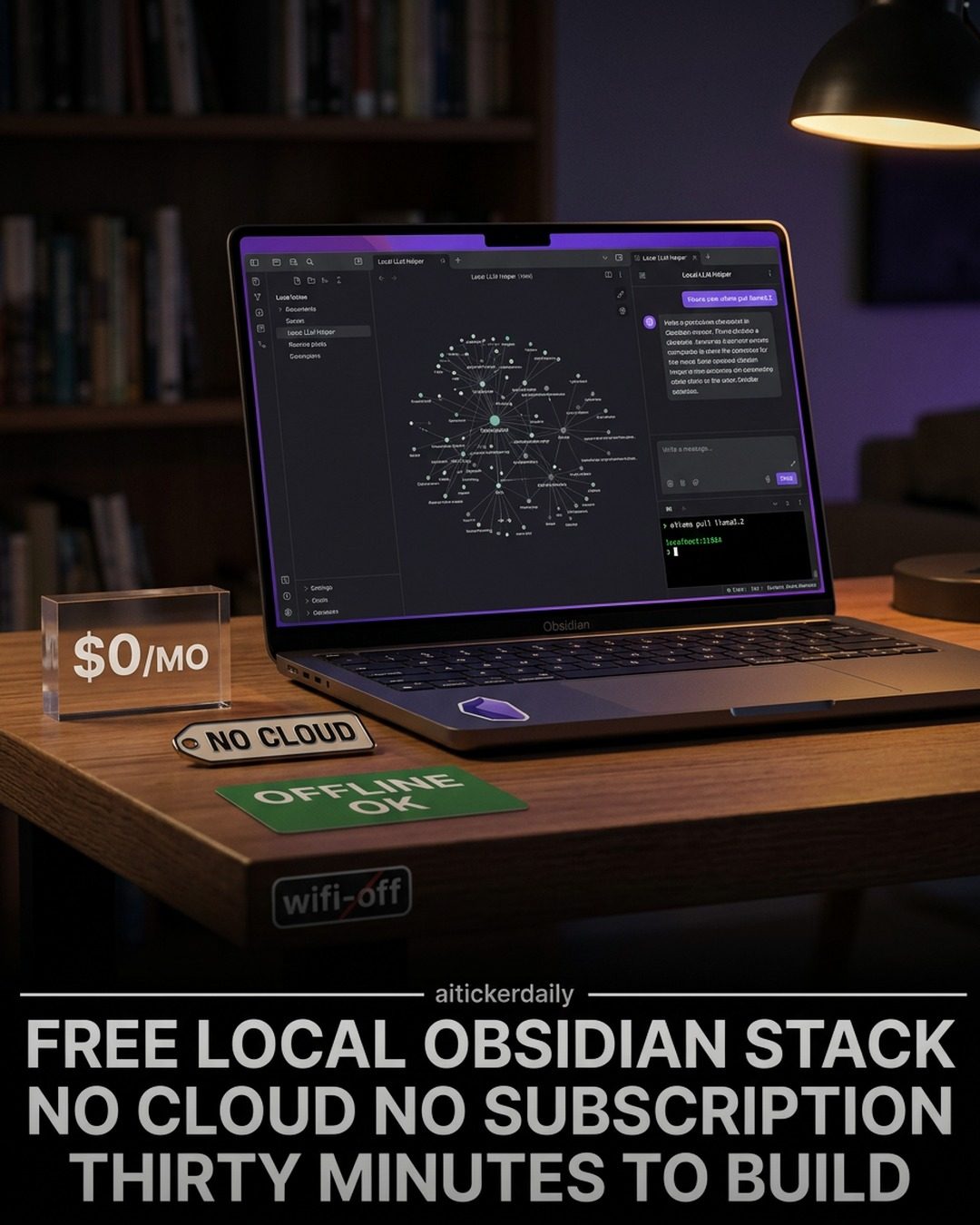
Building a Local AI Obsidian Stack
Obsidian is a powerful note-taking and knowledge management system that has gained popularity among users who value privacy and local control over their data. When combined with local AI tools like Ollama, it becomes an even more potent tool for those who want to keep their notes and AI processing entirely offline. This setup allows for smarter reasoning and analysis without relying on cloud services or subscriptions.
The Advantages of a Local AI Stack
There are several reasons why a local AI Obsidian stack is appealing:
- Data Privacy: Your notes and data never leave your device. This is crucial for anyone handling sensitive information.
- Cost-Effective: Once set up, the stack is free to use, with no ongoing subscription costs.
- Reliability: Offline operation means you can access and process your notes anytime, anywhere, without depending on an internet connection.
The Components of the Stack
A local AI Obsidian stack typically consists of several key components:
- Obsidian: The core note-taking and knowledge management software.
- Ollama: A local AI processing tool that handles the heavy lifting of language models.
- LM Studio: A local environment for managing and running large language models.
- Local LLM Helper: A plugin that integrates local language models with Obsidian.
Ollama: The AI Engine
Ollama is designed for local AI processing, focusing on smarter reasoning rather than simple lookup tasks. It's an essential part of the stack, allowing you to leverage the power of large language models without sending your data to the cloud.
LM Studio: The Management Tool
LM Studio is a local environment that simplifies the process of managing and running large language models. It works seamlessly with Ollama, providing a user-friendly interface for configuring and utilizing language models.
Local LLM Helper: The Integration Plugin
The Local LLM Helper is an Obsidian plugin that integrates local language models with your notes. It allows you to perform AI-powered tasks directly within Obsidian, enhancing your note-taking and knowledge management capabilities.
Setting Up the Local AI Obsidian Stack
Setting up a local AI Obsidian stack is straightforward and can be done in about 30-45 minutes. Here’s a step-by-step guide to get you started:
Step 1: Download and Install the Necessary Tools
- Obsidian: Download and install Obsidian from the official website.
- Ollama: Download the appropriate version of Ollama for your operating system (Mac, Windows, or Linux).
- LM Studio: Download and install LM Studio.
- Local LLM Helper: Install the Local LLM Helper plugin in Obsidian.
Step 2: Configure Ollama
- Download the First Model: Open a terminal and pull the first model by running the command
ollama pull llama3.1:8b. This model is designed for smarter reasoning and will serve as a good starting point.
Step 3: Integrate with Obsidian
- Install the Local LLM Helper Plugin: Open Obsidian, go to the settings, and install the Local LLM Helper plugin.
- Configure the Plugin: Follow the plugin’s instructions to configure it with Ollama and LM Studio. This will allow you to use AI-powered features directly within Obsidian.
Practical Tips for Maximizing Your Local AI Obsidian Stack
Here are some practical tips to help you get the most out of your local AI Obsidian stack:
- Regularly Update Your Models: Keep your language models up-to-date to ensure you have the latest features and improvements.
- Experiment with Different Models: Try out different models to see which ones best suit your needs. Some models may be better for specific tasks, such as writing assistance or data analysis.
- Customize Workflows: Use the plugin’s capabilities to create custom workflows that streamline your note-taking and knowledge management processes.
- Leverage Offline Capabilities: Make use of the offline functionality to ensure your data is always accessible, even without an internet connection.
Important Takeaways
- A local AI Obsidian stack is a powerful and cost-effective way to enhance your note-taking and knowledge management capabilities.
- The stack consists of key components including Obsidian, Ollama, LM Studio, and a Local LLM Helper plugin.
- Setting up the stack is straightforward and can be done in about 30-45 minutes.
- Regular updates, experimenting with models, customizing workflows, and leveraging offline capabilities are essential for maximizing the stack’s potential.
Conclusion
Building a local AI Obsidian stack is a practical and effective way to enhance your note-taking and knowledge management workflows. With the combination of Obsidian, Ollama, LM Studio, and the Local LLM Helper plugin, you can create a robust, privacy-focused system that keeps your data local and secure. The setup process is straightforward, and the benefits are numerous, making it a valuable tool for anyone who values data privacy and offline capabilities.
Questions readers ask
What is a local AI Obsidian stack and how does it work?
A local AI Obsidian stack integrates the note-taking capabilities of Obsidian with local AI tools like Ollama. This setup allows users to manage and analyze their notes offline, ensuring that data remains private and secure on their device. The AI tools enhance reasoning and analysis capabilities, providing smart note-taking functionalities without the need for cloud services.
Why should I choose a local AI Obsidian stack over cloud-based solutions?
A local AI Obsidian stack offers several advantages, including enhanced personal data privacy since your notes never leave your device. It is also a cost-effective solution with no ongoing subscription costs, and it provides reliable, offline data control, which is crucial for handling sensitive information.
Can I use a local AI Obsidian stack for daily note-taking?
Absolutely. A local AI Obsidian stack is well-suited for daily note-taking routines. It allows users to take notes, organize their thoughts, and leverage AI-driven reasoning and analysis all within a local, offline environment. This makes it an efficient and private tool for daily knowledge management.
What are the benefits of using Ollama AI with Obsidian?
Ollama AI enhances the functionality of Obsidian by providing advanced reasoning and analysis capabilities. This local AI tool allows for intelligent note-taking by processing and analyzing notes on your device. It provides a more comprehensive and smart note-taking workflow without the need for cloud processing, making it ideal for users seeking offline AI processing.
How does a local AI Obsidian stack improve my note-taking workflow?
By integrating local AI tools with Obsidian, a local AI Obsidian stack transforms your note-taking workflow into a more intelligent and efficient process. The AI tools can help in summarizing notes, generating insights, and providing smart suggestions, all while keeping your data local and secure. This results in a more productive and private note-taking experience.
Is setting up a local AI Obsidian stack complicated?
Setting up a local AI Obsidian stack involves integrating Obsidian with local AI tools like Ollama. While it may require some initial configuration, the setup process is straightforward and well-documented. Once set up, the stack is easy to use and provides a seamless note-taking experience with enhanced AI capabilities.
Can I use a local AI Obsidian stack for sensitive information?
Yes, a local AI Obsidian stack is ideal for handling sensitive information. Since all data remains on your device and is processed locally, there is no risk of data breaches or unauthorized access. This makes it a secure and private solution for managing and analyzing sensitive notes and information.
Related deep dives
Similar reads based on topic and creator.




Recent articles
Fresh deep dives from the latest Reels we unpacked.




Comments
Be the first to comment.