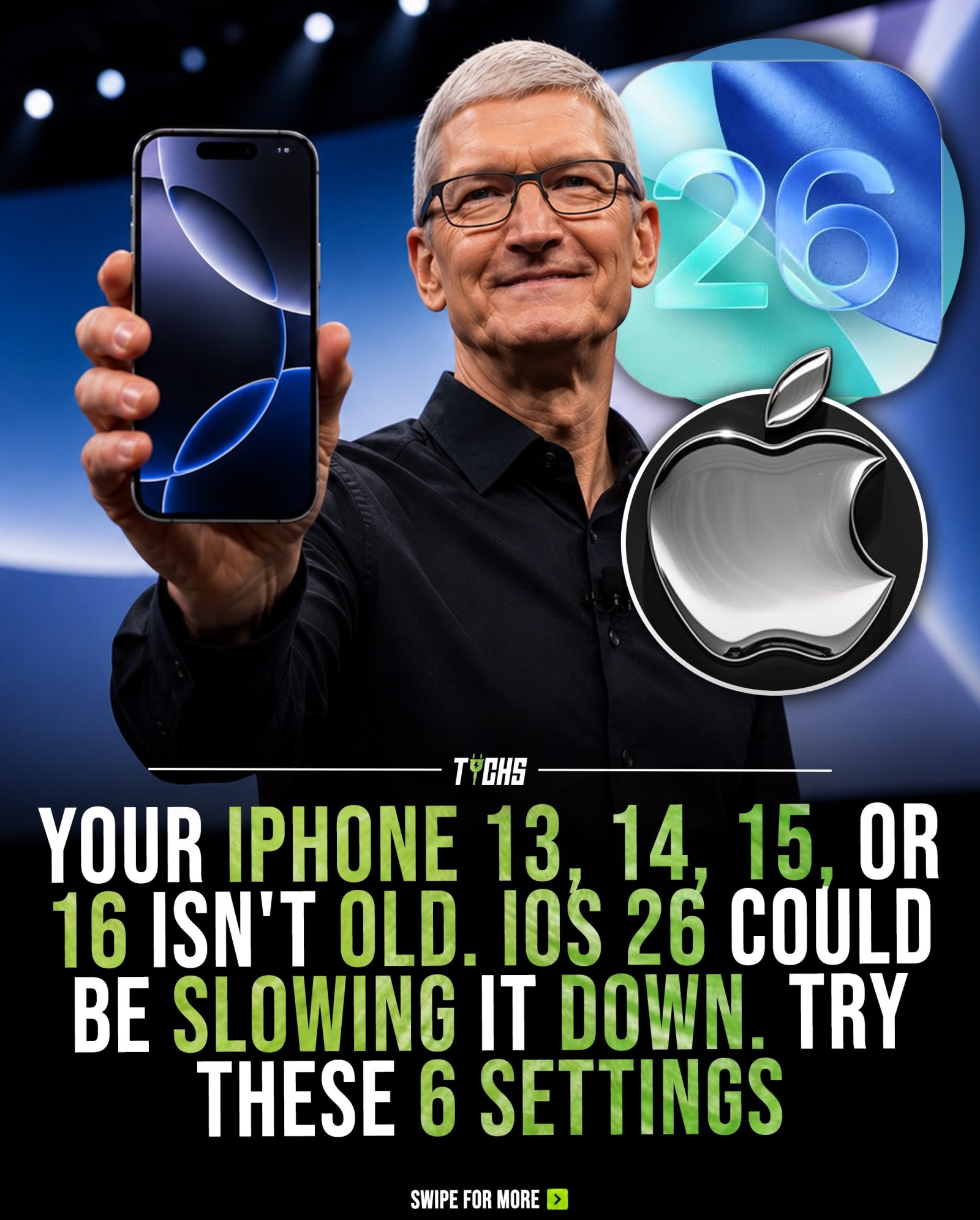
iOS 26 and iPhone Performance: Six Tips to Keep Your Device Running Smoothly
iOS 26 is here, and while it brings a host of new features, many users are noticing slower performance on their iPhones. This isn't always an indicator of outdated hardware. Features like Apple Intelligence, new visual effects, and background indexing can temporarily increase CPU and GPU activity, making the phone feel slower, warmer, and less responsive. Fortunately, there are steps you can take to mitigate these issues. By reducing unnecessary background tasks, disabling features you don’t use, and giving iOS time to finish re-indexing, many iPhone 13, 14, 15, and 16 models can regain much of their original performance.
Why This Matters
iOS updates are designed to enhance user experience, but they can sometimes have unintended consequences. New features and background processes can consume significant system resources, leading to a noticeable decrease in performance. Understanding how to optimize your iPhone's settings can help you maintain a smooth and efficient user experience, even after a major update like iOS 26.
Six Settings to Improve iPhone Performance
1. Reduce System Animations
One of the most effective ways to improve iPhone performance is to reduce system animations. These animations, while visually appealing, can add significant CPU load with each tap. To turn off system animations, navigate to Settings > Accessibility > Motion, and toggle on Reduce Motion. This simple adjustment can make a noticeable difference in your iPhone's responsiveness.
2. Disable Background App Refresh
Background App Refresh allows apps to update their content in the background, but it can also consume a lot of system resources. If you notice your iPhone feeling sluggish, consider turning off Background App Refresh for apps that don't require real-time updates. Go to Settings > General > Background App Refresh and select the apps you want to disable.
3. Turn Off Bluetooth Journaling
Bluetooth journaling is a feature that keeps your iPhone's Bluetooth active 24/7 for a feature you may never use. Disabling it can help reduce unnecessary background activity. Navigate to Settings > Privacy & Security > Location Services > System Services and turn off Journaling Suggestions. This can help your iPhone run more efficiently.
4. Optimize Location Services
While location services are useful for many apps, they can also drain your battery and slow down your iPhone. Go to Settings > Privacy & Security > Location Services and review which apps have access to your location. Turn off location services for apps that don't need it, or set them to While Using the App instead of Always.
5. Clear Cache and Temporary Files
Over time, your iPhone accumulates temporary files and cache data that can slow down performance. Unfortunately, iOS does not provide a built-in way to clear all cache data at once, but you can clear the cache for individual apps by deleting and reinstalling them. For a more thorough clean-up, consider using third-party apps designed for this purpose.
6. Limit Background Activity
Many apps run background processes that can consume system resources. To limit background activity, go to Settings > General > Background App Refresh and turn it off for apps that you don't need to update in the background. You can also force-quit apps that are running in the background by double-clicking the home button and swiping up on the apps you want to close.
Practical Tips
Regular Software Updates
While new iOS updates can sometimes cause performance issues, it's important to keep your iPhone updated. Apple regularly releases updates that include performance improvements and bug fixes. Make sure your iPhone is set to download and install updates automatically.
Use Optimized Apps
Some apps are more optimized for iOS than others. If you notice that a particular app is causing your iPhone to slow down, consider finding an alternative that is better optimized. Look for apps with high ratings and positive reviews, and check the app's support page for any known performance issues.
Monitor Battery Health
Battery health can significantly affect your iPhone's performance. If your battery is degraded, your iPhone may throttle performance to conserve power. Go to Settings > Battery > Battery Health to check the condition of your battery. If it's degraded, consider replacing it.
Important Takeaways
- Understand the Impact of iOS Updates: New features and background processes can consume significant system resources, leading to slower performance.
- Optimize Settings: Reduce system animations, disable background app refresh, and limit background activity to improve performance.
- Monitor Battery Health: A degraded battery can affect performance, so keep an eye on your battery health and replace it if necessary.
Conclusion
iOS 26 brings a host of new features, but it can also introduce performance issues. By understanding how to optimize your iPhone's settings and monitor its health, you can maintain a smooth and efficient user experience. Regular software updates, optimized apps, and good battery health are key to keeping your iPhone running at its best. Take control of your iPhone's performance and enjoy the benefits of iOS 26 without the drawbacks.
Questions readers ask
Why is my iPhone slower after the iOS 26 update?
The iOS 26 update introduces several new features and improvements, some of which may temporarily increase CPU and GPU activity. This can make your iPhone feel slower, warmer, and less responsive. Additionally, the update may take some time to finish re-indexing, which can also impact performance. Rest assured this is usually temporary.
How can I reduce system animations on my iPhone to improve speed?
To reduce system animations, go to the 'Settings' menu, select 'Accessibility,' then tap on 'Motion.' From here, you can turn on 'Reduce Motion' to minimize visual effects and animations, which can help speed up your iPhone.
What are some ways to manage background tasks on my iPhone?
To manage background tasks, go to 'Settings,' select 'General,' then tap on 'Background App Refresh.' Here, you can turn off this feature for apps that you don’t use often. This can help reduce the number of processes running in the background and improve your iPhone's performance.
How long does iPhone re-indexing take after the iOS 26 update?
The duration of re-indexing can vary depending on the amount of data on your iPhone. It may take a few hours to a full day. During this time, it's best to avoid heavy usage and give your iPhone time to optimize its performance.
Which iPhone models are most likely to benefit from these performance tweaks?
iPhone 13, 14, 15, and 16 models are most likely to benefit from these performance tweaks. These models have the hardware capabilities to handle the iOS 26 update, but may need some adjustments to optimize their performance after the update.
Related deep dives
Similar reads based on topic and creator.




Recent articles
Fresh deep dives from the latest Reels we unpacked.




Comments
Be the first to comment.