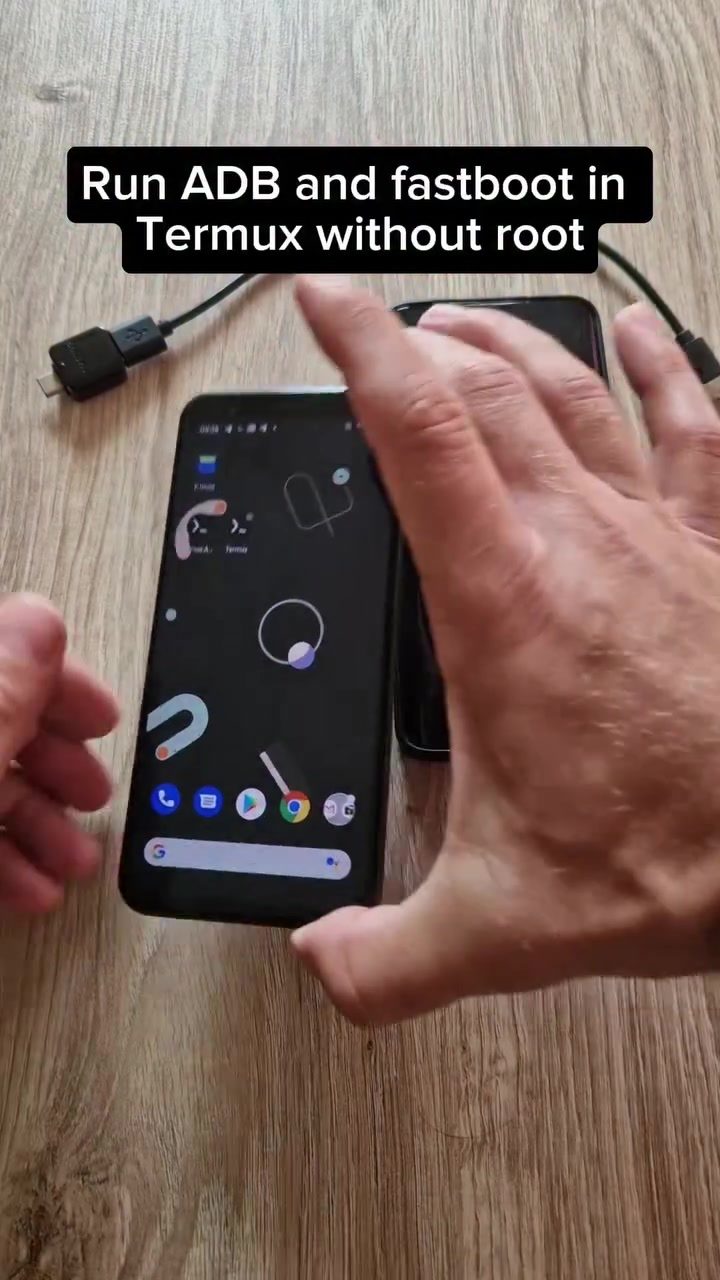
Running ADB and Fastboot in Termux Without Root Access
Running Android Debug Bridge (ADB) and Fastboot commands on a non-rooted Android device has traditionally been a challenging task. However, with the help of Termux, a powerful terminal emulator for Android, it's now possible to execute these commands without needing root access. This capability opens up a world of possibilities for power users, including unlocking the bootloader, removing bloatware, flashing custom ROMs, and even rooting another Android device.
Why This Matters
The ability to run ADB and Fastboot commands on a non-rooted Android device is a game-changer for those who want to customize their devices or perform advanced troubleshooting. Traditionally, these commands required root access, which could void warranties and expose the device to security risks. By using Termux, users can achieve the same results without these drawbacks. This makes it easier and safer to manage and modify Android devices.
Setting Up Termux for ADB and Fastboot
Installing Termux
The first step is to install Termux on your Android device. You can download it from the Google Play Store or directly from the official Termux website. Once installed, open the app and familiarize yourself with the basic commands.
Installing Required Packages
Once Termux is set up, you need to install the necessary packages. Open Termux and run the following commands to update the package list and install the required tools:
pkg update
pkg upgrade
pkg install tsu
Setting Up the Environment
After installing the necessary packages, you need to set up the environment for ADB and Fastboot. Follow these steps:
-
Install ADB and Fastboot:
pkg install android-tools -
Enable USB Debugging:
On your Android device, go to Settings > About phone and tap on Build number seven times to enable Developer Options. Then, go to Settings > Developer Options and enable USB Debugging.
-
Connect Your Device:
Connect your phone to a computer via a USB cable. Open a terminal in Termux and type:
adb devicesIf your device is listed, you are ready to proceed. If not, ensure that USB Debugging is enabled and that you have the correct USB drivers installed on your computer.
Running ADB and Fastboot Commands
With everything set up, you can now run ADB and Fastboot commands directly from Termux. Here are a few examples of what you can do:
-
Unlocking the Bootloader:
fastboot oem unlockNote: Unlocking the bootloader will erase all data on your device, so make sure to back up your data before proceeding.
-
Removing Bloatware:
To remove unwanted pre-installed apps, use the following command:
adb shell pm uninstall -k --user 0 com.example.appReplace
com.example.appwith the package name of the app you want to remove. -
Flashing Custom ROMs:
To flash a custom ROM, you need to download the ROM file and use the Fastboot command to flash it:
fastboot flash recovery custom_recovery.imgReplace
custom_recovery.imgwith the path to your custom recovery image. -
Rooting Another Android Device:
While rooting another device is an advanced topic, Termux and Fastboot can be used to achieve it. This process involves flashing a custom recovery image and then using that to flash a root package.
Practical Tips
- Backup Your Data: Always back up your data before performing any advanced operations, especially ones that involve unlocking the bootloader or flashing custom ROMs.
- Use Reliable Sources: Download custom ROMs and recovery images only from trusted sources to avoid malware and other security risks.
- Read Documentation: Each command and process has its own set of instructions and potential pitfalls. Make sure to read the documentation thoroughly before proceeding.
- Stay Updated: Keep your Termux packages and your Android device's firmware updated to ensure compatibility and security.
Important Takeaways
Running ADB and Fastboot commands in Termux without root access is a powerful capability that allows users to customize and troubleshoot their Android devices more effectively. By following the steps outlined, you can unlock the full potential of your Android phone without the need for root access. This approach not only makes the process safer but also more accessible to a wider range of users.
Conclusion
Using ADB and Fastboot in Termux on a non-rooted Android device is a powerful way to unlock the full potential of your device. Whether you're looking to remove bloatware, flash a custom ROM, or even root another device, Termux provides a safe and effective way to do so. By following the steps and tips outlined, you can perform these operations with confidence and ease, making the most out of your Android experience.
Questions readers ask
What is Termux and why is it useful for running ADB and Fastboot commands?
Termux is a powerful terminal emulator for Android that enables users to run a variety of command-line tools, including ADB and Fastboot, without the need for root access. It provides a convenient and safe way to perform advanced tasks on your Android device, such as unlocking the bootloader or flashing custom ROMs, while preserving the device's warranty and security.
Can I use ADB and Fastboot in Termux on a non-rooted device?
Yes, you can use ADB and Fastboot in Termux on a non-rooted Android device. Termux allows you to execute these commands directly from your device, eliminating the need for root access. This makes it a safer and more accessible option for users who want to customize their device or perform troubleshooting without compromising security.
How do I install ADB and Fastboot in Termux?
To install ADB and Fastboot in Termux, you first need to have Termux installed on your Android device. Then, you can use the Termux package manager to install the necessary tools. Open Termux, update the package list using the command 'pkg update', and then install ADB and Fastboot using 'pkg install android-tools'.
What tasks can I perform using ADB and Fastboot in Termux without rooting my device?
With ADB and Fastboot in Termux, you can perform a variety of tasks on a non-rooted device, such as unlocking the bootloader, removing bloatware, flashing custom ROMs, and even rooting another Android device. These commands provide powerful tools for customization and troubleshooting, all while keeping your device secure and warrantied.
Will using ADB and Fastboot in Termux void my device's warranty?
Using ADB and Fastboot in Termux without rooting your device should not void your warranty. Since you are not modifying the system files or gaining root access, you can perform the commands safely. However, it's always a good idea to check your device's specific warranty terms to ensure compliance.
Can I use Termux to root another Android device via ADB and Fastboot?
Yes, you can use Termux to root another Android device via ADB and Fastboot. By connecting the target device to your Termux-enabled device, you can execute the necessary commands to gain root access on the other device. This method is particularly useful for users who want to gain root access on a secondary device without rooting their primary device.
What are the benefits of using ADB and Fastboot in Termux over traditional methods?
Using ADB and Fastboot in Termux offers several benefits, including the ability to perform advanced tasks without rooting your device, which preserves its warranty and security. It also provides a more accessible and user-friendly interface for executing commands, making it easier for users to customize and troubleshoot their devices effectively.
Related deep dives
Similar reads based on topic and creator.




Recent articles
Fresh deep dives from the latest Reels we unpacked.




Comments
Be the first to comment.