WhatsApp Storage Management
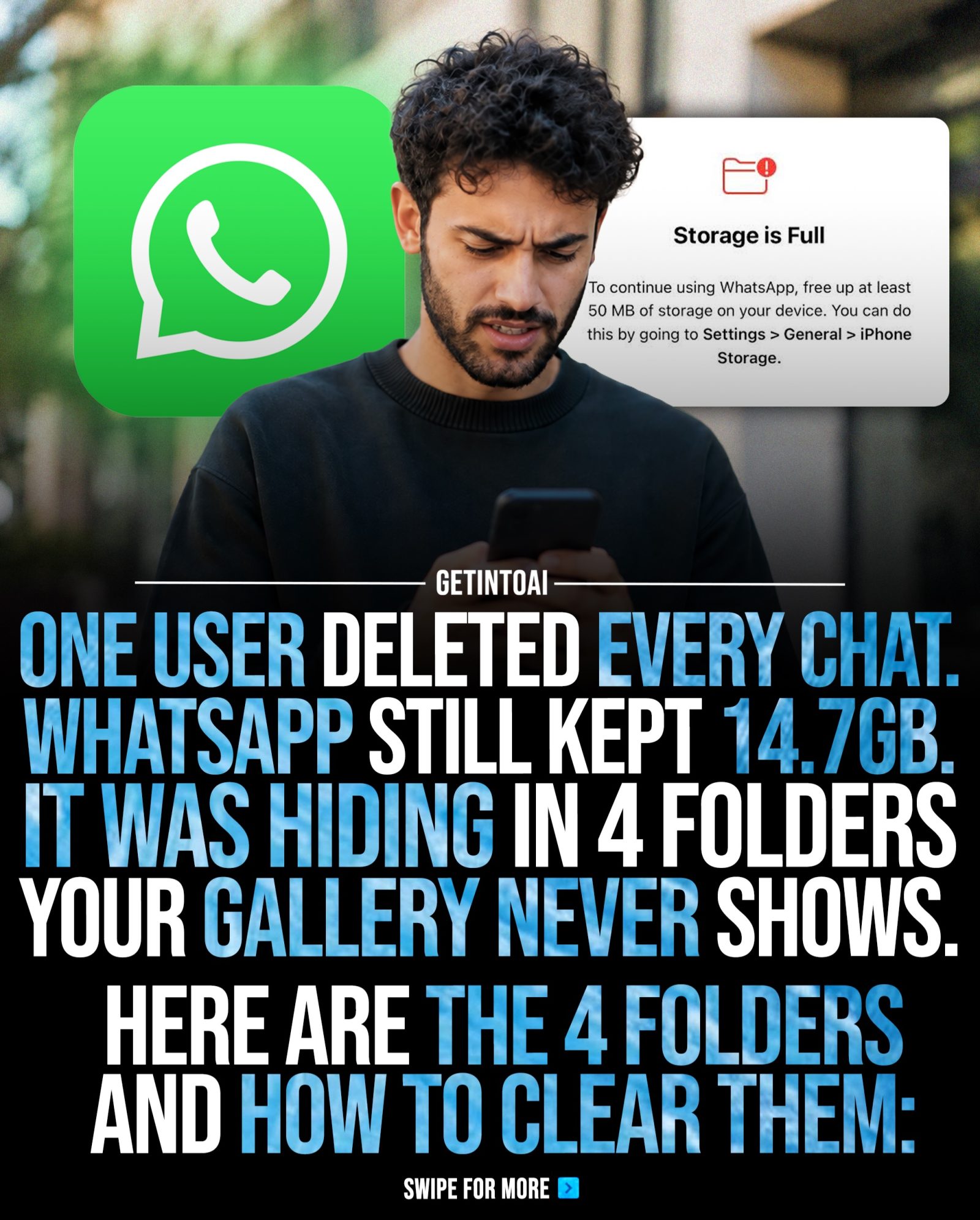
WhatsApp, the widely used messaging platform, can quietly consume a significant amount of storage space on a smartphone. This is due to a variety of reasons, including large forwarded videos, old chat media, backup files, and hidden folders. Many users might not realize that simply deleting chats does not free up as much storage as they think. The app often retains large amounts of data, even after chats have been cleared. Understanding where this storage is actually going and how to manage it effectively is crucial for maintaining a well-functioning device.
Context / Why this matters
WhatsApp's storage management is an essential topic for smartphone users. As we increasingly rely on messaging apps for daily communication, managing storage becomes more critical. WhatsApp, in particular, can accumulate a substantial amount of data, which, if left unchecked, can lead to a full storage issue. This can hinder the performance of the device and limit the functionality of other apps. By understanding where this data is stored and how to manage it, users can ensure their smartphones run smoothly, and they can avoid the frustration of dealing with a full storage message.
Main discussion
WhatsApp's storage usage primarily comes from media files: photos, videos, and documents shared through the app. These files can pile up quickly, especially if users frequently receive and forward large media files. Additionally, WhatsApp creates backup files and stores them in hidden folders, which can consume a significant amount of storage space over time. Understanding the different types of data stored by WhatsApp and how to manage them is essential for keeping your smartphone running efficiently.
Hidden Folders and Storage
Hidden folders within WhatsApp store media files that contribute to the overall storage usage. These folders are not visible in the gallery, but they still take up space. They include:
-
Media from Old Chats: This folder contains media files from old chats that you may no longer need. Deleting these files can free up a considerable amount of storage without deleting the actual chat conversations.
-
Viewed Statuses: This folder contains media files from statuses that you have viewed. Once you've viewed a status, the media file is stored in this folder, and it can quickly add up to a significant amount of storage.
-
Backup Files: WhatsApp creates backup files to ensure that your chat history is safe. These files can consume a large amount of storage space, especially if you have a long chat history. Regularly managing these backup files can help free up storage.
Managing WhatsApp Storage
To effectively manage WhatsApp storage, follow these steps:
- Accessing Storage Settings: Go to Settings > Storage and Data. Here, you can see how much storage WhatsApp is using and get recommendations on how to free up space.
- Managing Media Files: In the Manage Storage section, you can view and delete media files from old chats and viewed statuses. It's essential to review these files carefully and only delete those you no longer need.
- Deleting Backup Files: Regularly delete old backup files to free up storage. You can do this by going to WhatsApp Settings > Chats > Chat Backup and deleting old backup files.
- Clearing Cache: Regularly clearing the cache can also help free up storage. Go to Settings > Apps > WhatsApp > Storage and tap on Clear Cache.
Practical tips
To maintain optimal performance and sufficient storage on your smartphone, follow these practical tips for managing WhatsApp storage:
Regularly Review Media Files
Regularly review and delete media files from old chats and viewed statuses. This can free up a significant amount of storage without deleting important conversations. Be cautious not to select 'Select All' when deleting files to avoid accidentally deleting important media.
Use Manage Storage Feature
Familiarize yourself with the Manage Storage feature within WhatsApp. This tool provides a detailed breakdown of how much storage each chat is using and allows you to delete unnecessary media files.
Turn on Auto-delete
Enable the auto-delete feature for chats and statuses. This feature automatically deletes old messages and statuses after a specified period, helping to manage storage effectively.
Clear Cache Regularly
Regularly clear the cache to free up storage. This can be done through the app settings or by navigating to the device settings and clearing the cache for WhatsApp.
Disable Auto-Downloading of Media
Disable the auto-downloading of media to prevent WhatsApp from automatically saving media files to your device. You can adjust these settings in the app settings under Storage and Data.
Delete Old Backup Files
Regularly delete old backup files to free up storage. WhatsApp creates backup files to ensure that your chat history is safe, but these files can consume a large amount of storage space, especially if you have a long chat history. Deleting old backup files can help keep your storage usage in check.
Important takeaways
Managing WhatsApp storage is essential for maintaining the performance of your smartphone. Key takeaways include:
- Hidden Folders: WhatsApp stores media files in hidden folders that are not visible in the gallery. These folders can consume a significant amount of storage space, and regularly reviewing and deleting unnecessary files can help free up storage.
- Manage Storage Feature: Utilize the Manage Storage feature within WhatsApp to get a detailed breakdown of how much storage each chat is using and to delete unnecessary media files.
- Regular Maintenance: Regularly review and delete media files, clear the cache, and delete old backup files to maintain optimal storage usage.
Conclusion
Efficiently managing WhatsApp storage is crucial for maintaining the performance of your smartphone. By understanding where data is stored and implementing practical tips for managing it, you can ensure that your device runs smoothly and avoid the frustration of dealing with a full storage message. Regularly reviewing and deleting media files, utilizing the Manage Storage feature, and clearing the cache are essential steps for effective storage management. Additionally, enabling the auto-delete feature and disabling auto-downloading of media can help keep your storage usage in check. By following these tips, you can ensure that your smartphone remains functional and capable of handling all your communication needs.
Questions readers ask
What are the hidden folders in WhatsApp that consume storage?
WhatsApp creates several hidden folders to store various types of media and data. These include folders for media files, backup files, and even viewed statuses. The most common hidden folders are 'WhatsApp Media', 'WhatsApp Documents', and 'WhatsApp Statuses'.
How can I find these hidden folders on my smartphone?
To locate these folders, you typically need to navigate to your device's file manager and look for the 'WhatsApp' folder. This is often found in the 'Internal Storage' or 'File Storage' section. Within the 'WhatsApp' folder, you will find several subfolders such as 'Media', 'Databases', and 'Statuses'.
Can deleting old chats free up significant storage on WhatsApp?
Deleting old chats alone may not free up as much storage as you might think. This is because WhatsApp often retains media files and other data associated with those chats. To free up significant storage, you should also manage and delete media files within the app's folders and clear the cache.
What is the 'WhatsApp Media' folder and how can I manage it?
The 'WhatsApp Media' folder contains all the photos, videos, and audio files you receive and send through the app. You can manage this folder by navigating to it in your file manager and deleting unwanted files. Additionally, you can use WhatsApp's built-in storage management tool to select and delete media files directly from the app.
How do I clear WhatsApp's cache to free up storage?
To clear WhatsApp's cache, go to your device's settings, then to 'Apps' or 'Application Manager.' Find WhatsApp in the list, tap on it, and select 'Storage.' From there, you can choose 'Clear Cache.' This will remove temporary files that WhatsApp has stored, freeing up space on your device.
What are WhatsApp's backup files and how can they be managed?
WhatsApp's backup files include chat backups and media files that are stored periodically. These are often created in the 'WhatsApp Databases' folder and can take up a lot of space over time. To manage these, you can adjust the backup settings in WhatsApp, or delete the backup files manually from the device's file manager.
How do I manage WhatsApp statuses to reduce storage usage?
WhatsApp status updates can consume a lot of storage, especially if you view and save many statuses. To manage this, you can clear the 'Statuses' folder in your file manager. Alternatively, within WhatsApp, you can change settings to prevent statuses from being automatically downloaded and saved.
Related deep dives
Similar reads based on topic and creator.




Recent articles
Fresh deep dives from the latest Reels we unpacked.




Comments
Be the first to comment.