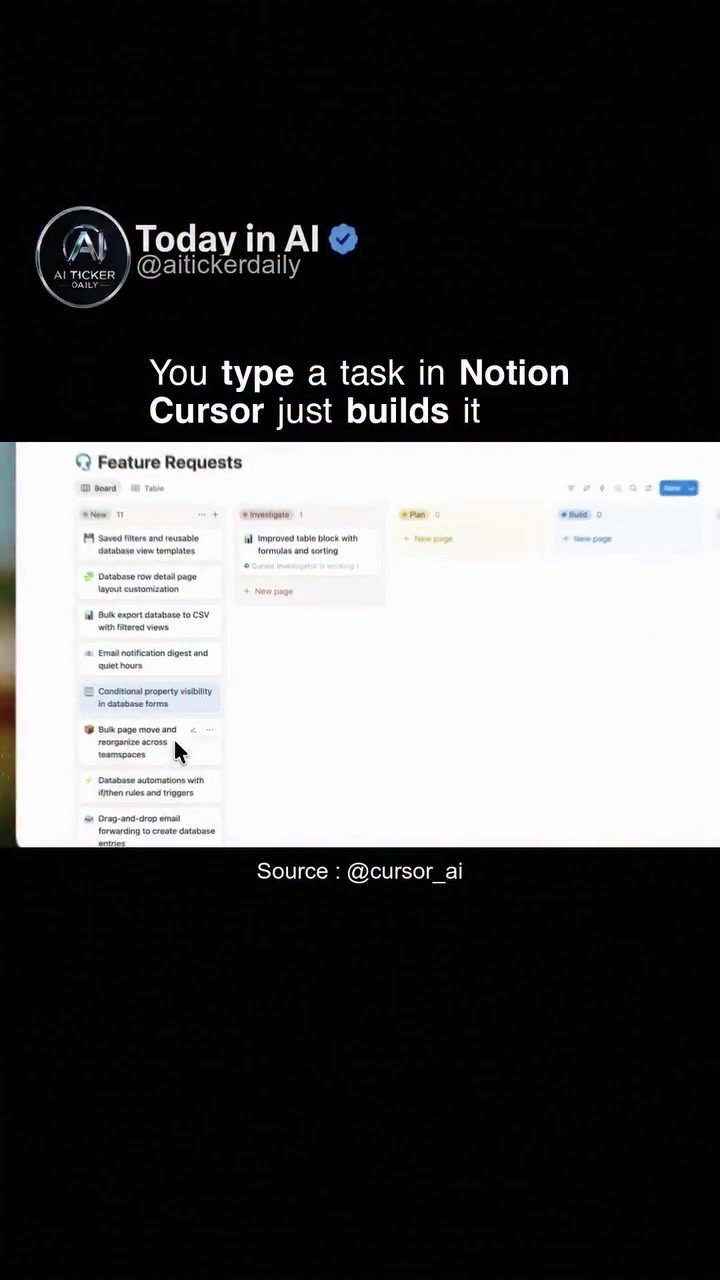
Notion and Cursor: A Productivity Powerhouse
Notion is a powerful productivity tool known for its versatility and customizability. It allows users to create databases, tasks, and notes, organizing information in a way that suits their workflow. Cursor is a tool that enhances productivity by streamlining the process of turning tasks into real code. Together, these tools can create a powerful system for managing feature requests and development.
Why this Matters
In today's fast-paced development environments, efficiently managing tasks and feature requests is crucial. Traditional methods of managing feature requests can be cumbersome and time-consuming, often leading to delays and miscommunications. By integrating Notion with Cursor, teams can streamline their workflow, ensuring that tasks are not only tracked but also implemented efficiently.
Main Discussion
Understanding Notion and Cursor
Notion is a productivity tool that allows users to create, organize, and track tasks, notes, and databases. It is highly customizable, making it a popular choice for teams and individuals alike. Cursor, on the other hand, is an AI-powered tool that helps developers turn tasks into code. Using Cursor, developers can automate the process of creating pull requests (PRs) and code reviews, significantly speeding up the development process.
Using Notion to Track Feature Requests
Notion's flexibility makes it an ideal tool for tracking feature requests. Teams can create databases that categorize feature requests by priority, status, or any other criteria that suits their workflow. Boards, tables, and other Notion features can be used to visualize and manage these requests, making it easier to prioritize and assign tasks.
For example, a team might create a board where each feature request is a card. The cards can be moved between columns representing different stages of the development process, such as "Backlog," "In Progress," and "Completed." This visual representation of the workflow helps team members stay organized and focused on their tasks.
Automating Development with Cursor
Cursor enhances the functionality of Notion by automating the process of turning tasks into code. With Cursor, developers can assign a spec or a ticket to a task in Notion, and Cursor will automatically create a pull request (PR) that can be reviewed by the entire team. This automation saves time and reduces the likelihood of errors, ensuring that tasks are implemented efficiently.
Seamless Integration
The integration between Notion and Cursor is seamless, thanks to the Cursor SDK. The same models and runtime used in Cursor are applied to automate the process, ensuring consistency and reliability. This integration allows teams to focus on what they do best—developing and innovating—while Cursor handles the mundane tasks.
Benefits of the Integration
The integration of Notion and Cursor offers several benefits:
- Efficiency: By automating the process of turning tasks into code, teams can save time and reduce the likelihood of errors.
- Collaboration: The ability to create pull requests that can be reviewed by the entire team fosters collaboration and ensures that everyone is on the same page.
- Customization: Notion's flexibility allows teams to customize their workflows, making it easier to manage feature requests and development tasks.
- Consistency: The use of the same models and runtime ensures that the automation process is consistent and reliable.
Practical Tips
Set Up Your Notion Workspace
To get started with Notion, create a new workspace and set up a database to track feature requests. You can use tables, boards, or any other format that suits your team's workflow. For example, you might create a table with columns for the feature request, its priority, the assigned team member, and the status.
Assign Tickets and Specs in Notion
Once you have your workspace set up, start assigning tickets and specs to your tasks in Notion. This will allow Cursor to automate the process of turning these tasks into code. Make sure to include all necessary details in the ticket or spec to ensure that Cursor can create an accurate PR.
Utilize Visual Tools
Notion offers a variety of visual tools, such as boards and tables, that can help you manage your feature requests. Use these tools to create a visual representation of your workflow, making it easier to prioritize and assign tasks.
Review Pull Requests
When Cursor creates a pull request, make sure to review it thoroughly. This step is crucial for ensuring that the code meets your team's standards and requirements. Encourage collaboration and feedback among team members to ensure that the final product is of the highest quality.
Important Takeaways
- Efficiency and Automation: The integration of Notion and Cursor helps automate the process of turning tasks into code, saving time and reducing errors.
- Customization and Flexibility: Notion's flexibility allows teams to customize their workflows, making it easier to manage feature requests and development tasks.
- Collaboration and Consistency: The ability to create pull requests that can be reviewed by the entire team fosters collaboration and ensures consistency in the development process.
Conclusion
By integrating Notion with Cursor, teams can streamline their workflow, ensuring that feature requests are managed efficiently and effectively. This powerful combination allows teams to focus on what they do best—developing and innovating—while automation handles the mundane tasks. By following the practical tips outlined in this article, teams can make the most of this integration, improving their productivity and collaboration.
Questions readers ask
How does Cursor help in automating feature requests in Notion?
Cursor automates feature requests in Notion by converting tasks and specifications directly into code. This integration allows development teams to turn their Notion tasks into executable code, reducing the time spent on manual coding and enhancing overall efficiency.
Can I track feature request tickets in Notion with Cursor?
Yes, you can track feature request tickets in Notion and have them automatically updated in Cursor. This integration ensures that any changes or updates made to a ticket in Notion are reflected in the corresponding development tasks, keeping the entire team on the same page.
What are the benefits of integrating Notion with Cursor for development teams?
Integrating Notion with Cursor offers several benefits, including streamlined workflow, reduced manual effort, and improved collaboration. Teams can manage feature requests more effectively, ensuring that tasks are completed efficiently and accurately, which can lead to faster project completion and better outcomes.
How does Notion's versatility enhance the development workflow when used with Cursor?
Notion's versatility allows teams to organize and customize their tasks, databases, and notes in a way that suits their specific workflow. When integrated with Cursor, this flexibility ensures that the development process is tailored to the team's needs, making it easier to manage and automate feature requests and other development tasks.
Can Cursor handle specifications from Notion and turn them into code?
Yes, Cursor can handle specifications from Notion and convert them into executable code. This capability allows development teams to directly translate their planned features and tasks from Notion into actual code, minimizing the gap between planning and execution and ensuring a smoother development process.
How can a development team manage feature requests more efficiently with Notion and Cursor?
By using Notion to organize feature requests and Cursor to automate the coding process, development teams can manage their tasks more efficiently. This integration enables real-time updates, clear tracking, and seamless conversion of tasks into code, reducing delays and improving overall productivity.
What types of tasks in Notion can be automated with Cursor?
Cursor can automate a wide range of tasks in Notion, including feature requests, project specifications, and development tasks. This automation helps in converting these tasks into functional code, ensuring that the development process is streamlined and that all team members are aligned with the project's goals and progress.
Recent articles
Fresh deep dives from the latest Reels we unpacked.




Comments
Be the first to comment.