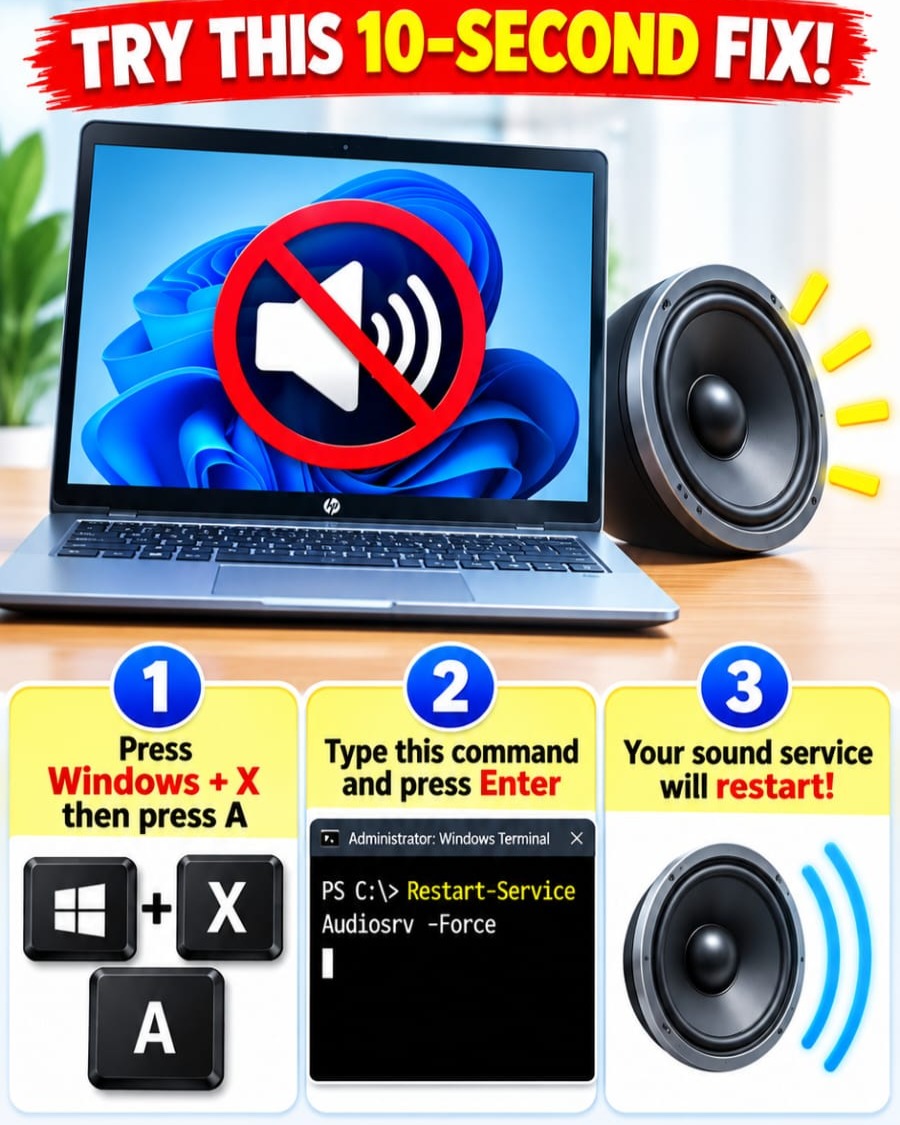
Sound loses its way on Windows more than users would like. But there is a quick fix to solve it. For a cadre of users who have already found themselves in the frustrating position of not being able to hear a peep from their laptop, the solution lives in the Terminal.
The Windows Sound Disruption Dance
Windows users know all too well that their sound can glitch. The disconnected state can happen for a variety of reasons, from program errors to system updates gone wrong. The primary symptom is that the speaker icon in the system tray displays a red x, with a mute symbol beside it. The resulting silence is only as loud as the stifled exclamation of frustration from the user. Remedying the issue doesn't need to be a round dance of endless troubleshooting—even for inexperienced users. It resides in a command line that briefly alters the Windows sound service. Users can resolve it with a few text keystrokes. The command has to be issued through a Terminal, but it's a small headache for the relief it brings. Windows users need to be administrators on the computer they are working on, so they can open this Terminal. A main feature of the Windows Terminal is its command-line interface, which allows users to execute commands. The Terminal is a gateway to the operating system's lower levels, where power users can step in to alter the operating system's core functions.
To Fix or Not To Fix
The Windows operating system is supposed to simplify the operation of our computers, but every user has spent their fair share of time reeling from the system's snags. Sound issues are a commonplace complaint among Windows users and can disrupt the user's experience. In effect, this fixes a bug that can occur if there is a missing driver or hardware problem. Users may be taken aback by how simple the process is, which happens without making any adjustments to the audio settings or hardware. The command line process is an obscure fix to a common problem, whatever the source. Moreover, it doesn’t require any deep system knowledge or understanding of why the sound has stopped working in the first place.
The Audiosrv Service
The key to resurrecting the lost audio is a service entry called AudioSrv, which stands for Audio Service. The service handles audio-related tasks and maintains sound output, so when you have no sound, the service might be what's crashing. AudioSrv touches almost every aspect of audio processing in Windows. The command provides a way to make sure that your audio device is shared correctly with your operating system. Restarting the AudioSrv is a last-resort technique before upgrading or troubleshooting the entire system. The command line instructs the system to restart the service, forcing the sound service to shut down and restart, and resolving the problem. The command-line option gives the instant relief of a quick reboot. When it is employed and the service is restarted, the windows sound service is reset, which forces the audio device to reinitialize. The command may also remove anything that may have caused the problem in the first place. Troubleshooting should be saved after this fix, just in case.
The Terminal Fix — A Way In
To use this fix, you must open the Terminal. Users start by pressing the Windows key and the letter X at the same time. The Windows menu will come up, with "Windows Terminal (admin)" or, simply, "Command Prompt." The menu will open a black screen and then you can type the command "Restart-Service Audiosrv -Force" in the Terminal and press Enter. The command forces the restart of the Windows sound service, ensuring the sound driver will work. This command is a direct call to the computer’s operating system, instructing it to begin this sound service anew, thereby temporarily fixing the issue. The sound on the laptop will return, allowing the user to resume whatever they were working on. Windows Terminal is a versatile tool, so whether you're a professional IT technician with plenty of experience or a novice trying to resolve an issue, Windows Terminal lets everyone play with audio and much more. The instructions are clear and the effects are immediate. For the user, the Terminal becomes an easy gateway to the operating system. This tutorial merely scrapes the surface of everything that's possible through this service.
The Hidden Depths of the Windows Terminal
The Terminal can be more than a utility or a tool. Even for those who are not technically inclined, opening it up may provide insights into the operating system. It can be used for many functions, including running scripts, making changes to the system, and configuring settings. The Terminal can help users unlock all kinds of possibilities on their computers. The Terminal instantly fixes many problems, seeming to almost magically help computers that are no longer working.
Easy Remedy
If your computer runs Windows and sound issues start manifesting, there are the steps to take:
- Hail the Terminator. Open the Terminal by pressing the Windows key and the letter X at the same time. It will open a black screen.
- Administrator: Type
Restart-Service Audiosrv -Forcein Terminal. - Enter and Rebound: Press Enter to send the command, and your sound should return.
Questions readers ask
What exactly is the Terminal in Windows, and how do I open it?
The Windows Terminal is a command-line interface that allows users to execute commands and access the operating system's lower levels. To open it, you need to be an administrator on the computer. You can do this by searching for 'Terminal' in the start menu, right-clicking on it, and selecting 'Run as administrator.'
What command do I need to enter in the Terminal to fix the sound issue?
To fix the sound issue, you need to restart the AudioSrv service. The command you enter in the Terminal is 'net stop audiosrv' followed by 'net start audiosrv.' This will shut down and then restart the audio service, often resolving the sound problem.
Is this Terminal fix a permanent solution or a temporary one?
The Terminal fix is a quick solution that can resolve the sound problem immediately, but it may not be a permanent solution. The issue could recur if there's an underlying hardware or driver problem. However, it's a great first step to take before diving into more complex troubleshooting.
What if I don't have administrator privileges on my computer?
If you don't have administrator privileges, you won't be able to open the Terminal with the necessary permissions to execute the command. You would need to contact your system administrator or the person who manages the computer to gain the required access.
Can this command fix other sound-related issues besides the red x on the speaker icon?
The command is specifically designed to address the issue of the red x on the speaker icon, which indicates that the sound service has stopped. It may not resolve other sound-related issues, such as distorted audio or low volume, which could be caused by different problems.
Related deep dives
Similar reads based on topic and creator.

Recent articles
Fresh deep dives from the latest Reels we unpacked.




Comments
Be the first to comment.