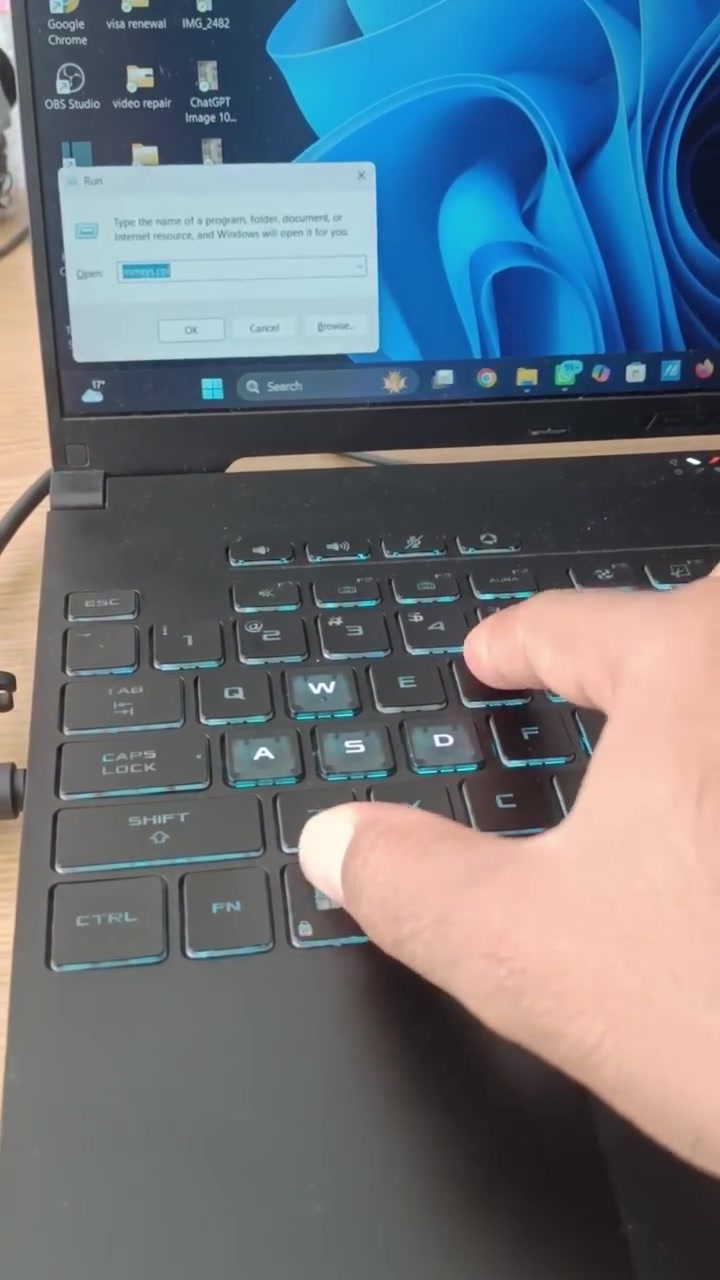
Windows shortcuts unlock hidden time-saving features, letting users accomplish tasks with simple key combinations instead of multiple steps. The process is quicker, especially for tasks that commanding a computer mouse can make slow and inefficient. The creator of the tutorial, MR A TALK, reveals that these shortcuts are for Windows 11 and 10.
The Magic of Windows Shortcuts
Shortcuts are special keyboard combinations that allow you to execute commands with a fraction of the usual clicks. They are essential for computer efficiency, reducing the total time spent on repetitive tasks. MR A TALK focuses on Windows 11 and 10, the two most recent versions, in the tutorial. These shortcuts are key to navigating the operating system quickly. Windows 11 features a more modern design, while Windows 10 has some differences in interface.
Navigation, file management, and system control are supported by shortcuts. Shortcuts like Windows + E open File Explorer, whereas Windows + R summons the Run box. The Ctrl + A command selects all items, while tipping Delete banishes them. This lets Windows users perform tasks much more quickly. Windows shortcuts are designed to be both intuitive and accessible, making them easy to learn and use, regardless of a user's technical proficiency.
The Need for Speed and Efficiency
Workstations and home computers are newer and faster. However, they are far from being all that time-saving. It’s why shortcuts are keenly desired, optimizing operational speed and efficiency. “At work, shortcuts allow me to complete tasks with fewer clicks, saving valuable time,” one user said. If shortcuts can save even 10 minutes per day, that’s over 60 extra hours per year.
The Power of Windows + R: Run Box
Windows + R is an entry point in the world of Windows shortcuts. It reveals a text box that appears in the lower-left corner of the screen. Pressing this shortcut brings up the Run box, a powerful tool for launching apps and files. Users should type in specific commands and then press Enter to execute them.
How do you remove unwanted contents from your PC? As per the tutorial, type cmd, then press Enter. Select all the files using Control A, and then delete. Temp is a common command here, which opens the temp folder. Caution is key: deleting wrong data can lead to irreversible solutions.
The Run dialog may not be glamorous, but it’s a versatile tool for advanced users. Professional services can be accessed with it, like Disc Cleanup for a cleanup tool, while Hit Enter triggers the command. Even “shutdown /s” shuts down the computer; “shutdown /r” restarts the system.
Mastering File Management
With shortcuts, copying, moving, and deleting files are a piece of cake. Windows 11 Shortcuts and Windows 10 Shortcuts make Windows shortcuts very intuitive. Start by pressing Windows + E, which opens the file explorer window. Managing file management becomes easier and quicker, less frustrating. Users can also rapidly toggle between open windows or applications using Alt + Tab. This shows a list of all the open applications in the foreground.
CRTL + X removes a file or folder, whereas Delete removes it. CRTL + C will copy data, while pasting them in another location becomes possible with CRTL +V. The file management shortcuts are especially important for working on projects where you have numerous documents and folders. It lets you move around quickly. Having your files organized is one of the most important strategies for time management.
A Simple Way to Boost Productivity
A computer keyboard does so much more than just type out your text. It can help you move around effortlessly, rearrange files with a few clicks, and boost overall productivity. Mr A TALK's tutorial focuses on computer tips and tricks that can help individuals make their day-to-day life easier. The tip here is simple: practice. At first, some shortcuts may seem convoluted and hard to remember. However, users should take their time to learn and remember them. It’s best to start with the basics and gradually move to more advanced shortcuts. The more you practice, the faster your fingers will learn to fly across the keyboard. The tutorial makes learning about shortcuts easier. It is possible to learn these shortcuts and practice them at your own pace. Practicing once, users can see instant improvements. Making shortcuts part of everyday computer use will make it easier and faster. Learning keyboard shortcuts is an effective way to spend time, boosting efficiency exponentially. This is how users can use a Windows keyboard shortcut to boost productivity and productivity.
Moving Forward with Shortcuts
Shortcuts bring a whole new speed and efficiency to computer use. But don’t just take a tutorial. Instead, commit a few shortcuts to memory. Practice daily until these shortcuts become instinctive. Once you get used to the shortcuts, you can perform tasks faster. You will be one step closer to performing productive shortcuts that will ease your tasks and boost efficiency and accuracy.
Questions readers ask
What are Windows shortcuts and how do they work?
Windows shortcuts are special key combinations that allow you to execute commands quickly without needing to click through multiple menus. For example, pressing `Windows + E` opens File Explorer, and `Windows + R` brings up the Run box. These shortcuts are designed to streamline tasks, making your workflow more efficient by reducing the number of clicks and steps required to complete actions.
Are these shortcuts available for both Windows 11 and Windows 10?
Yes, the shortcuts discussed in the tutorial are applicable to both Windows 11 and Windows 10. While there are some differences in the interface between the two versions, the shortcuts themselves work similarly across both operating systems, ensuring that users can benefit from these time-saving features regardless of which version they are using.
Can I use Windows shortcuts to manage files more efficiently?
Absolutely! Windows shortcuts are particularly useful for file management. For instance, `Windows + E` opens File Explorer, allowing you to navigate your files quickly. `Ctrl + A` selects all items, and `Delete` removes them, making tasks like copying, moving, and deleting files much faster and less frustrating.
What is the Run Box and how do I use it?
The Run box is a powerful tool that appears when you press `Windows + R`. It allows you to launch applications, open files, and even access system commands by typing specific instructions and pressing Enter. For example, typing `cmd` and pressing Enter opens the Command Prompt, while `temp` opens the temporary files folder. Be cautious, though, as deleting the wrong data can have irreversible consequences.
How much time can I save by using Windows shortcuts?
The time saved can be significant. If you save just 10 minutes per day by using shortcuts, that adds up to over 60 extra hours per year. This efficiency boost can be particularly beneficial in professional settings, where every minute counts. By reducing the number of clicks and steps needed to complete tasks, shortcuts help you work smarter, not harder.
Are Windows shortcuts difficult to learn and use?
Not at all! Windows shortcuts are designed to be intuitive and accessible, making them easy to learn and use regardless of your technical proficiency. Most shortcuts are simple key combinations that mimic common actions, so with a bit of practice, you'll be navigating your system like a pro in no time.
What are some advanced commands I can use with the Run Box?
The Run Box is quite versatile. You can use it to access advanced commands like `Disc Cleanup` for cleaning up your system, `shutdown /s` to shut down your computer, or `shutdown /r` to restart it. Typing `cmd` and pressing Enter opens the Command Prompt, where you can perform more advanced file management tasks, like deleting temporary files.
Related deep dives
Similar reads based on topic and creator.



Recent articles
Fresh deep dives from the latest Reels we unpacked.




Comments
Be the first to comment.