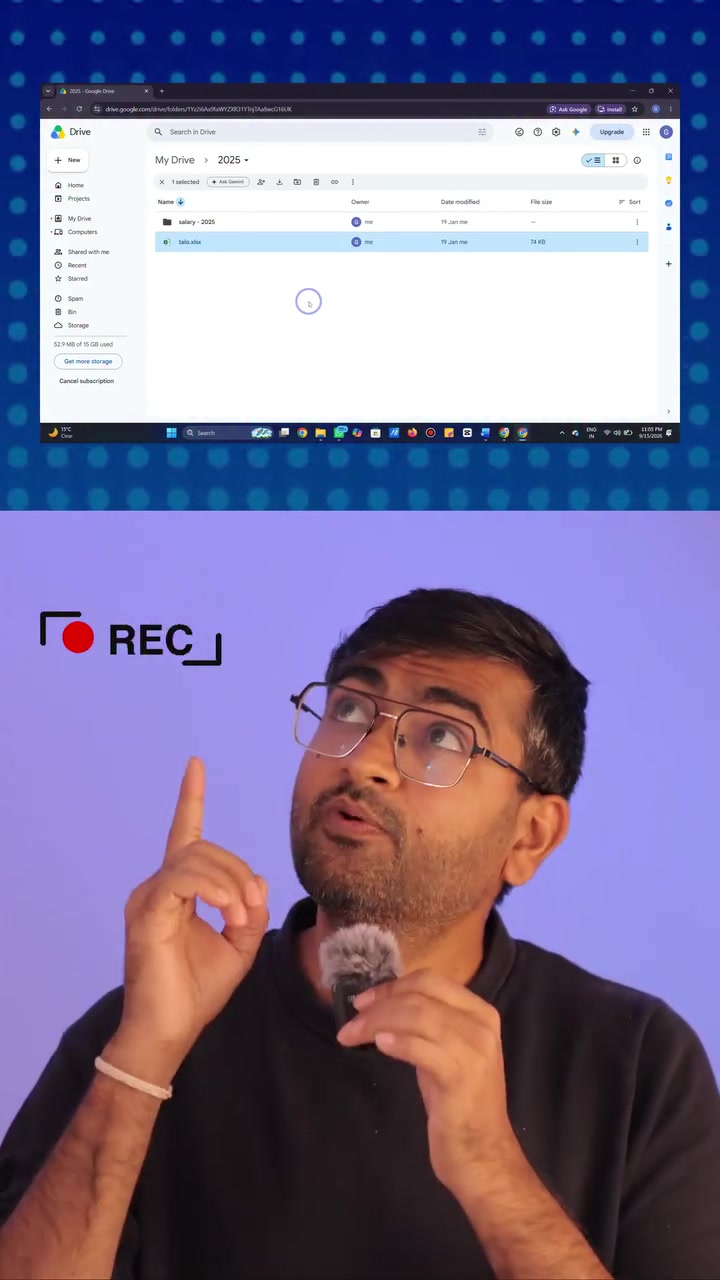
Truth is, most of us have recorded our screens for how-to videos or for work purposes. Imagine then, how much more useful it would be if it automatically records the motion of our mouse and fingertip used for clicking.
The magic of screen recording to showcase Google Drive
Screen recording routines let users capture everything on their desktop, enabling them to share video tutorials or demo software. Despite being a handy tool, traditional screen recorders often offer a basic, tame experience, recording only the screen and mostly lacking interactive elements. The short-video captions notes how some modern tools enable you to show more — each mouse click, cursor movement, and keyboard interaction done while recording. Menu actions can trail along with the video, making it easier to understand the workflow in a more engaging way.
Pixel clear: Why Google Drive screen records still matter
Among professionals and educators, Google Drive is much more than a digital filing cabinet. Demonstrate how to use Google Drive with ease, courtesy of precise mouse clicks and cursor movements included in the recording, and you make it easier for someone to follow along. Some Google Drive users have even memorized where to click for manipulative tasks. Modern screen recording tools power what Google Drive should have offered in the first place: a guided tour, showing not only what to click, but also showing how to organize files, manage metadata, set permissions, and collaborate with teams.
Differing features with the same goal
Some simple screen recorders offer barebones features. They record your screen, while leaving out key details. In the short video, Google Drive is introduced as a cloud-native productivity tool, showing how to use a screen recorder to automatically track mouse and keystrokes. Screen and audio capture isn't automatic for lightweight tools, and you may have to download extra apps for this functionality. Other screen recorders capture a static display of your screen and may not track interactions or the moving mouse.
How screen recording turns into a tutorial with Google Drive
What makes interactive screen recording more powerful is the fact that it teaches the user what to click on Google Drive, how to organize files, and even outlines text. The movements and clicks are highlighted automatically and animate together with the cursor. This is achieved by a combination of three main features. First, the mouse movements are recorded and superimposed. Next, the clicks are distinctly highlighted on the screen. These automatic actions are guided by the algorithm to differentiate between movements and clicks. Sometimes, it may even show keyboard presses, voice notes, and text highlighting that helps with accurate and enjoyable learning. This type of screen recording is beneficial for those who are trying to showcase Google Drive's capabilities as it engages the viewer.
How screen recording with Google Drive can ease the tutorials creators' lives
The process of screen recording for educational purposes can be streamlined when recording Google Drive tutorials. Users do not have to manually highlight and record the clicks and movements. Instead, this screen recorder automatically selects and records the clicks, mouse movements, and even keyboard interactions. This feature is mainly for those who are required to create a lot of tutorials, such as software developers, tech support teams, and software companies, as well as those who are required to use Google Drive on an everyday basis.
Audience awareness in screen recording
With Google Drive tutorials become easier to understand for beginners due to this type of screen recording. This feature can be used with both professional and personal use cases. The recording automatically shows the cursor path as a smart guide which will enable a novice user to follow along with the process easily. A user can learn the basic file organization and even productivity capabilities without having to navigate the interface from scratch. This feature can also be used for recordings in other platforms, increasing its usability for more than just Google Drive.
Google drive recording
Modern screen recording tools are designed to automatically capture all the movements and interactions made on screen. They ensure that the viewer can track every single movement. With the help of these tools, you can record Google Drive's file organization features with ease. The movements are recorded automatically and will be superimposed. These screen recordings come in handy for developers and technical support representatives to communicate clearly to the consumer. They can show how to use Google Drive by making use of the reel feature. It allows you to show the cursor movements and clicks automatically along with the screen. The recordings can also be used to create tutorials for beginners to learn the software even though it lacks the interactive elements. With increasing demands for video content and Google Drive's importance as an enterprise software, this capability for interactive screen recordings is a necessity. Screen recordings in Google Drive cover all essential elements with interactive features with this tool. It gives a better feel of knowing what to click in real-time. This shows the shift in consumer trends towards interactive and guided learning.
Specificity of needs
From Google Drive tutorials to showing the software functionalities of the newly updated software products automatic screen recording is beneficial for a lot of reasons. To make use of the full potential of the software, users should consider a few factors. Before recording, Animated cursor: Ensure that the cursor is animated as this will make the content more engaging and easy to understand. Microphone: Make use of the internal microphone while recording. This will ensure that any additional commentary can be added to the tutorial making it more detailed.
Practical guide to screen recording
Traditional screen recording tools can be limiting, especially for those who need to create tutorials or demos. For those looking to elevate their screen recording game, especially for Google Drive tutorials., here are some tips:
- Choose a tool with interactive features: Look for tools automatically track mouse movements and clicks. Such tools can help you create a more engaging tutorial.
- Plan your demo: Before you start recording, plan what you want to show. This will help you create a more cohesive and understandable tutorial.
- Use clear language: When explaining steps, use clear and simple language. This will help viewers understand the process better.
- Practice: Before recording the final tutorial, do a few test runs. This will help you identify any areas where you might need to improve.
- Engage with viewers: If you're creating a tutorial for a specific audience, consider their level of understanding and tailor your tutorial accordingly.
- Update your tools: Make sure your screen recording tool is up-to-date. New features and improvements can enhance the quality of your tutorials.
Remembering things
Google Drive is one of the most powerful collaborative tools on the market, and an interactive screen recording tutorial can help users unlock its full potential—quickly and efficiently. By showcasing the features with the interactive aspect, users are more likely to understand and remember what is done, and more importantly, why it is done. This can help users to grasp the how-to of structures and organize their files better.
Questions readers ask
What exactly is interactive screen recording and how does it differ from traditional screen recording?
Interactive screen recording is a more advanced form of screen capture that not only records what's on your screen but also tracks your mouse movements, clicks, and keyboard interactions. Traditional screen recorders typically just capture the screen's visuals and may not include these interactive elements, making it harder for viewers to follow along with complex processes like navigating Google Drive.
Can I use interactive screen recording to create tutorials for other software besides Google Drive?
Absolutely! While the article focuses on Google Drive, interactive screen recording can be used to create tutorials for any software. It's particularly useful for applications with complex interfaces or specific workflows, as it can show exactly where to click and what actions to take, making it easier for viewers to learn and follow along.
What are some modern screen recording tools that offer interactive features?
The article mentions that some modern tools enable you to show more than just the screen—including mouse clicks, cursor movements, and keyboard interactions. While it doesn't name specific tools, you can look for screen recorders that offer features like automatic mouse movement tracking, click highlighting, and even keyboard press display. These tools can make your tutorials more engaging and easier to understand.
How does interactive screen recording help in organizing files in Google Drive?
Interactive screen recording can help demonstrate how to organize files in Google Drive by showing exactly where to click and what actions to take. This includes showing how to create folders, move files, set permissions, and manage metadata. By highlighting these actions, viewers can see exactly how to replicate these steps on their own, making it easier to keep their Google Drive organized.
Do I need any special equipment or software to create interactive screen recordings?
You don't need any special equipment, but you will need software that supports interactive screen recording. Some tools may require additional apps for full functionality, such as capturing audio or tracking keystrokes. The article suggests looking for tools that can automatically track these interactions, making the recording process smoother and more effective.
Related deep dives
Similar reads based on topic and creator.


Recent articles
Fresh deep dives from the latest Reels we unpacked.



Comments
Be the first to comment.