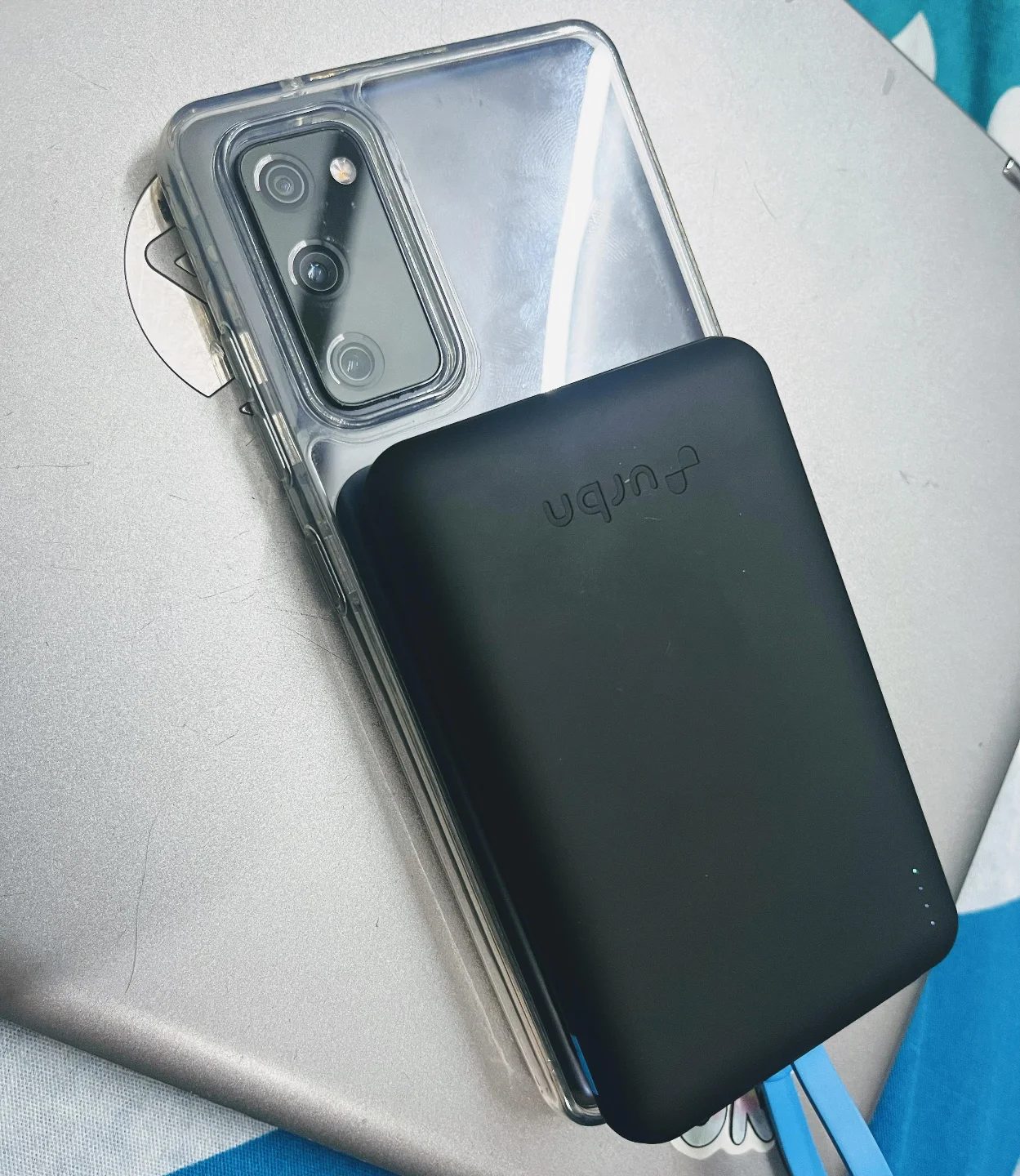
Turning an Old Android Smartphone into a Travel Router with NAS
Turning an old Android smartphone into a travel router with Network Attached Storage (NAS) capabilities can be a game-changer for avid travelers. This setup not only provides a reliable Wi-Fi hotspot but also offers a convenient way to store and share files on the go. This guide will walk you through the process, from choosing the right equipment to setting up the network and configuring NAS functionality.
Why This Matters
In an era where connectivity is king, having a reliable internet connection and access to your files is crucial. Whether you're on a long vacation, a business trip, or just need a portable Wi-Fi solution, transforming your old Android smartphone into a travel router with NAS capabilities can save you money and provide peace of mind. It eliminates the need for multiple devices and ensures you always have access to your important files.
Main Discussion
Equipment You Need
Before diving into the setup, you'll need a few key components:
- Old Android Smartphone: Any Android device with a decent battery life and ample storage will work. The phone will serve as both the router and the NAS.
- Power Bank: A reliable power bank, like the Anker, is essential for keeping your phone charged on the go. Choose one with high capacity and fast charging capabilities.
- MicroSD Card (Optional): If your phone supports expandable storage, a high-capacity microSD card can significantly increase your NAS storage capacity.
- USB OTG Adapter (Optional): For connecting external hard drives or other USB devices to your phone.
Setting Up the Travel Router
-
Root Your Phone (Optional but Recommended): Rooting your phone gives you more control over its settings and allows for better customization. However, it voids your warranty and can pose security risks, so proceed with caution.
-
Install a Custom ROM (Optional): Custom ROMs like LineageOS or Paranoid Android offer more features and better performance for older devices. This step is optional but can enhance your phone's capabilities.
-
Install Required Apps: Download and install apps like PdaNet+, FoxyDNS, and Wi-Fi Direct. These apps will help you set up the Wi-Fi hotspot and manage your network.
-
Configure the Wi-Fi Hotspot:
- Open the Settings app on your Android phone.
- Go to Network & Internet > Hotspot & tethering.
- Tap on Wi-Fi hotspot and toggle it on.
- Set a strong password to secure your network.
-
Optimize Battery Life: Since your phone will be acting as a router, battery life is a concern. Enable Battery Saver mode and consider using a power bank to keep your phone charged.
Configuring NAS Functionality
-
Install a File Manager: Use a file manager app like Solid Explorer or X-plore File Manager to manage your files.
-
Set Up Network Storage: Use apps like KWS, Web File Explorer, or Local Web Server to turn your phone into a web server and enable file sharing over the network.
-
Access Your Files Remotely:
- Open the web server app and start the server.
- Note the IP address provided by the app.
- On another device, open a web browser and enter the IP address to access your files.
Enhancing Security
- Secure Your Network: Use a strong, unique password for your Wi-Fi hotspot. Consider changing the default SSID to something less identifiable.
- Enable Firewall: Use a firewall app like AFWall+ to control network traffic and protect your phone from unauthorized access.
- Encrypt Your Data: Encrypt sensitive files using apps like Folder Lock or Crypton.
Practical Tips
- Battery Management: Invest in a high-capacity power bank to ensure your phone stays charged. Look for models with fast charging capabilities to minimize downtime.
- Storage Solutions: Use a microSD card or connect an external hard drive to increase storage capacity. This is especially useful if you plan to store large files or backups.
- Network Optimization: Position your phone in a central location to maximize Wi-Fi coverage. Avoid placing it near metal objects or other devices that can interfere with the signal.
- Regular Updates: Keep your apps and custom ROMs updated to benefit from the latest features and security patches.
- Backup Your Data: Regularly back up important files to avoid data loss. Use cloud services or external storage solutions to ensure your data is safe.
Important Takeaways
- Versatility: Turning an old Android smartphone into a travel router with NAS capabilities offers versatility and convenience, making it an ideal solution for travelers and remote workers.
- Cost-Effective: This setup is cost-effective, as it repurposes an old device and eliminates the need for additional hardware.
- Portability: The compact size of a smartphone makes it easy to carry, ensuring you always have a reliable internet connection and access to your files on the go.
- Customization: With rooting and custom ROMs, you can tailor the device to meet your specific needs, enhancing its performance and functionality.
Conclusion
Transforming an old Android smartphone into a travel router with NAS capabilities is a practical and cost-effective solution for anyone in need of a portable Wi-Fi hotspot and file storage. By following the steps outlined in this guide, you can create a reliable and customizable network setup that meets your travel needs. From choosing the right equipment to optimizing battery life and enhancing security, this setup ensures you stay connected and have access to your files wherever you go.
Questions readers ask
What are the benefits of turning an old Android phone into a travel router with NAS?
Transforming an old Android phone into a travel router with NAS capabilities offers several benefits. It provides a reliable and portable Wi-Fi solution, allowing you to stay connected on the go. Additionally, it enables convenient file sharing and storage, ensuring you have access to your important files wherever you are. This setup is also cost-effective, as it repurposes an old device that might otherwise go to waste.
What equipment do I need to turn an old Android phone into a travel router with NAS?
To set up a travel router with NAS using an old Android phone, you'll need a few key items. Firstly, ensure your old Android phone is charged and fully functional. You'll also need a portable power source, such as a power bank, to keep the phone powered during travel. Additionally, you may require a USB OTG (On-The-Go) adapter to connect external storage devices, and a stable internet connection to share via the hotspot. Some apps, like PdaNet+ or portable Wi-Fi hotspot apps, may also be necessary for the setup.
Is it possible to use any Android phone for this setup, or are there specific models that work best?
While most Android phones can be repurposed into a travel router with NAS, some models may offer better performance. Phones with larger batteries and more robust hardware, such as older flagships, tend to work better for this purpose. However, any Android phone running a recent version of the operating system should be capable of handling the basic functionalities required for a travel router with NAS. The key is to have a device that supports tethering and has sufficient storage for your needs.
How do I set up the NAS functionality on my old Android phone?
To set up NAS functionality, you'll need to use a third-party app like NASKit or FolderSync. Once installed, connect an external storage device using a USB OTG adapter. Open the app and configure it to share the connected storage over the network. This will allow other devices to access the files stored on the external drive. Make sure both the NAS app and the Wi-Fi hotspot are enabled on your phone for seamless file sharing.
Can I use my old Android phone as a travel router with NAS without an external storage device?
Yes, you can use your old Android phone as a travel router with NAS without an external storage device, but the storage capacity will be limited to the phone's internal memory. This setup is suitable for sharing smaller files or for users who have enough internal storage. However, for larger files or more extensive storage needs, connecting an external storage device via a USB OTG adapter is recommended to expand the storage capacity.
How can I ensure the security of my travel router with NAS setup?
Securing your travel router with NAS setup is crucial. Start by setting a strong password for your Wi-Fi hotspot to prevent unauthorized access. Additionally, use a reputable app for NAS functionality that offers security features. Be cautious about the data you share over the network, and consider using encryption for sensitive files. Regularly updating your phone's software and apps can also help protect against vulnerabilities.
Related deep dives
Similar reads based on topic and creator.




Recent articles
Fresh deep dives from the latest Reels we unpacked.




Comments
Be the first to comment.