The Remarkable Microsoft Word Teaching Story in Ghana
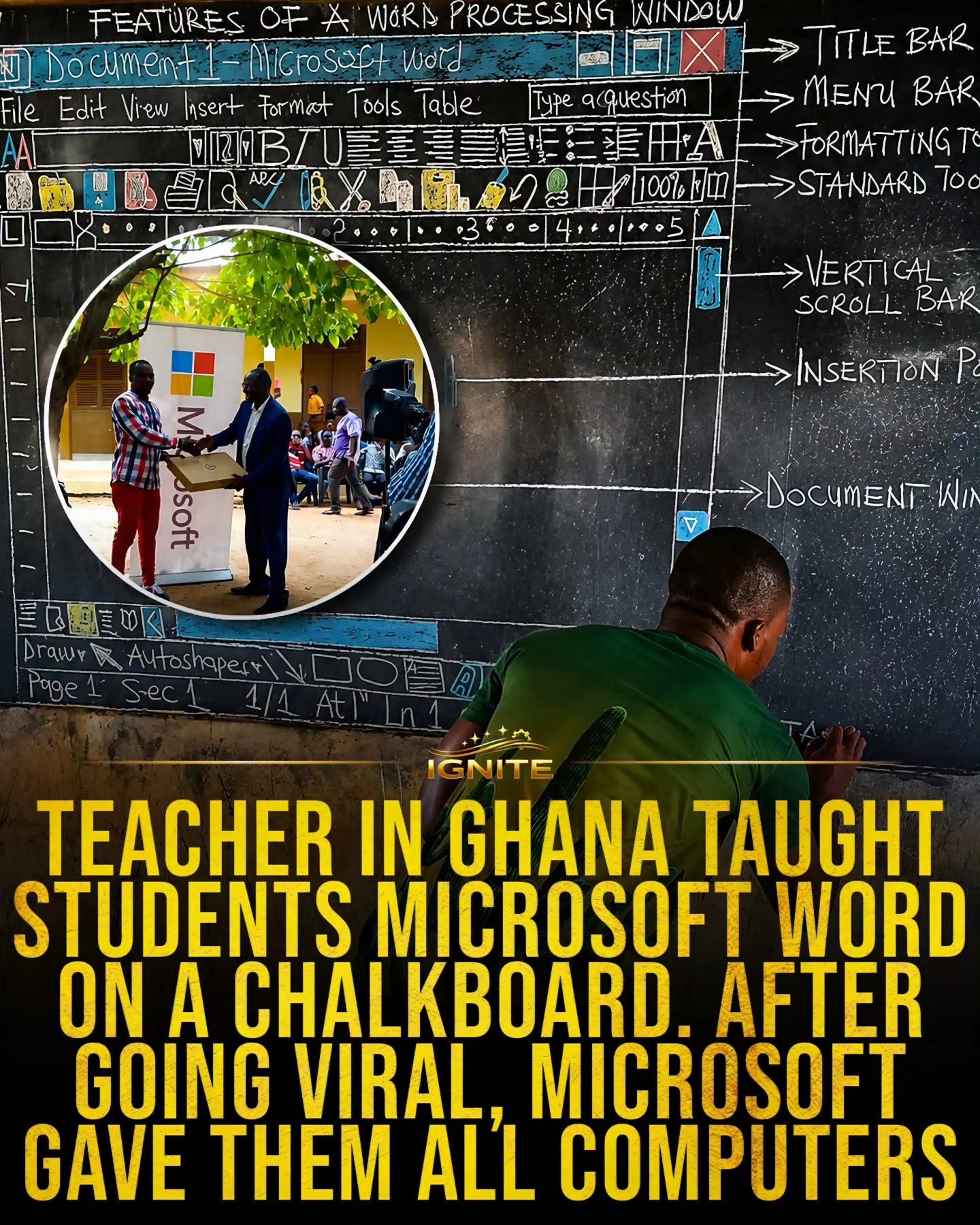
The innovation lies at the intersection of resourcefulness and technology. A teacher in Ghana took the initiative to teach Microsoft Word to students using a chalkboard. This creative approach showcased the adaptability and dedication of educators in resource-constrained environments. The story highlights how a simple chalkboard can bridge the gap between traditional teaching methods and modern software tools.
Why This Matters
This teaching method demonstrates the importance of adaptability in education. It shows how dedicated teachers can leverage whatever resources are available to introduce students to essential computer software. The story also underscores the impact of social media in bringing attention to educational initiatives, leading to tangible support for under-resourced schools.
The Microsoft Word Interface
Microsoft Word is a widely used word processing application that includes a variety of features to enhance productivity and document creation. Understanding the components of the Word interface is crucial for effective use.
Title Bar
The title bar is located at the top of the Word window. It displays the name of the document you are working on and provides options to minimize, maximize, and close the window. The title bar is essential for managing your documents efficiently.
Menu Bar
The menu bar is situated just below the title bar. It contains dropdown menus like File, Edit, View, Insert, Format, Tools, Table, and Help. Each menu provides a range of options to perform various tasks, such as opening and saving files, editing text, and formatting documents.
Formatting Tools
Formatting tools are crucial for enhancing the appearance and readability of your documents. These tools allow you to change the font, size, color, and style of your text. They also provide options for aligning text, creating lists, and applying borders and shading.
Standard Toolbar
The standard toolbar houses commonly used commands like Save, Open, Print, Cut, Copy, Paste, and Undo. It offers quick access to frequently performed actions, making the document creation process more efficient.
Vertical Scroll Bar
The vertical scroll bar is located on the right side of the Word window. It allows you to navigate through long documents by scrolling up and down. This feature is particularly useful when working with extensive texts.
Insertion Point
The insertion point, often represented by a blinking cursor, indicates where new text will be inserted. It helps users stay focused on their writing by showing exactly where the next character will appear.
Document Window
The document window is the central area where you view and edit your document. It displays the content of your file and provides space for formatting and inserting elements like images, tables, and charts.
Practical Tips for Effective Use of Microsoft Word
Utilize Shortcuts
Keyboard shortcuts can significantly speed up your workflow. Memorize commonly used shortcuts like Ctrl+S (Save), Ctrl+P (Print), and Ctrl+Z (Undo). These shortcuts can save you time and improve productivity.
Customize the Ribbon
The ribbon in Microsoft Word can be customized to include only the tools you use most frequently. To customize the ribbon, go to the File menu, select Options, and then choose Customize Ribbon. This allows you to tailor the interface to your specific needs.
Explore Add-Ins
Microsoft Word supports a variety of add-ins that can enhance its functionality. Add-ins can help with tasks like grammar checking, creating bibliographies, and integrating with other software. To explore and install add-ins, go to the Insert tab and select Get Add-ins.
Important Takeaways
The story of the teacher in Ghana teaching Microsoft Word on a chalkboard offers several important insights. It highlights the necessity of adaptability in education, the importance of demonstrating the use of computer software in teaching, and the significant role of social media in amplifying educational initiatives.
Adaptability in Teaching
Adaptability is a key trait for educators, especially in environments with limited resources. This example shows that teachers can effectively use traditional tools to introduce modern software, ensuring that students gain essential skills regardless of the available technology.
The Power of Social Media
Social media platforms can play a critical role in bringing attention to educational initiatives. The story of the teacher in Ghana illustrates how sharing innovative teaching methods online can lead to support and resources, benefiting both the students and the educational institution.
Conclusion
The story of a teacher in Ghana using a chalkboard to teach Microsoft Word is a testament to human ingenuity and the power of education. It underscores the importance of adaptability and the impact of social media in amplifying educational efforts. By leveraging available resources and sharing innovative teaching methods, educators can make a significant impact on their students' learning experiences. Always remember, creativity and dedication can bridge the gap between traditional and modern teaching methods.
Questions readers ask
How did a teacher in Ghana manage to teach Microsoft Word using a chalkboard?
The teacher used a chalkboard to draw diagrams and illustrations mimicking the Microsoft Word interface. This allowed students to visualize and understand the layout and functions of the software. The teacher also wrote down steps and commands to further aid comprehension. The classroom activities were documented and shared online, capturing the essence of the innovative teaching method.
What specific features of Microsoft Word were taught using this method?
The teacher likely covered basic features such as opening and saving documents, formatting text, inserting images, and using various tools like spell check. By drawing these features on the chalkboard, the teacher made abstract concepts more tangible for students. It was a hands-on approach to learning software without actual computers.
How did the chalkboard teaching method help students understand Microsoft Word?
The chalkboard method helped students by providing a visual representation of the software interface. By drawing each step and feature, it made the learning process more interactive and easier to follow. Students could see the layout and functions of Microsoft Word, which would be beneficial when they used the software on a computer.
Why was this teaching approach significant in the context of Ghanaian education?
This approach was significant because it showcased the adaptability of teachers in resource-constrained environments. By using a chalkboard, the teacher demonstrated that lack of technology does not have to be a barrier to learning. It highlighted the ingenuity and dedication of educators in Ghana.
How did social media play a role in this story?
Social media played a crucial role by helping to share this innovative teaching method with a wider audience, which led to the teacher’s story going viral. This increased visibility helped to inspire others in similar situations to find creative solutions to teaching challenges.
What can other teachers learn from this story about teaching software creatively?
Teachers can learn the importance of adaptability and innovation. It shows that even without access to computers, creative teaching techniques can be used to introduce students to software tools. By using simple tools like a chalkboard, teachers can bridge the gap between traditional and modern teaching methods.
What are the main benefits of using diagrams and illustrations in teaching software?
Using diagrams and illustrations helps students visualize complex software interfaces and functions, making them easier to understand. It provides a clear roadmap for students to follow, which can enhance their learning experience and retention of the material.
Related deep dives
Similar reads based on topic and creator.


Recent articles
Fresh deep dives from the latest Reels we unpacked.




Comments
Be the first to comment.